OpenAI
이 페이지는 기계 번역되었습니다. 영어 원문 보기

Google Workspace - 관리자 관리 설정

마지막 수정: 19 days ago

관리자 관리 설정을 사용해 Google Workspace를 ChatGPT에 연결하려면 먼저 Google의 관리자 콘솔에서 액세스를 구성해야 합니다.

  • 서비스 계정 만들기: Google Drive, 사용자, 그룹에 대한 읽기 전용 액세스 권한이 있어야 합니다.

    • 이 서비스 계정은 ChatGPT 워크스페이스와 연결된 동일한 Google 계정 아래에서 생성하는 것을 강력히 권장합니다. ChatGPT 워크스페이스의 계정이 Google Workspace에서 사용하는 이메일 도메인과 다르면, 사용자를 위해 이 커넥터를 활성화하려면 추가 단계를 따라야 합니다.

  • 관리자 계정 만들기: 서비스 계정이 이 계정을 대신해 작업하게 됩니다.

그런 다음 ChatGPT 관리자 콘솔에서 설정을 완료하세요.

  • 서비스 계정의 비공개 키 업로드 (Google에서 받은 JSON 파일)

  • 관리자 계정 지정 (자격 증명 불필요)

  • 동기화할 파일 선택 및 연결에 액세스할 사용자 선택

이 가이드는 이 6단계를 각각 안내합니다.

서비스 계정 설정하기

  1. console.cloud.google.com으로 이동합니다.

  2. 프로젝트 드롭다운을 클릭합니다.ImageChatGPT 워크스페이스와 연결된 것과 동일한 Google workspace에 로그인되어 있는지 확인하세요(ChatGPT 워크스페이스와 연결된 Google workspace가 없고 두 환경의 이메일이 서로 다르면, 추가 단계를 따라야 합니다. 그렇지 않으면 사용자가 Google Drive 동기화 커넥터를 사용하지 못할 수 있습니다).

  3. New Project를 선택합니다.

    Google Cloud Select a resource dialog with dolores-lab.com organization selected
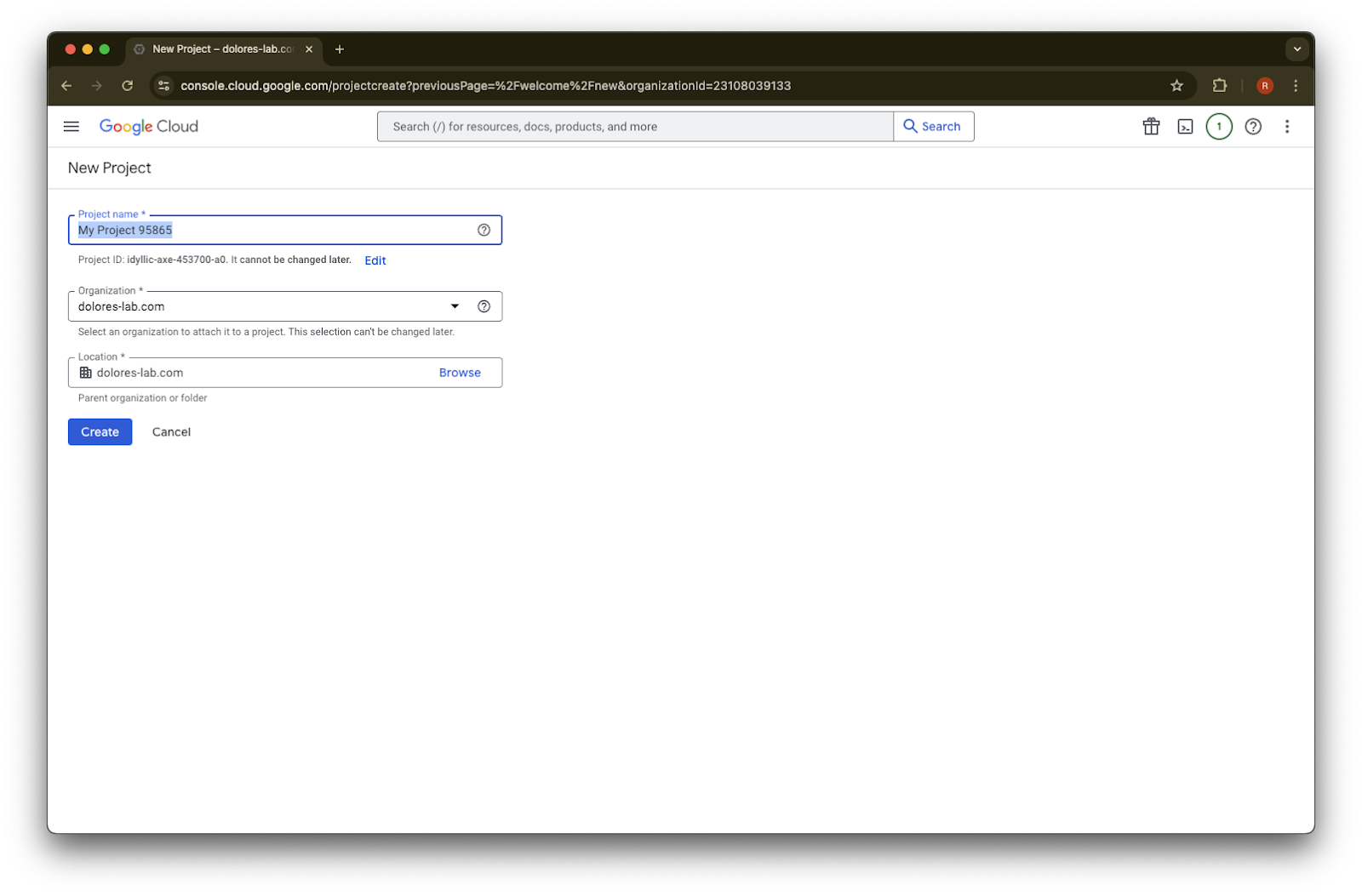
  4. Project Name을 입력합니다.

    Google Cloud New Project form with organization dolores-lab.com selected and Create button available
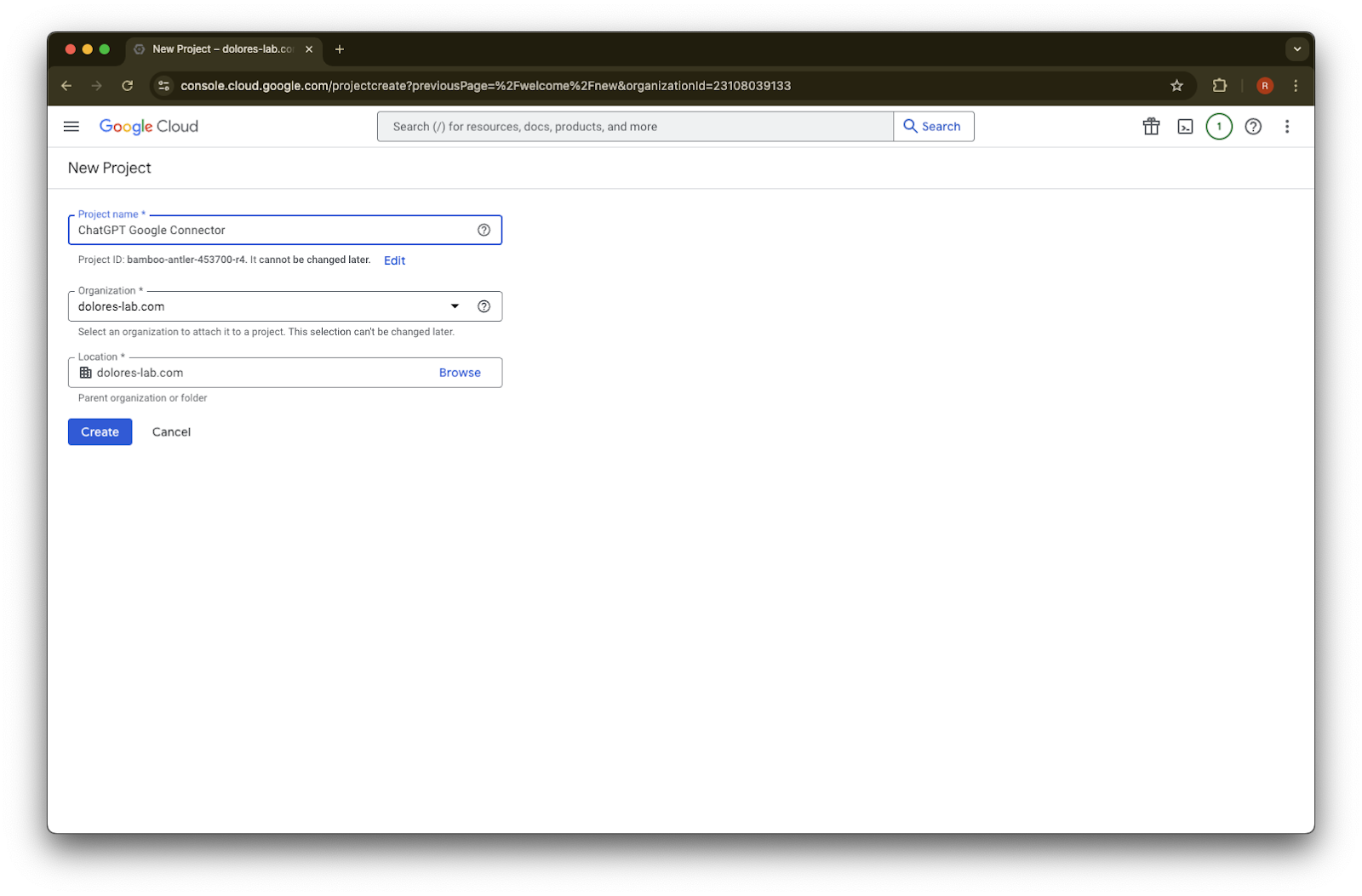
  5. 프로젝트를 생성합니다.

    Google Cloud New Project form with ChatGPT Google Connector entered under the dolores-lab.com organization
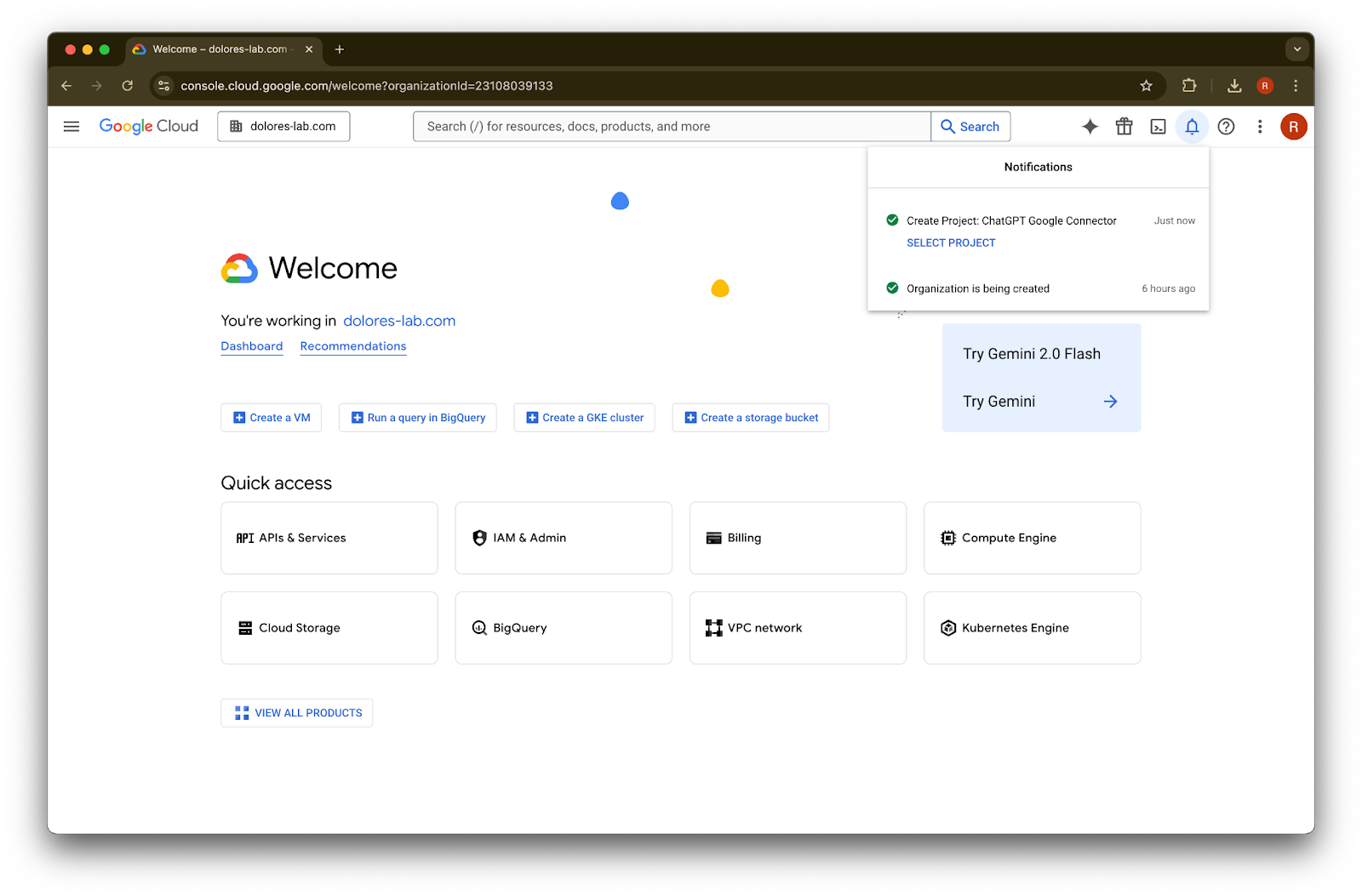
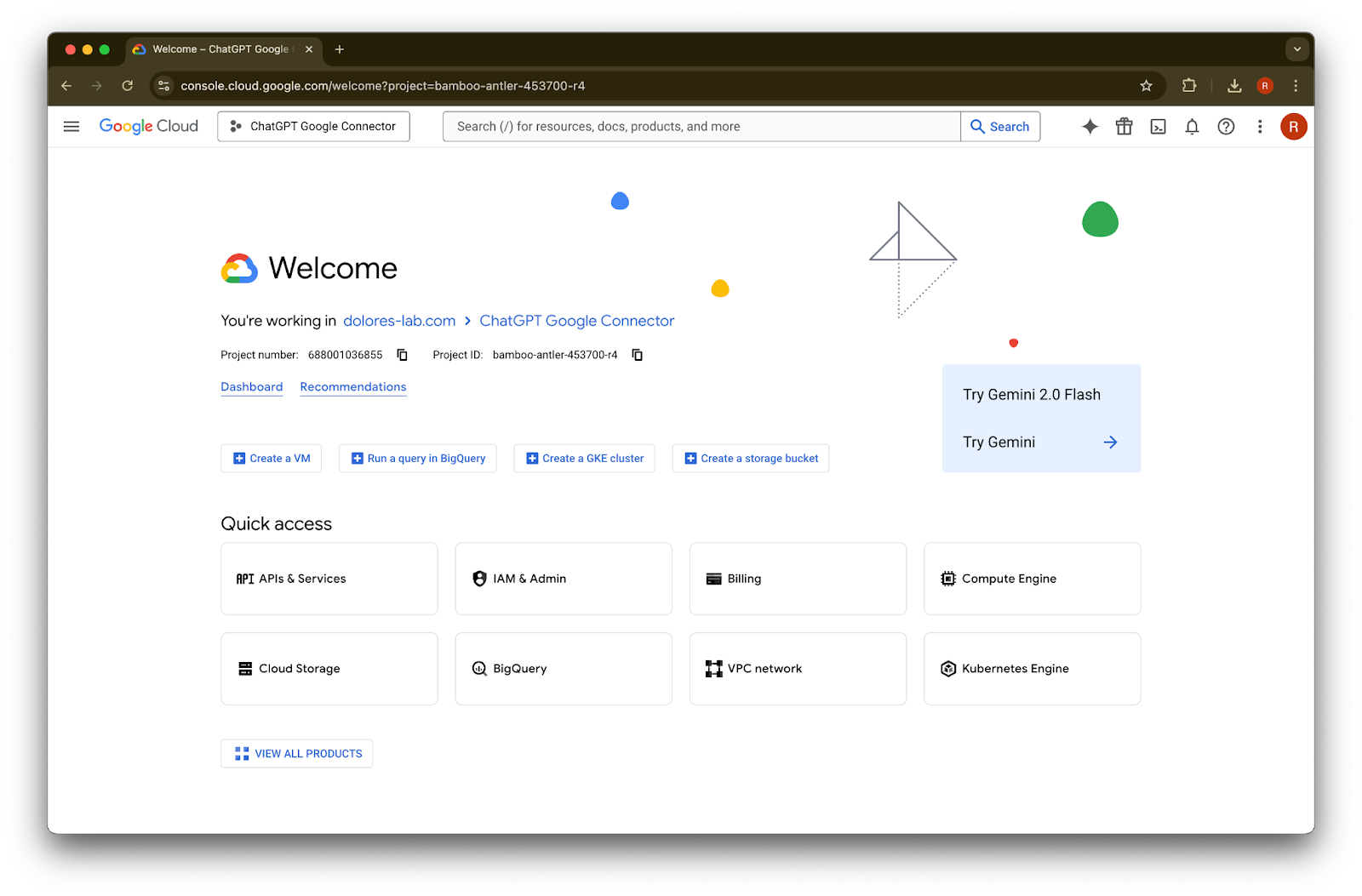
  6. 프로젝트가 생성될 때까지 기다린 다음 Select Project를 클릭합니다.

    Google Cloud notifications confirm creation of the ChatGPT Google Connector project for dolores-lab.com
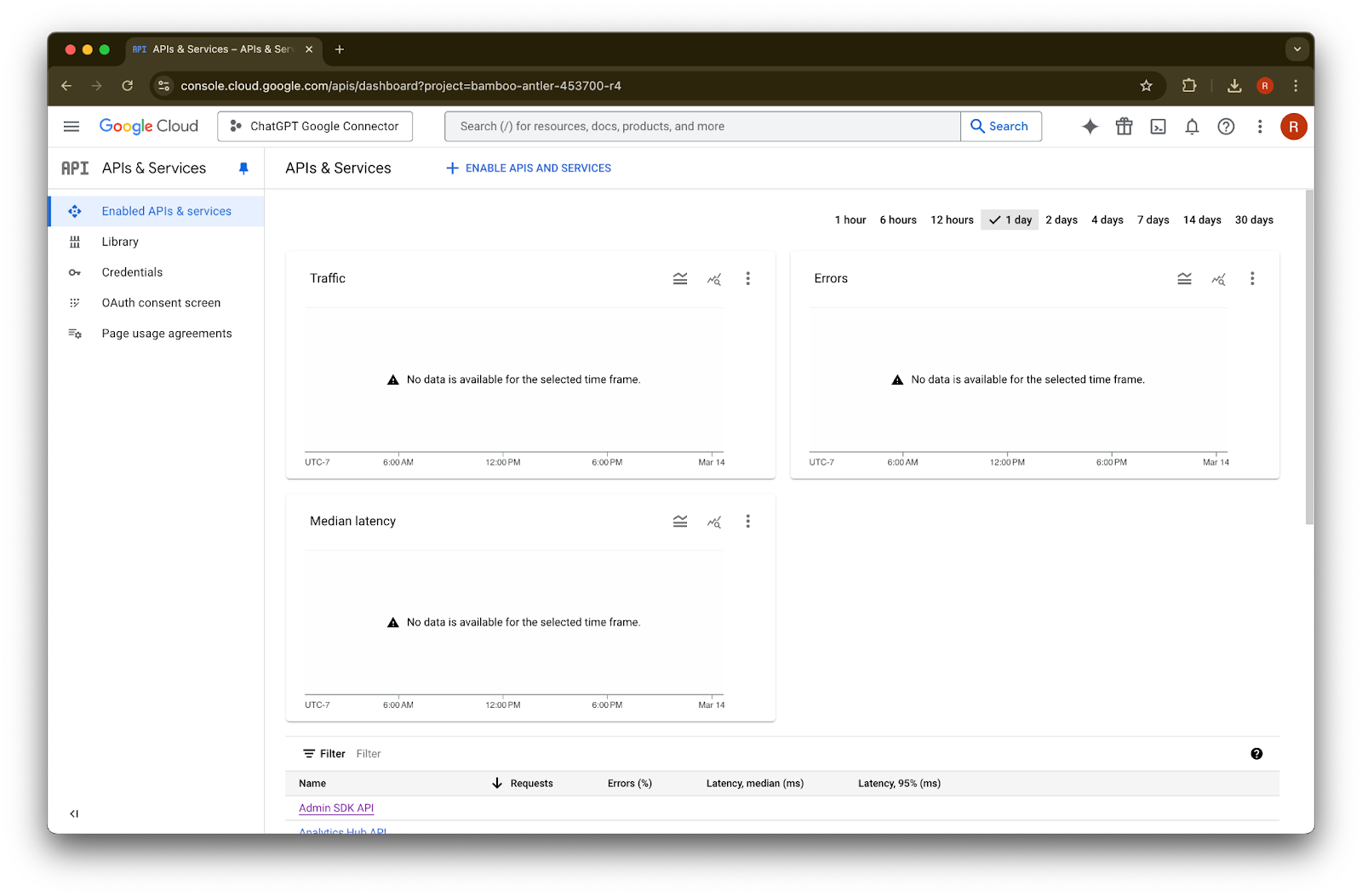
  7. APIs & Services를 클릭합니다.

    Image
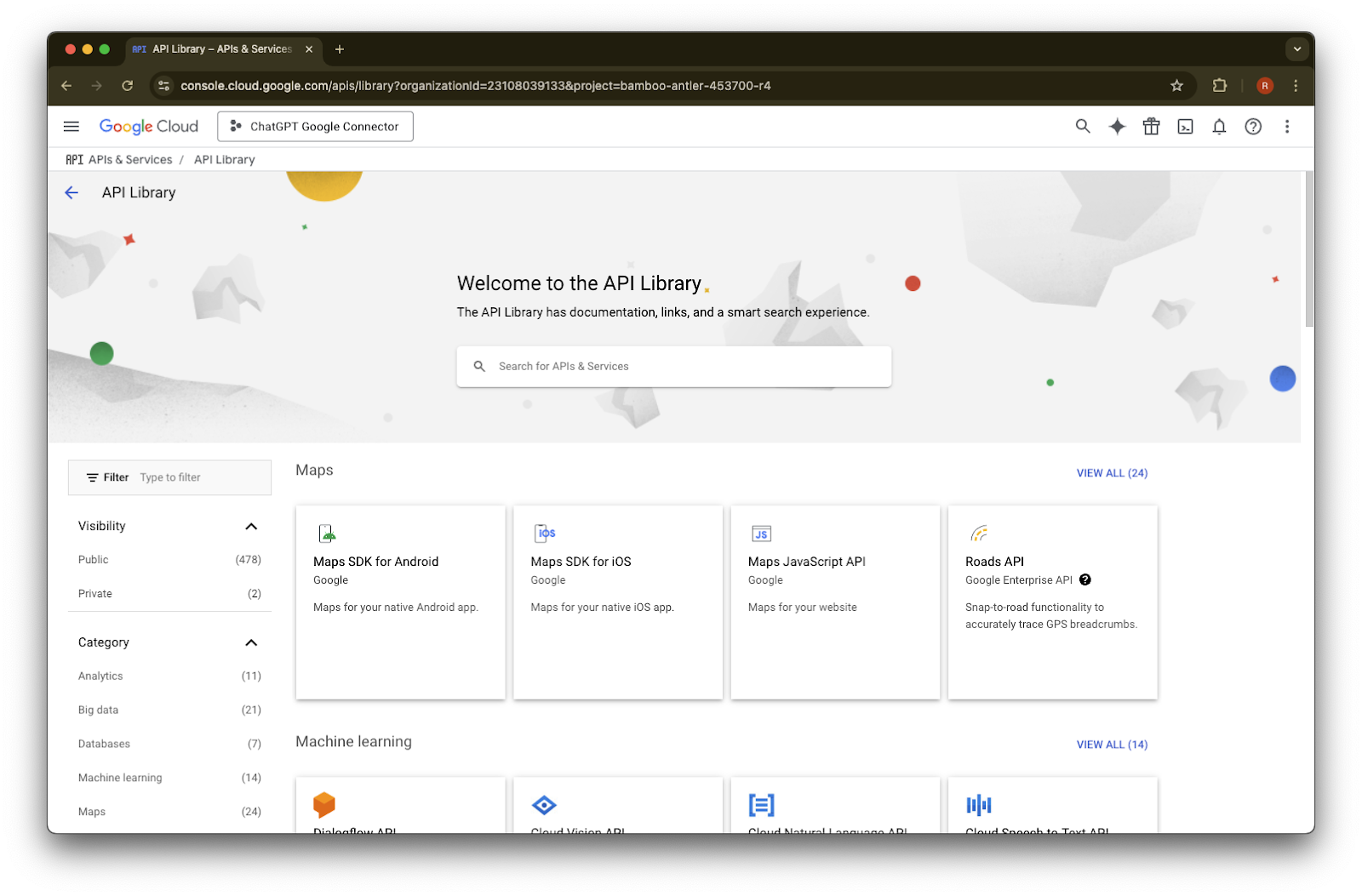
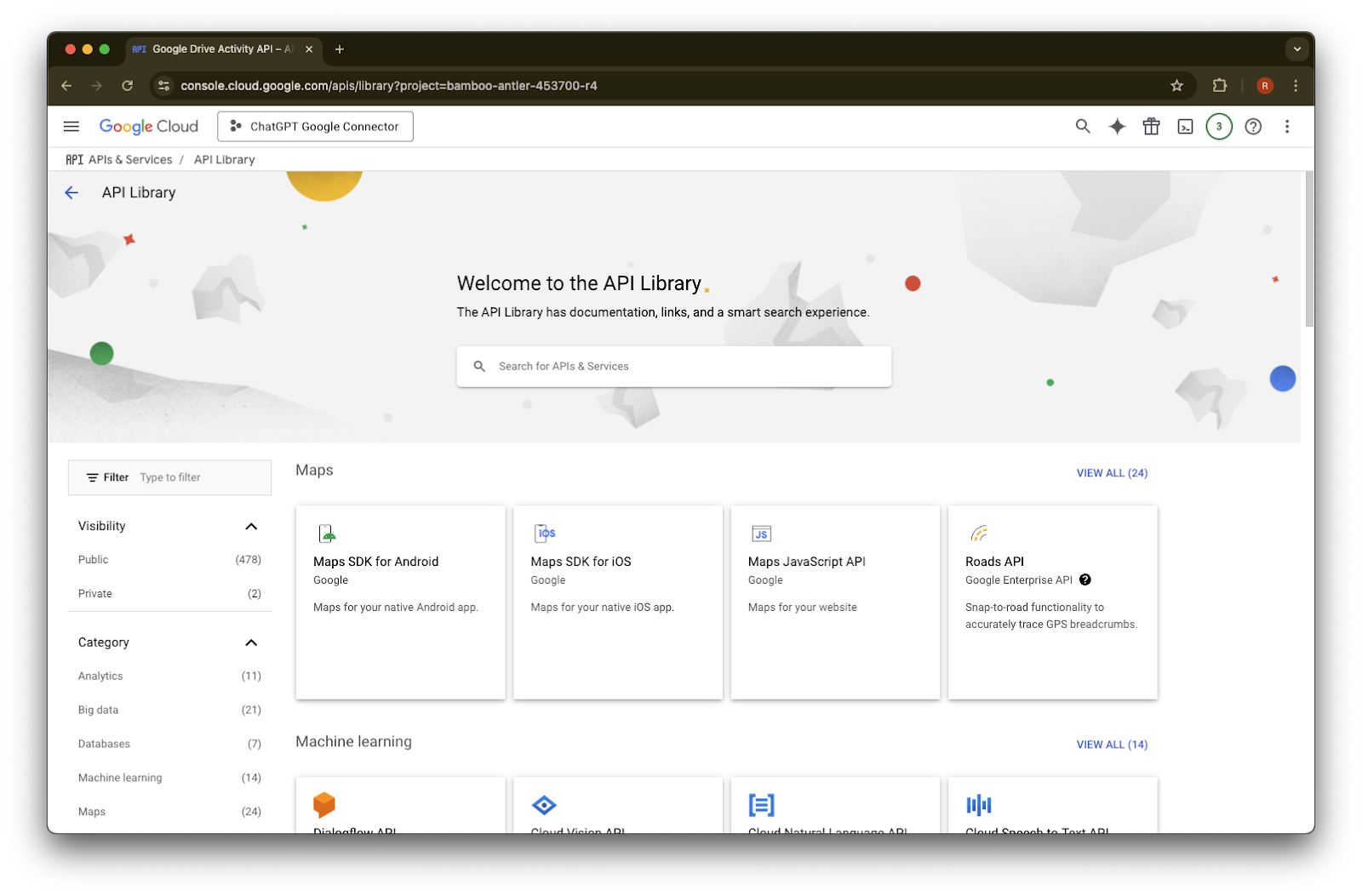
  8. Library를 클릭합니다.

    Image
  9. 이제 세 가지 API를 추가하겠습니다. 찾을 때는 search box를 사용합니다.

    Google Cloud API Library page with the ChatGPT Google Connector project selected
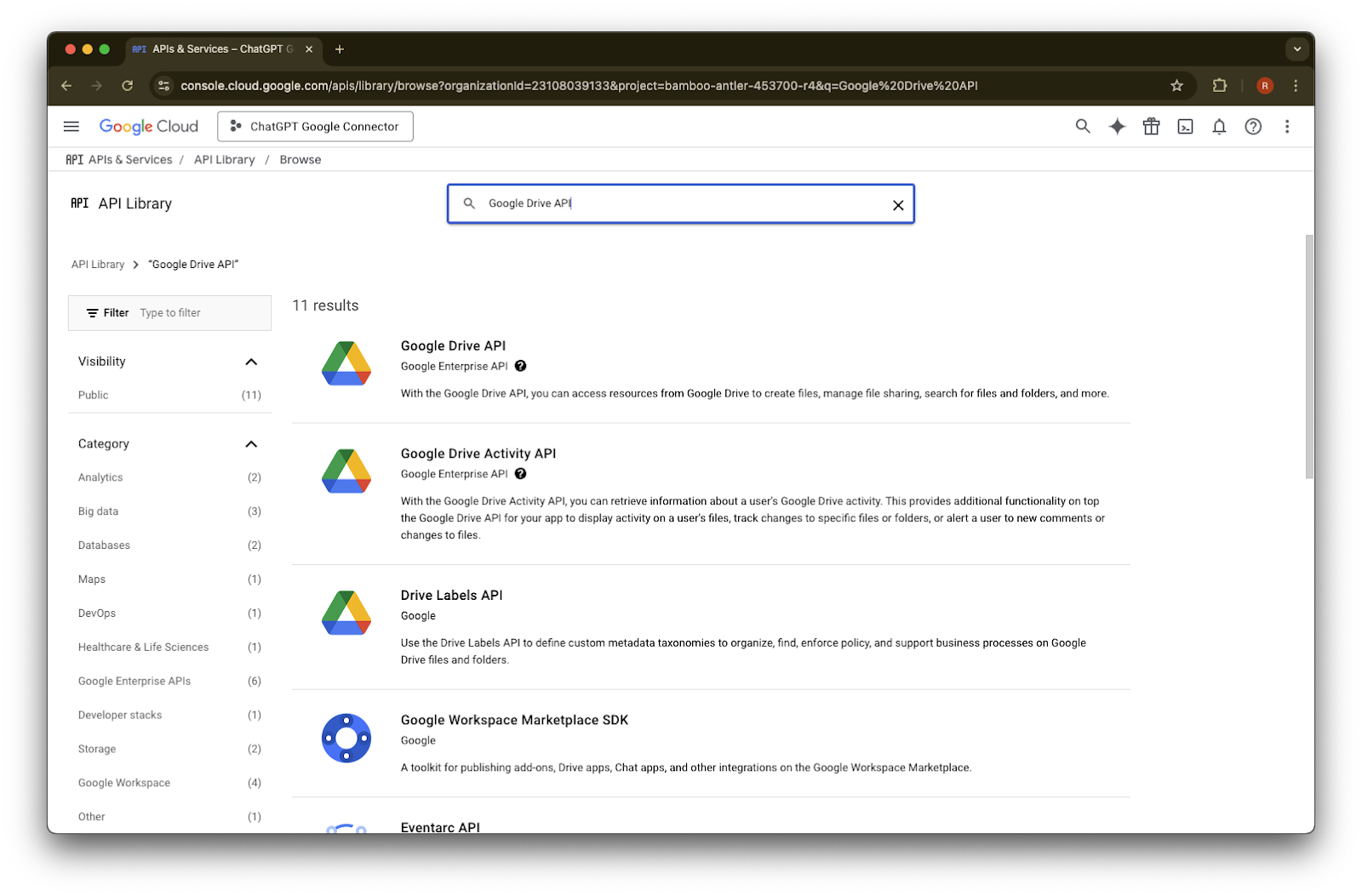
  10. Google Drive API를 검색하여 선택합니다.

    Google Cloud API Library search results for Google Drive API in the ChatGPT Google Connector project
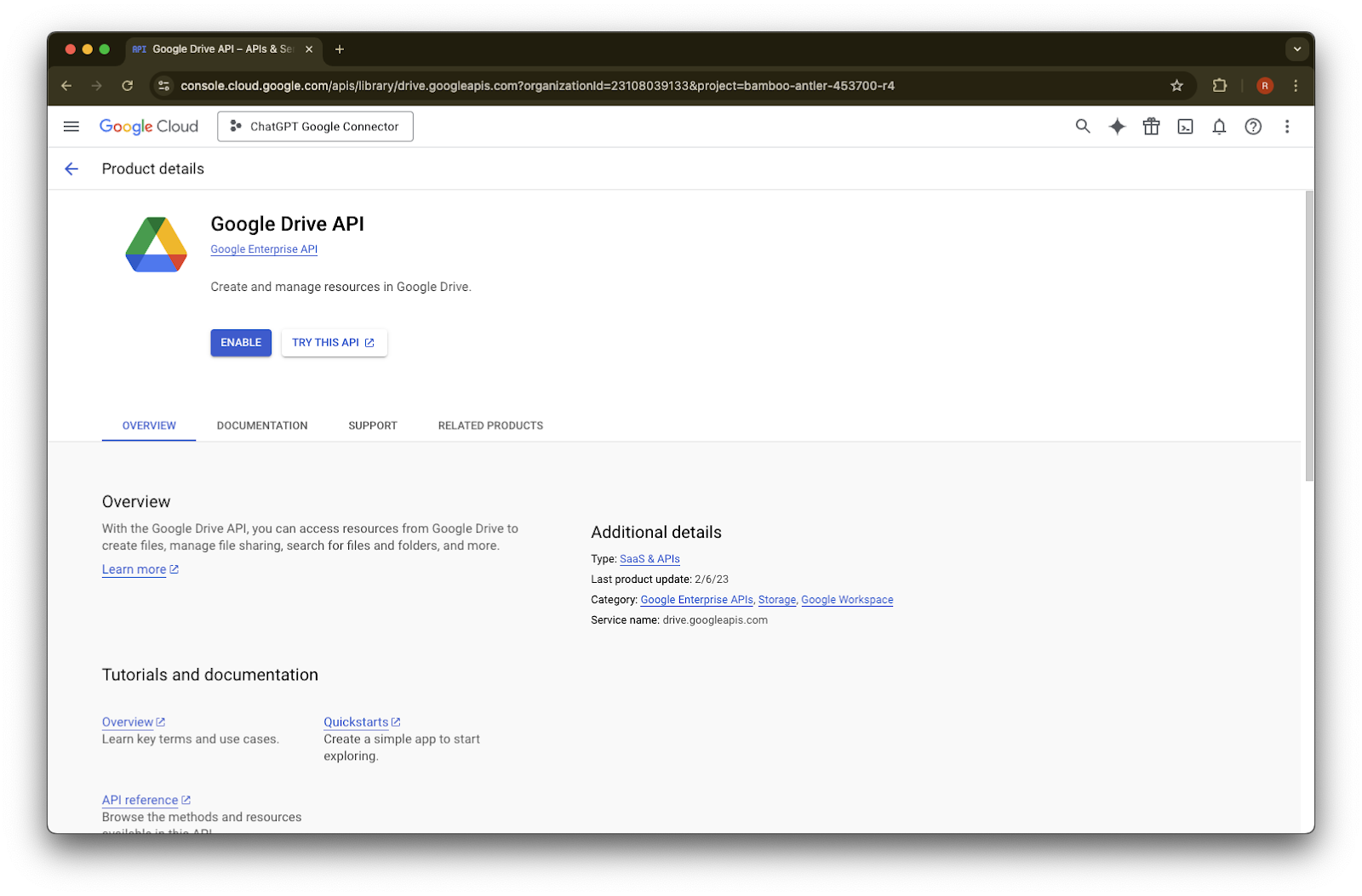
  11. Enable을 클릭합니다.

    Google Cloud Console Google Drive API page with the Enable button for the ChatGPT Google Connector project
  12. Library를 클릭합니다.

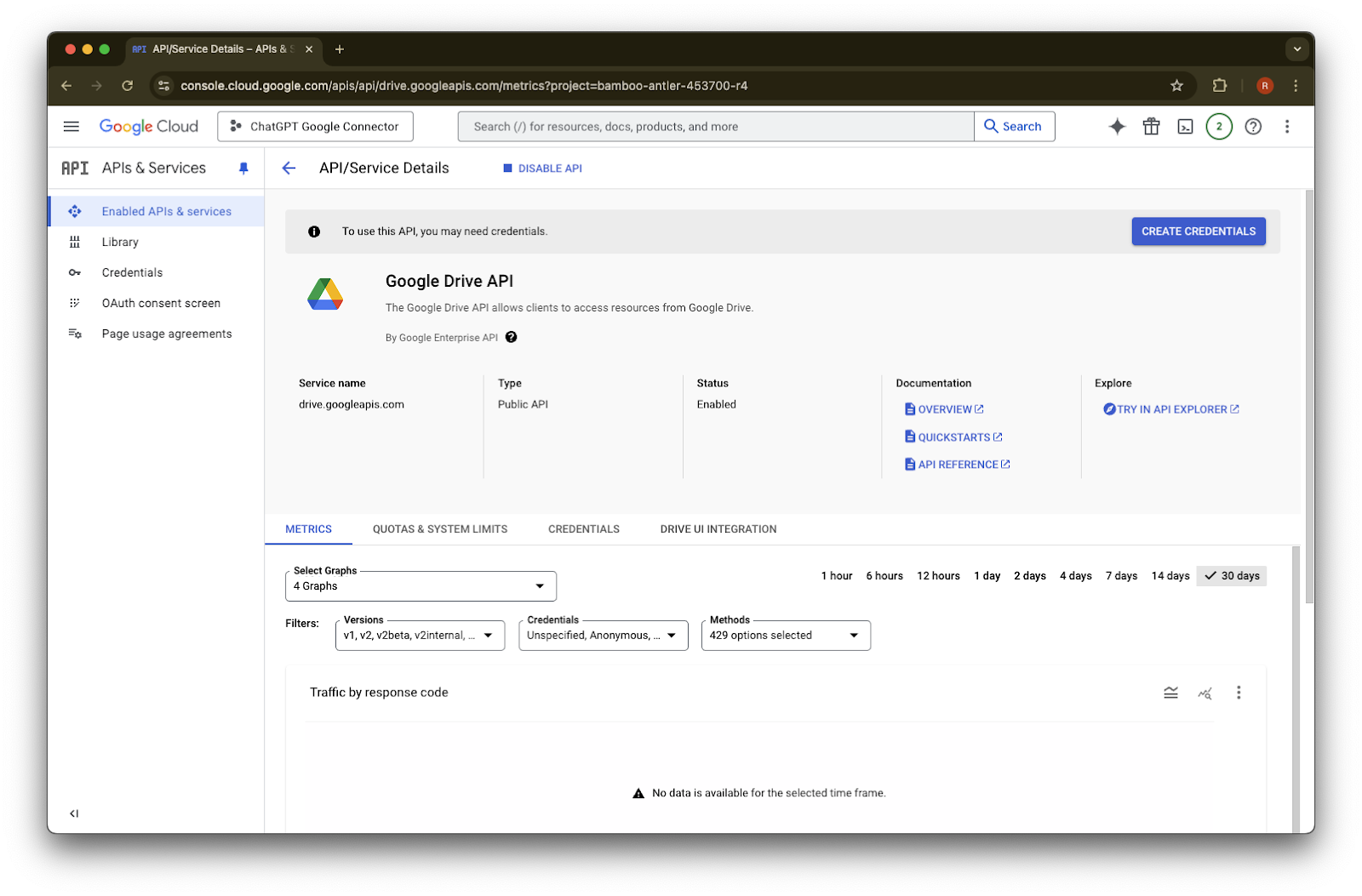
    Google Drive API details page with the API enabled and Create Credentials available
  13. Google Drive Activity를 검색합니다.

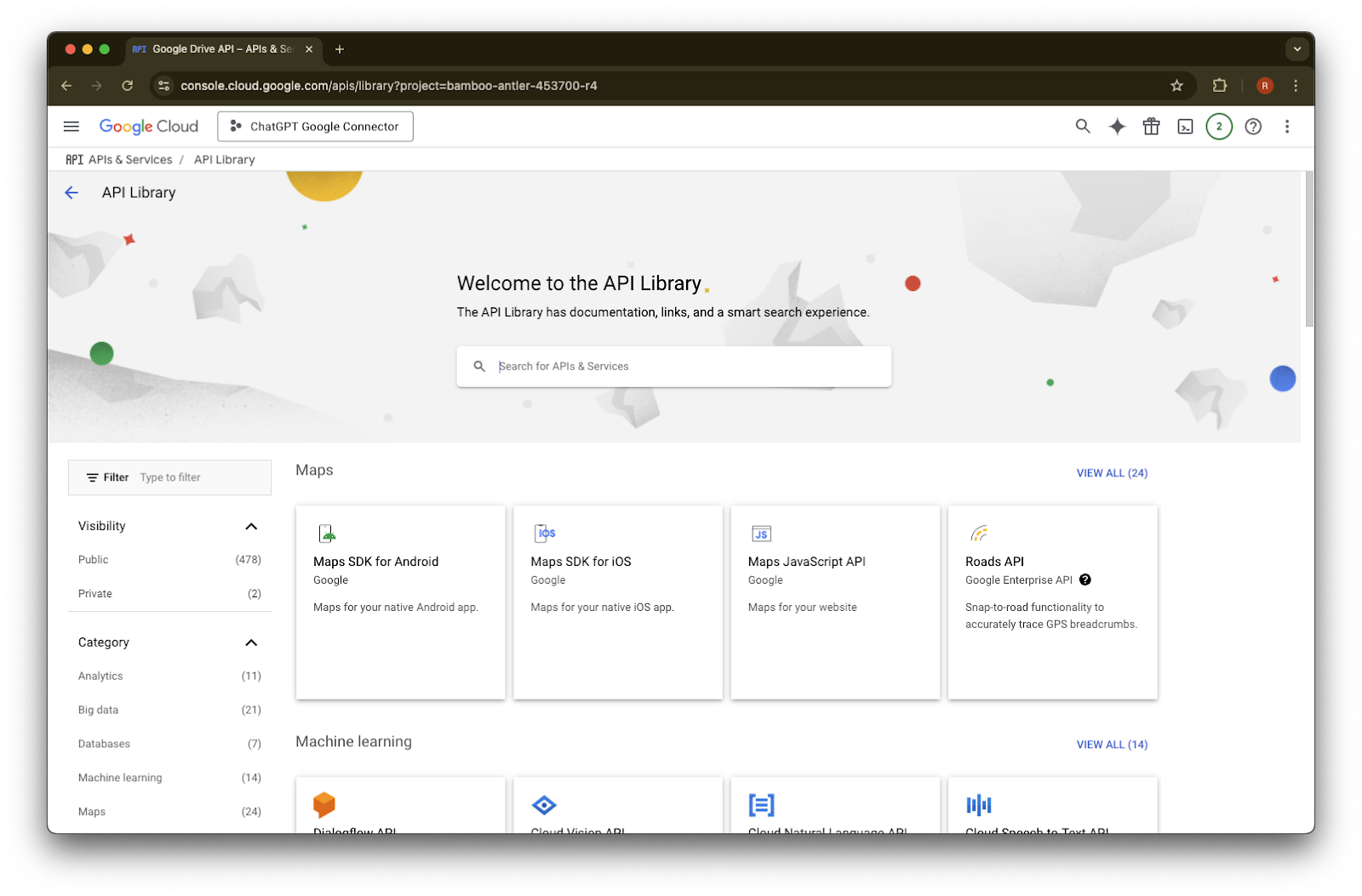
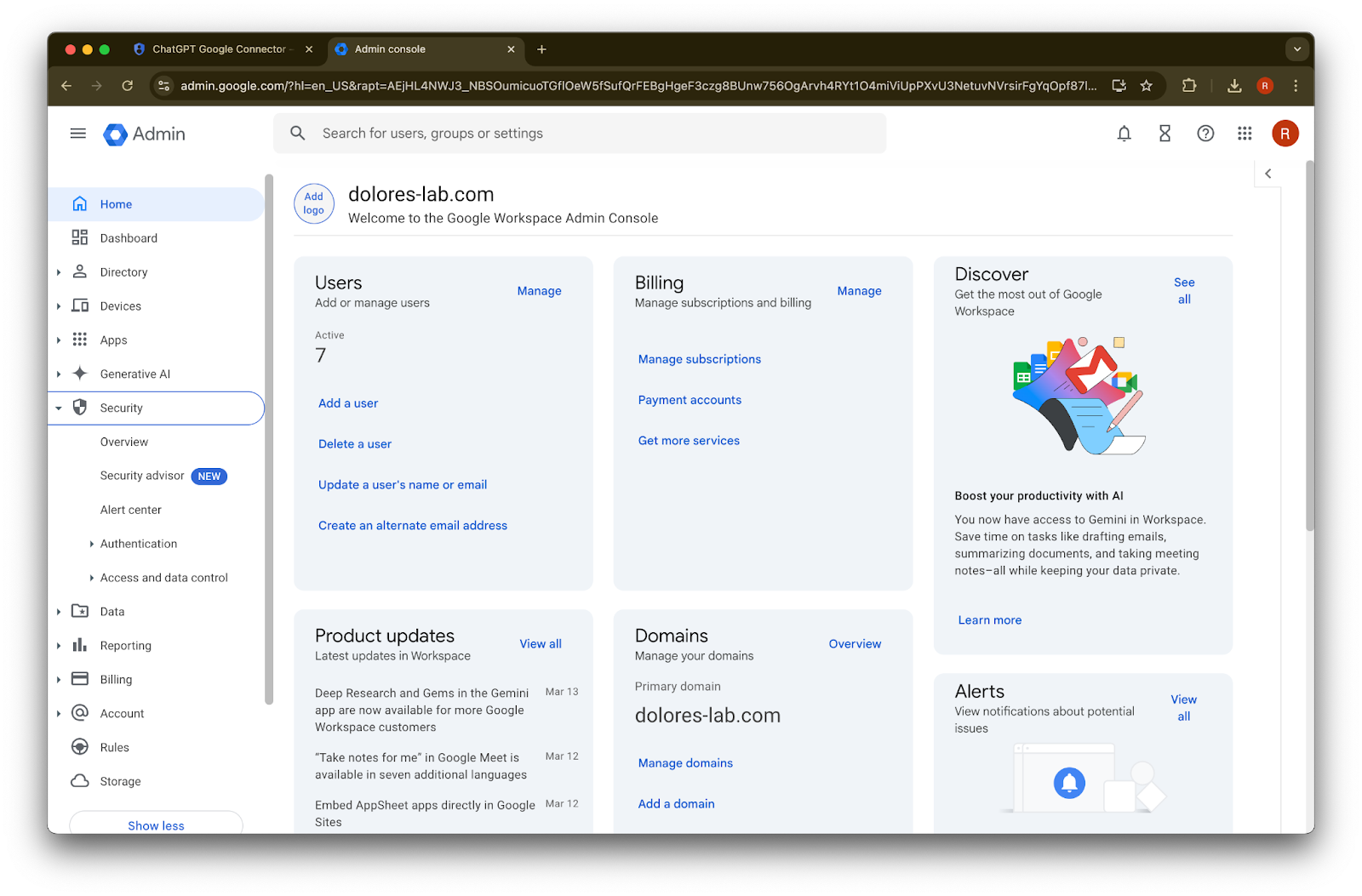
    Google Cloud API Library open for the ChatGPT Google Connector project
  14. Google Drive Activity API를 선택합니다.

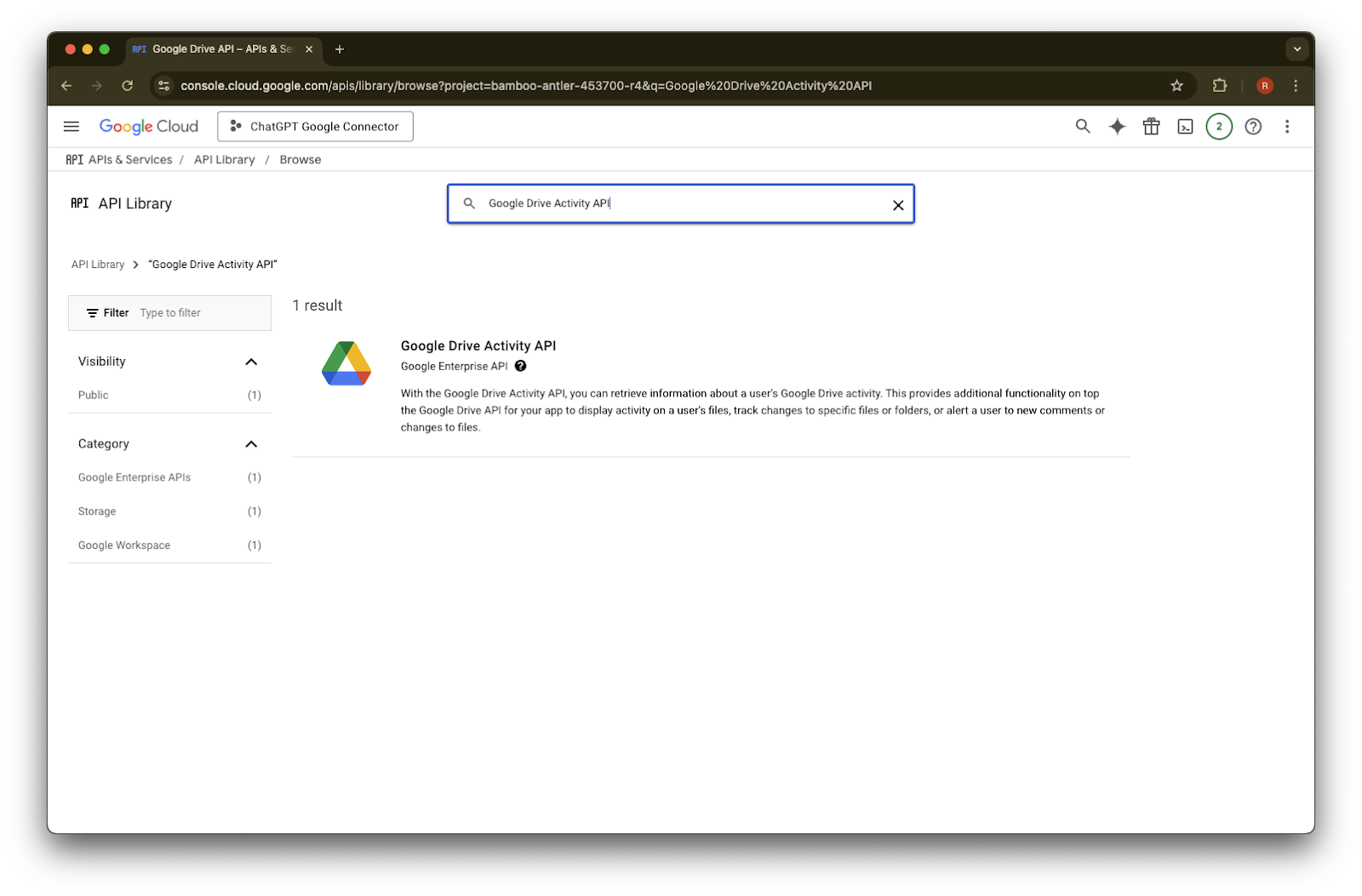
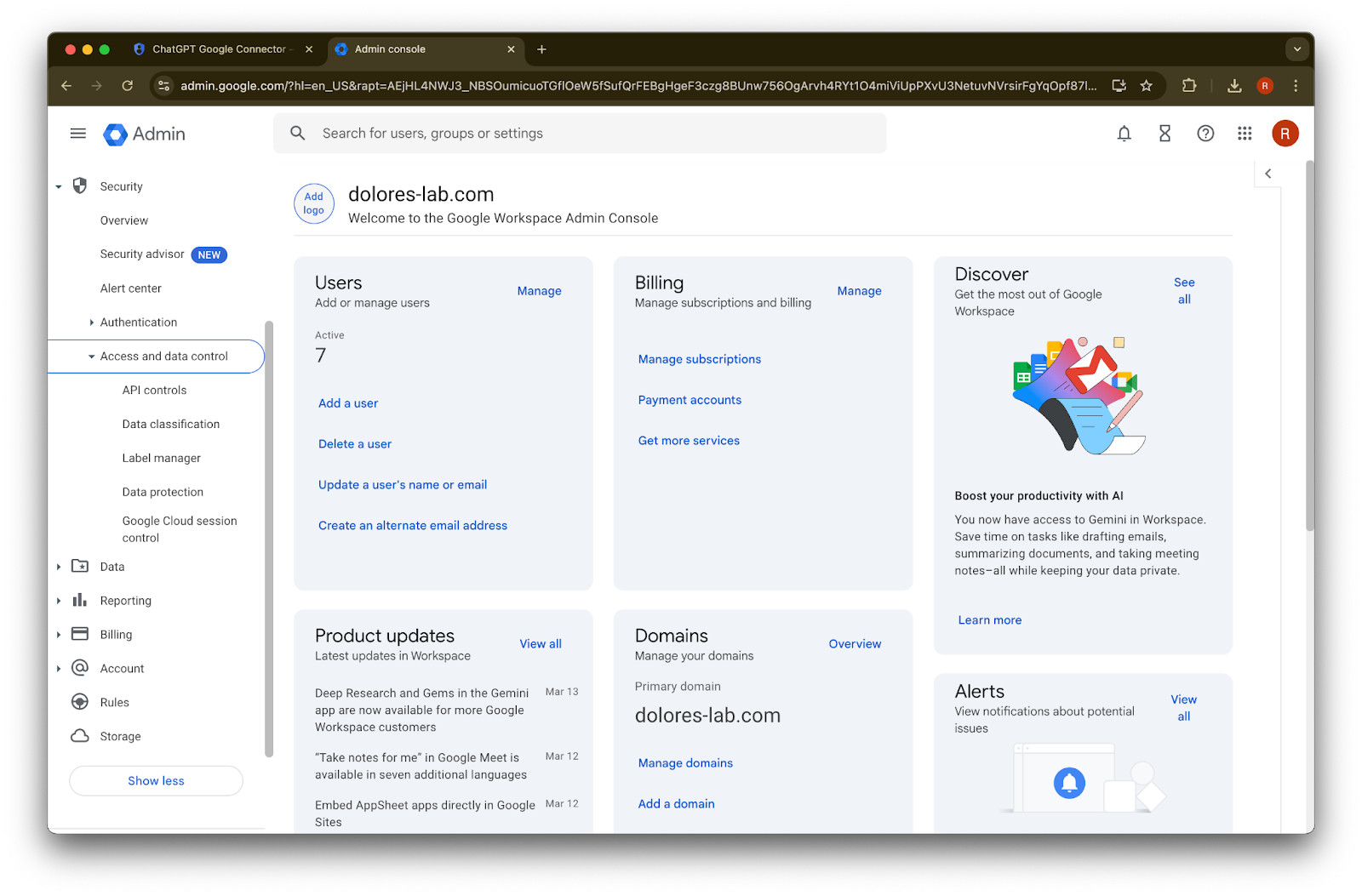
    Google Cloud API Library search results for Google Drive Activity API
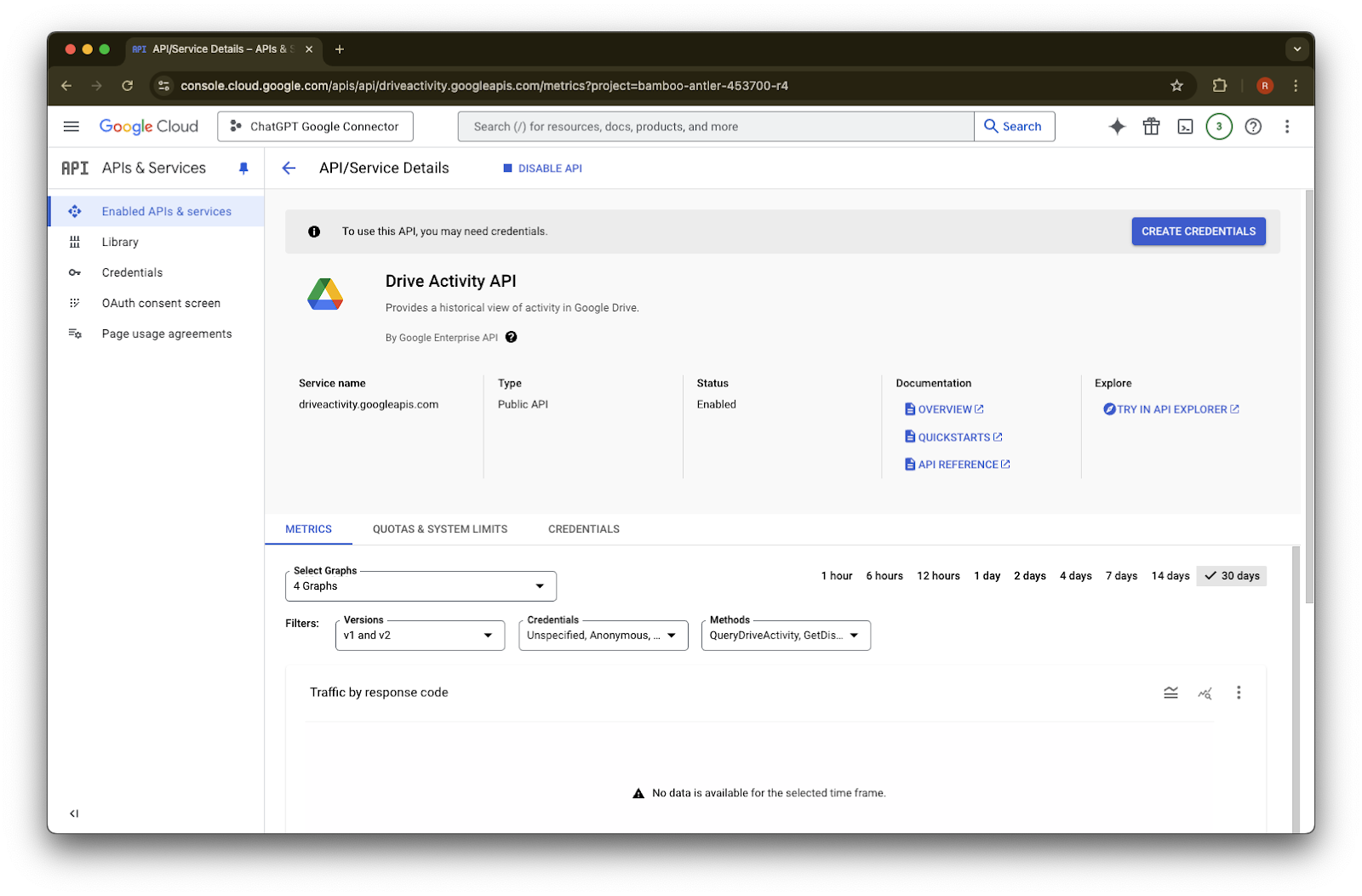
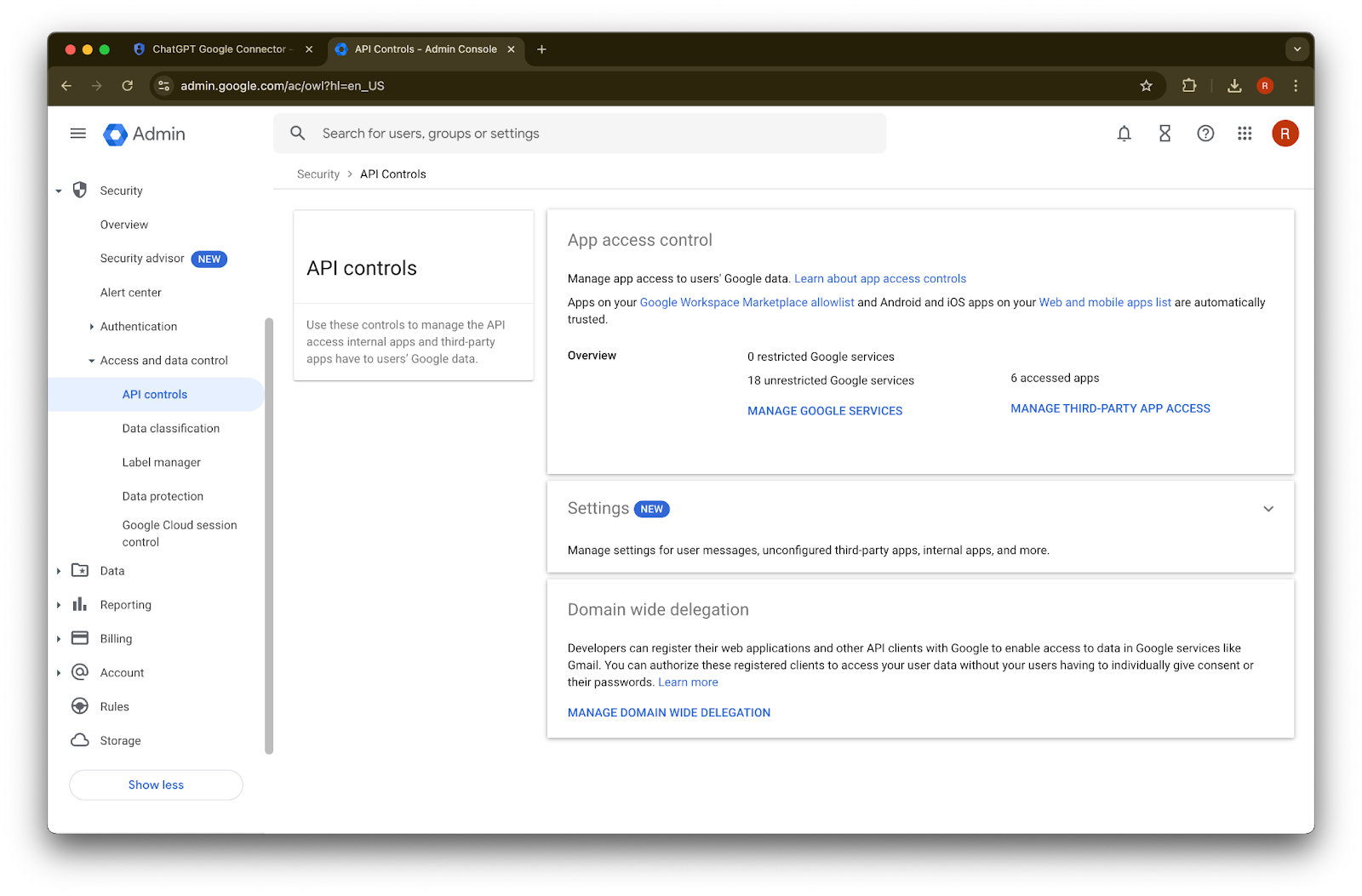
  15. Enable을 클릭합니다.

    Image
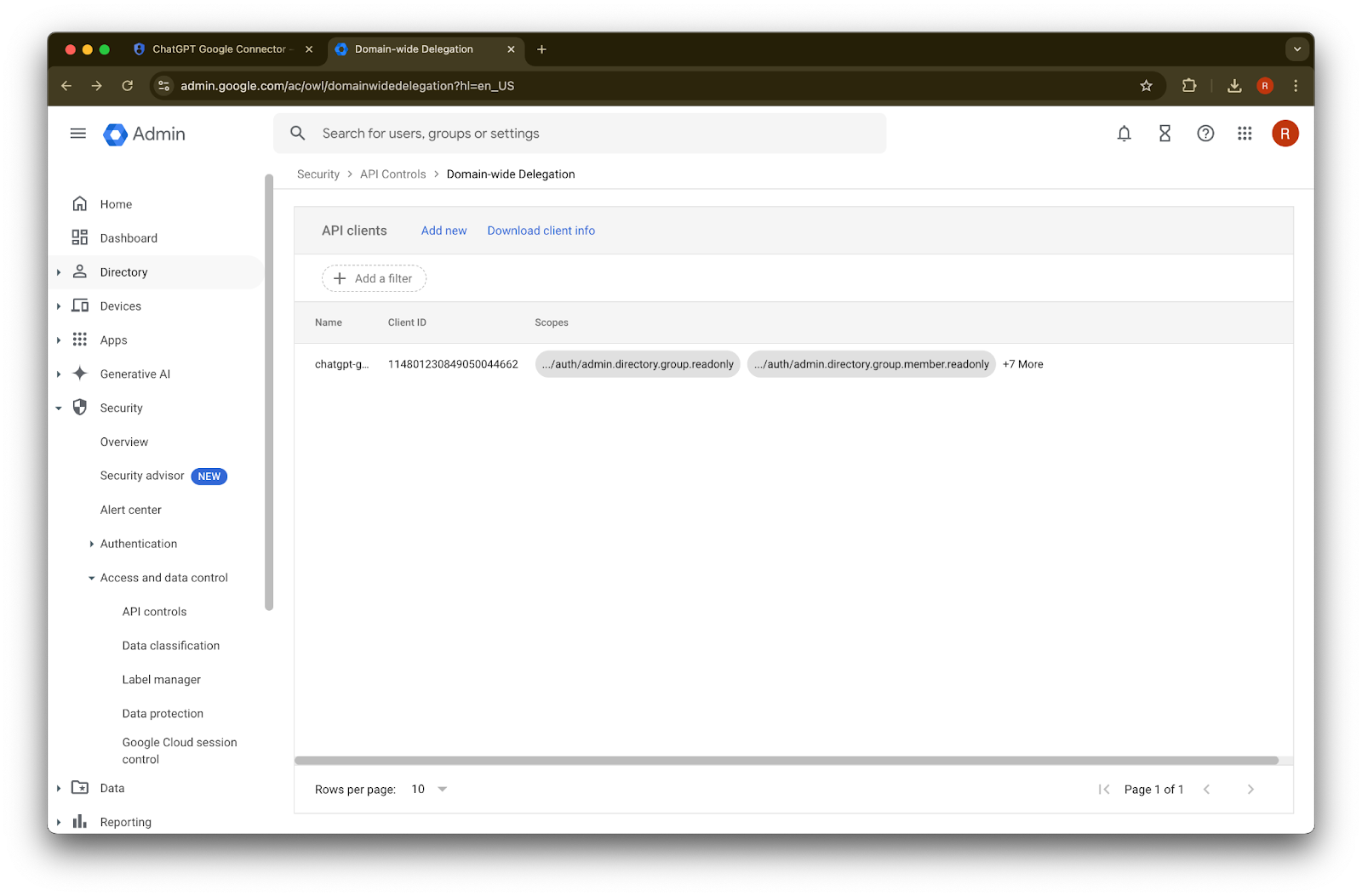
  16. Library를 클릭합니다.

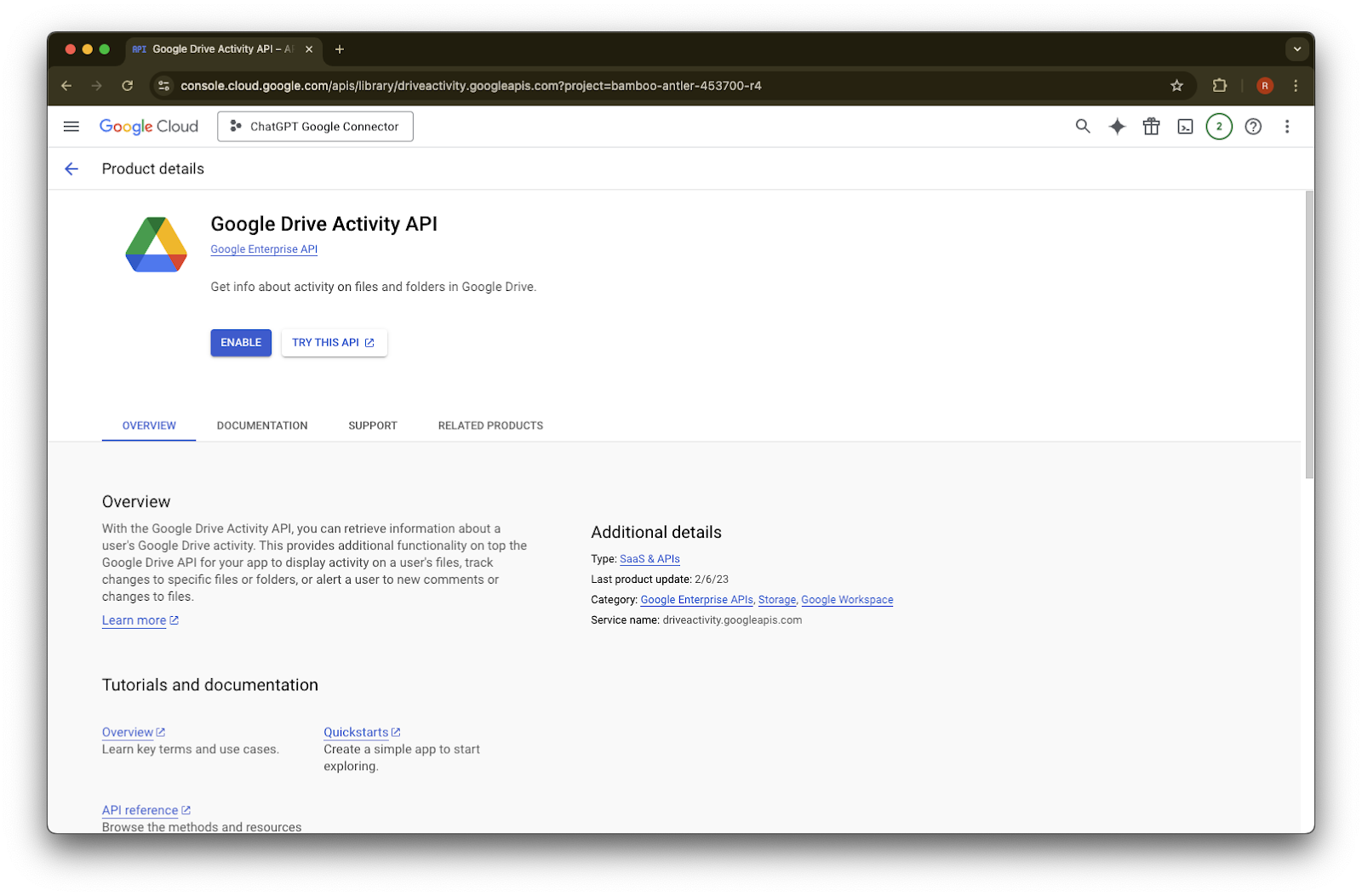
    Google Cloud Console Drive Activity API details page with the API enabled and Create credentials available
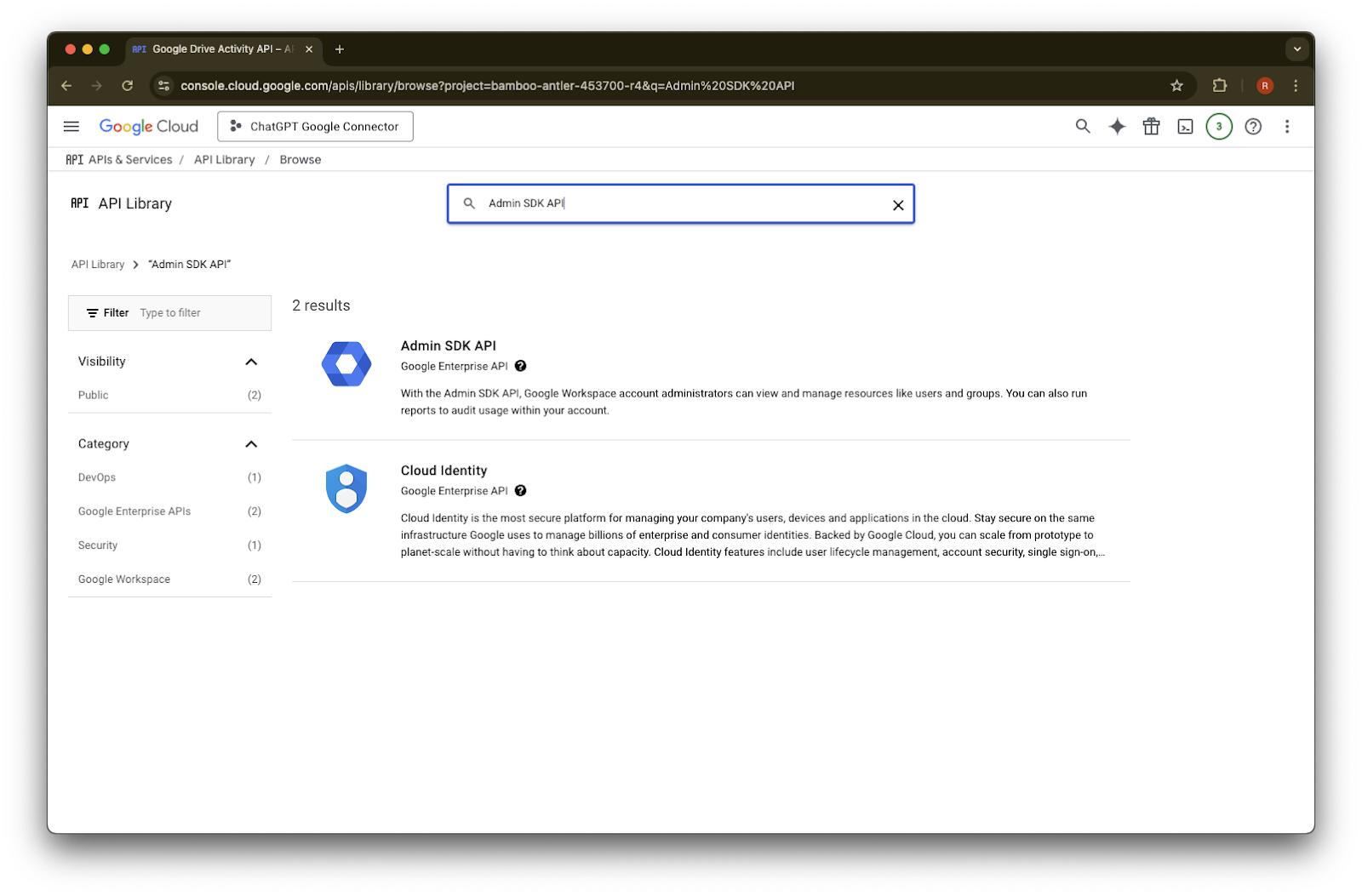
  17. Admin SDK API를 검색합니다.

    Google Cloud API Library page for the ChatGPT Google Connector project
  18. Admin SDK API
    를 선택합니다.

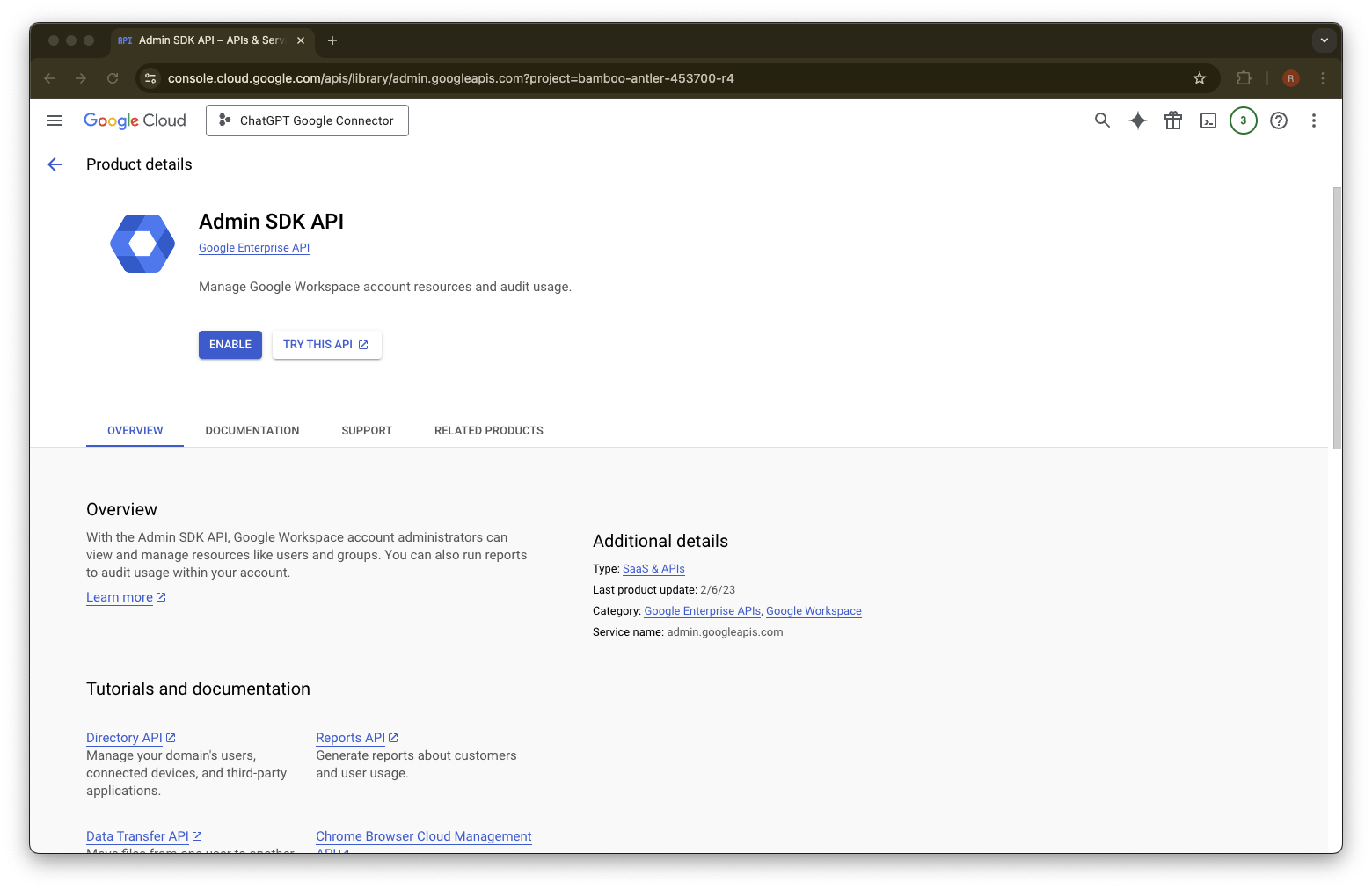
    Google Cloud API Library search results for Admin SDK API with Admin SDK API listed
  19. Enable을 클릭합니다.

    Google Cloud Admin SDK API page with the Enable button for the ChatGPT Google Connector project
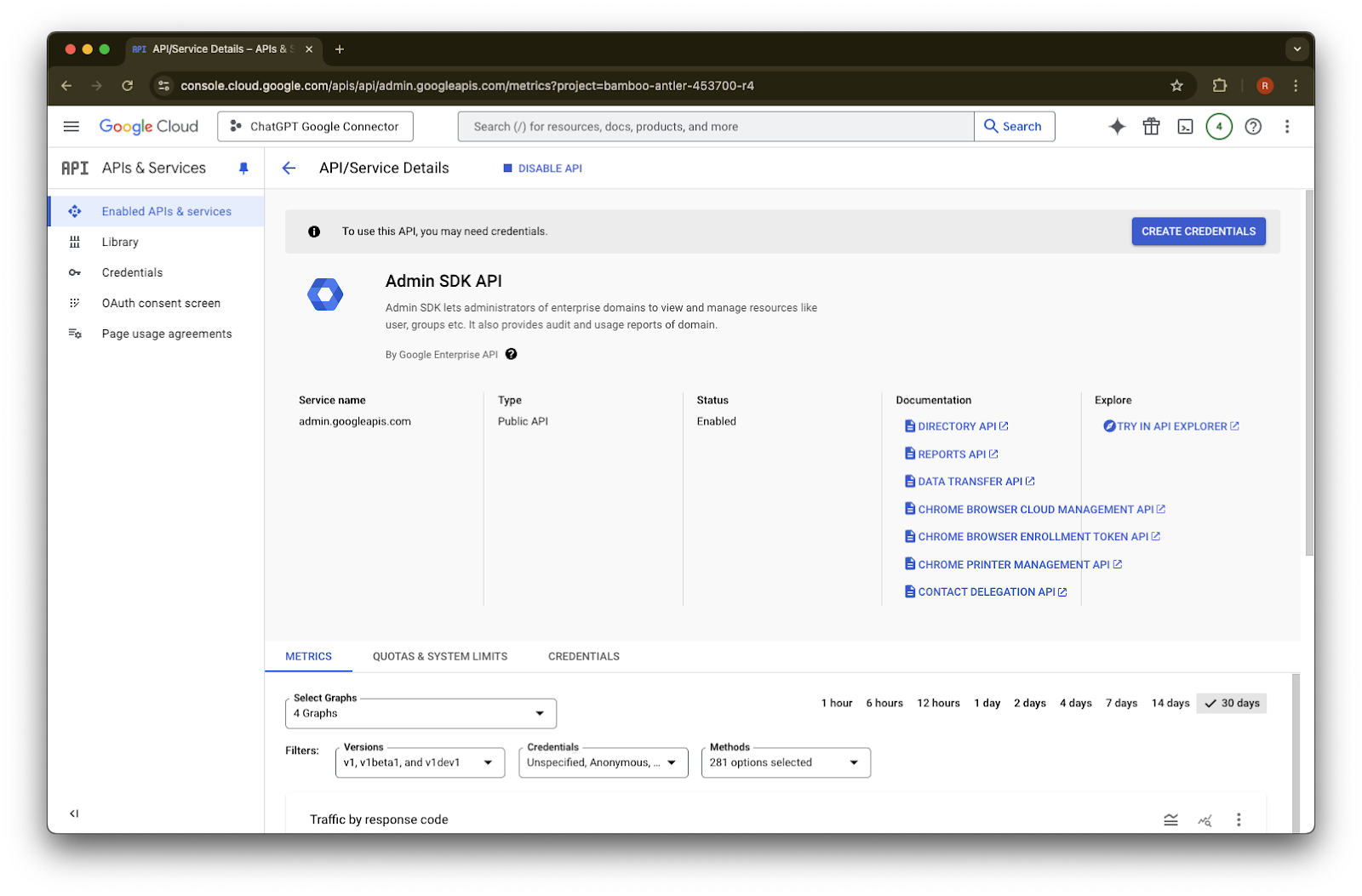
  20. Credentials를 클릭합니다.

    Google Cloud Admin SDK API details page with the API enabled and Create credentials button available
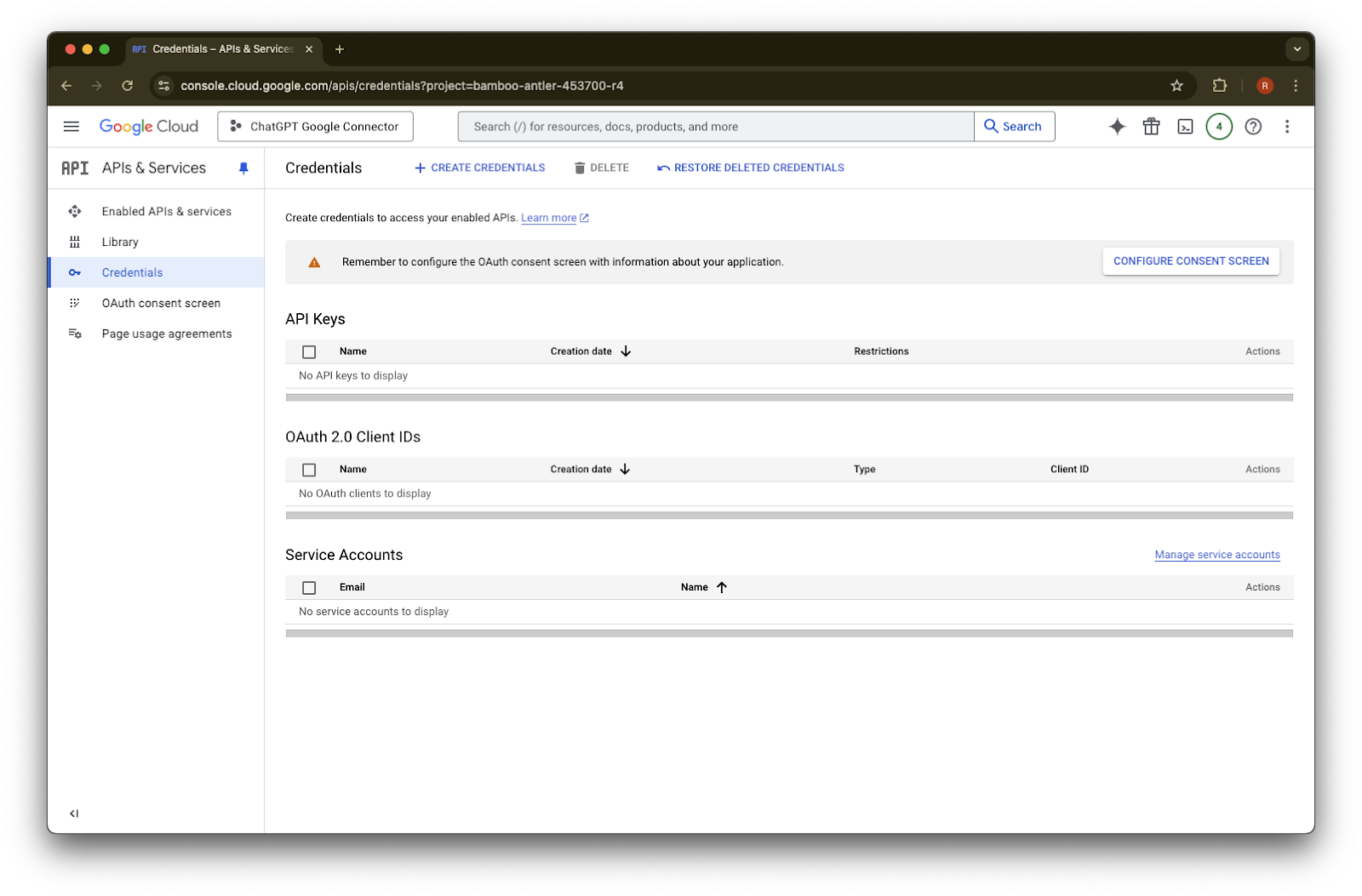
  21. Create Credentials를 클릭합니다.

    Google Cloud APIs & Services Credentials page with Configure consent screen button
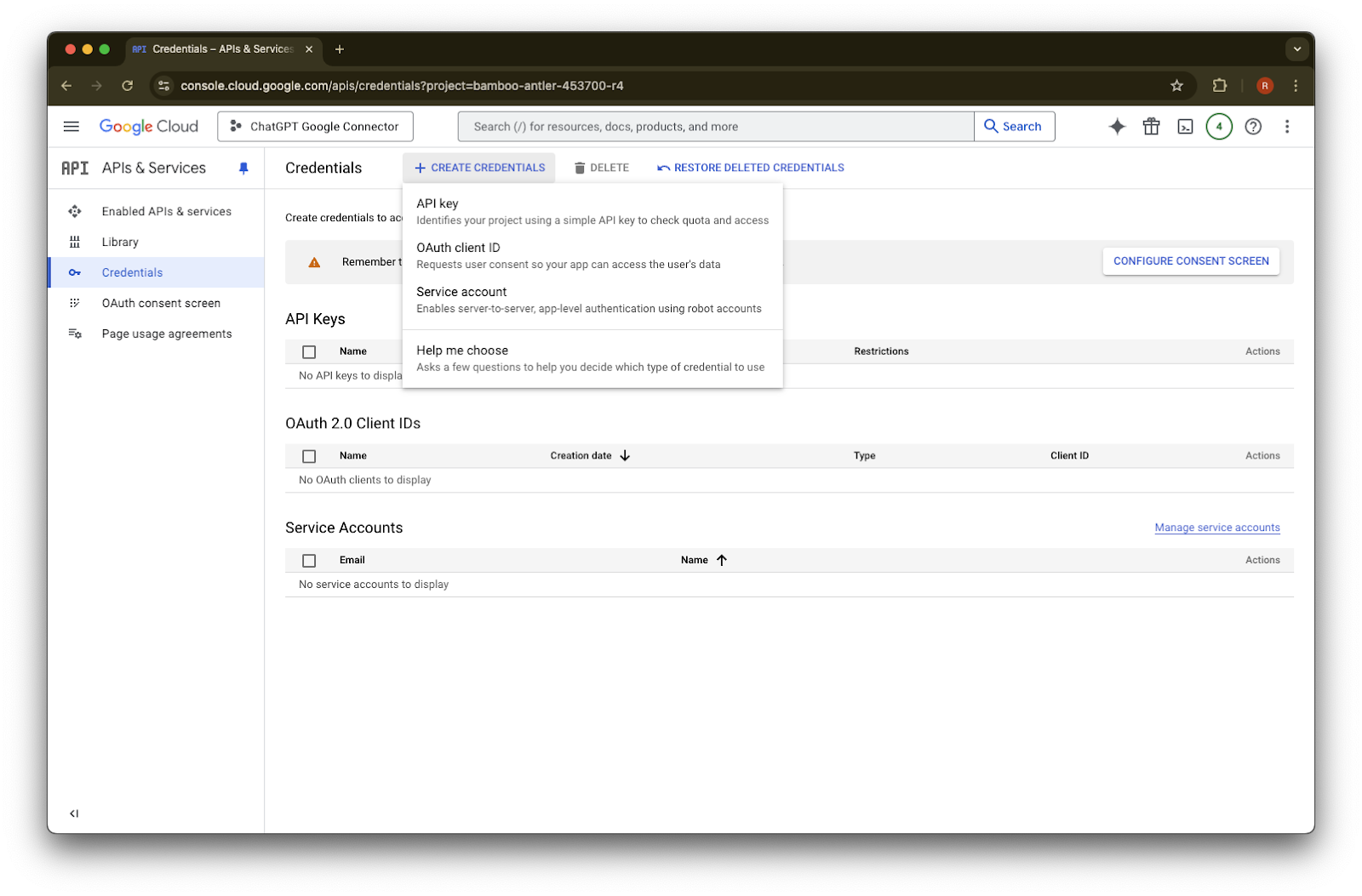
  22. Service account를 클릭합니다.

    Google Cloud Credentials page with Create credentials menu open for API key, OAuth client ID, or service account
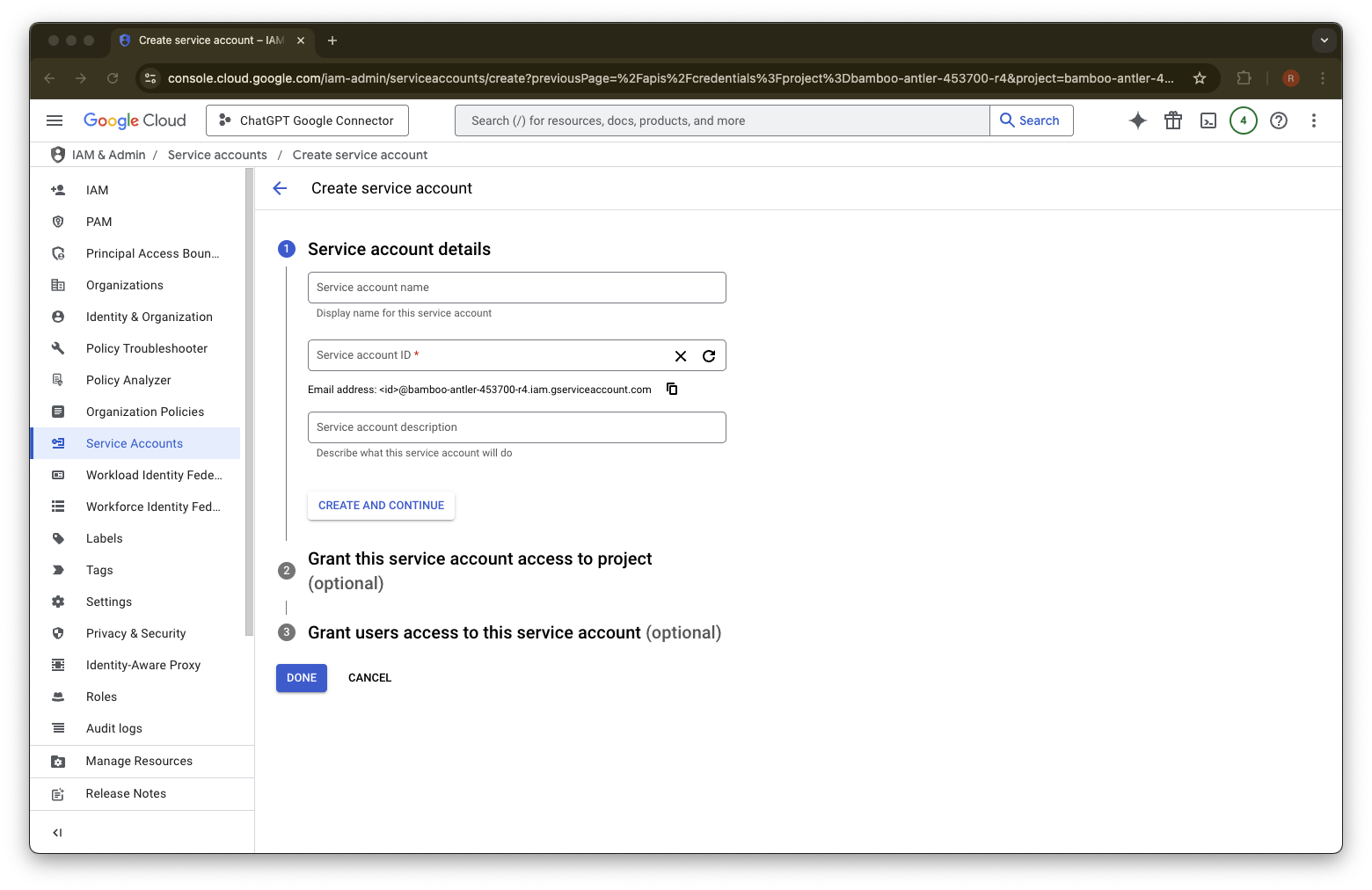
  23. 이 서비스 계정의 namedescription을 원하는 대로 입력합니다.

    Google Cloud Create service account page with Service Accounts selected and service account details fields
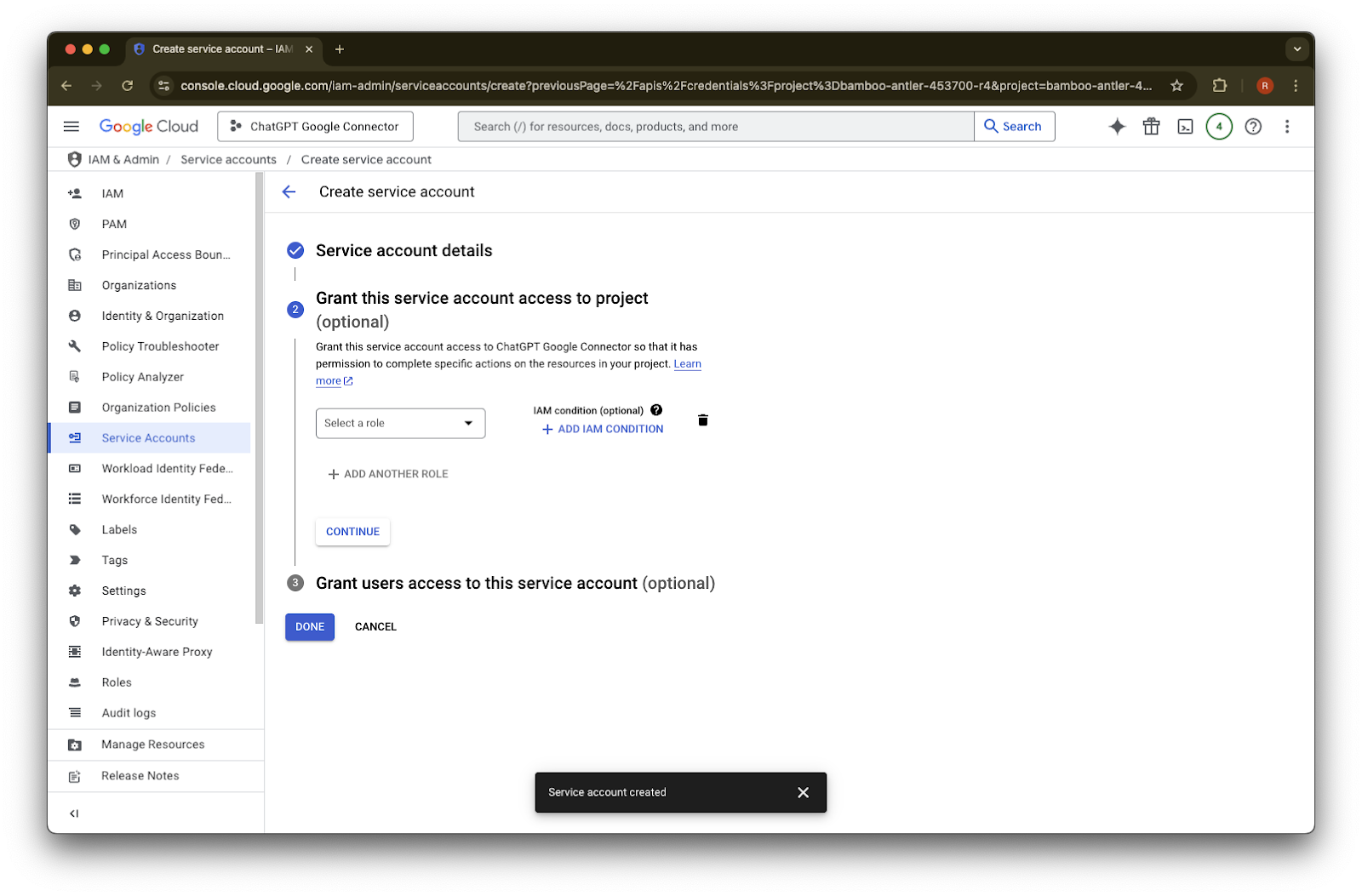
  24. (선택 사항) 역할을 할당할 수 있지만 ChatGPT에는 필요하지 않습니다.

    Google Cloud Create service account page with optional IAM role step and Service account created confirmation
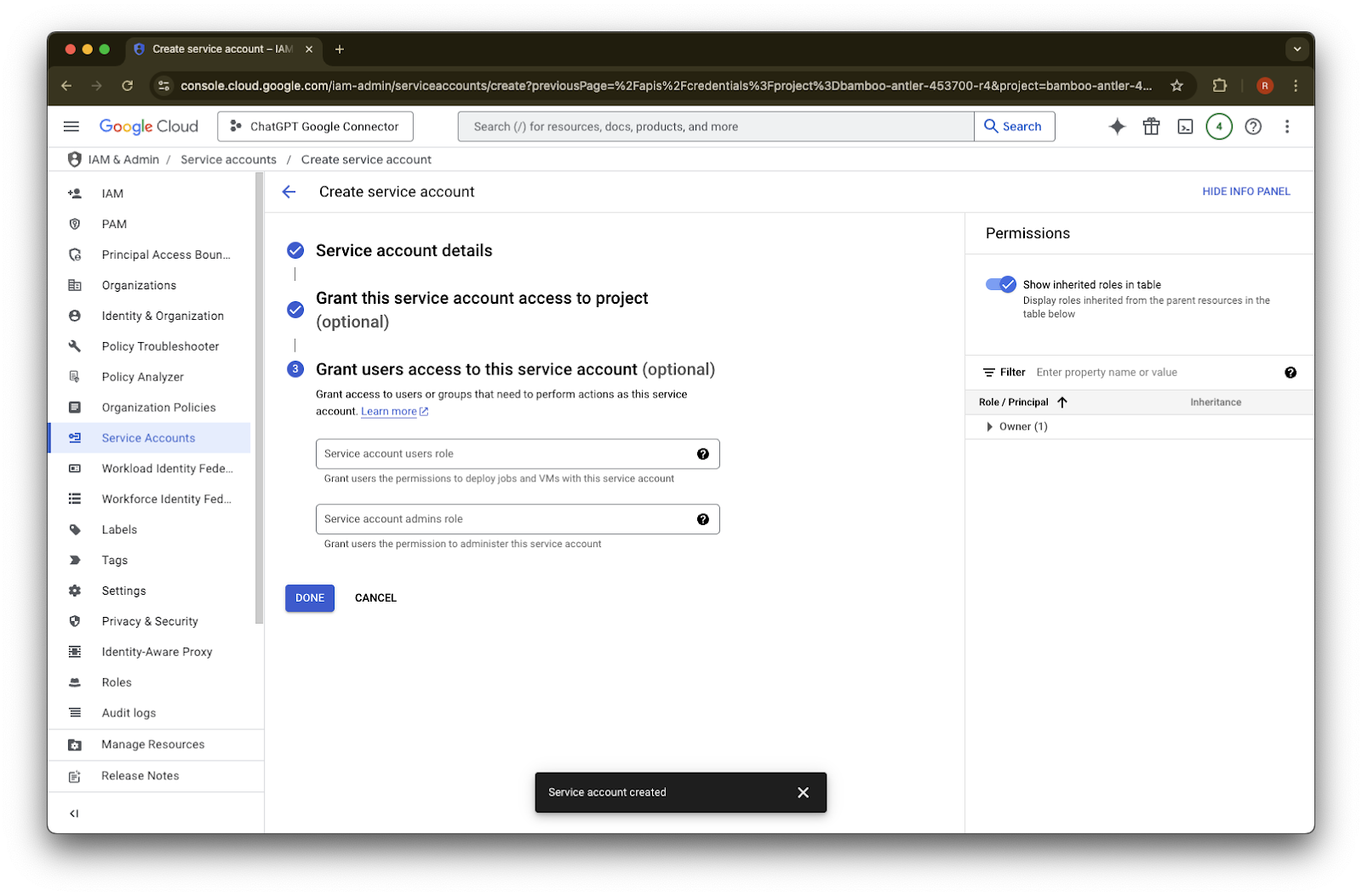
  25. (선택 사항) 서비스 계정에 액세스 권한을 부여할 수 있지만 ChatGPT에는 필요하지 않습니다.

    Google Cloud Create service account step 3 with Done button and Service account created confirmation
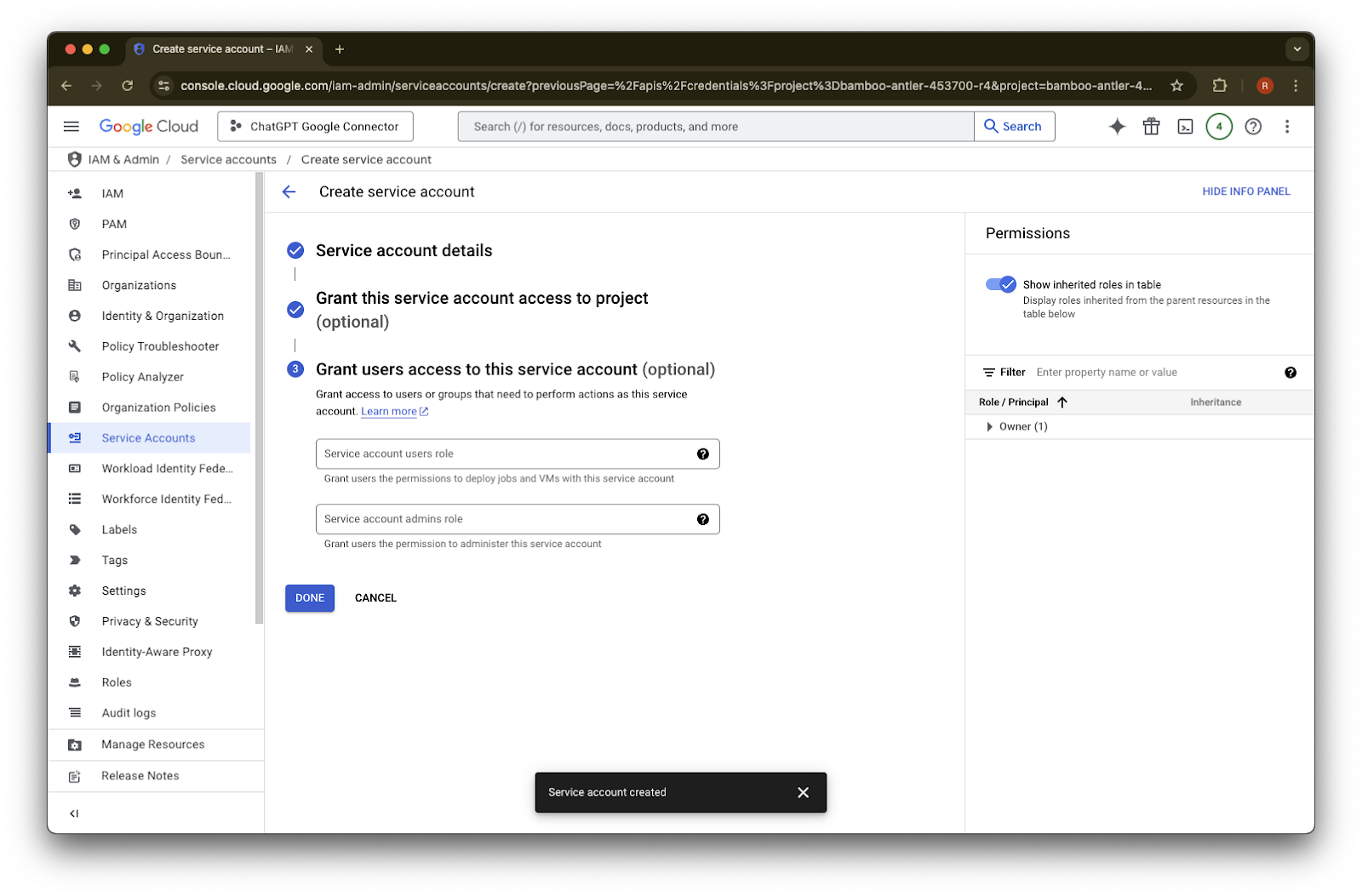
  26. Done을 클릭합니다.

    Create service account step 3 in Google Cloud with Done button and Service account created confirmation
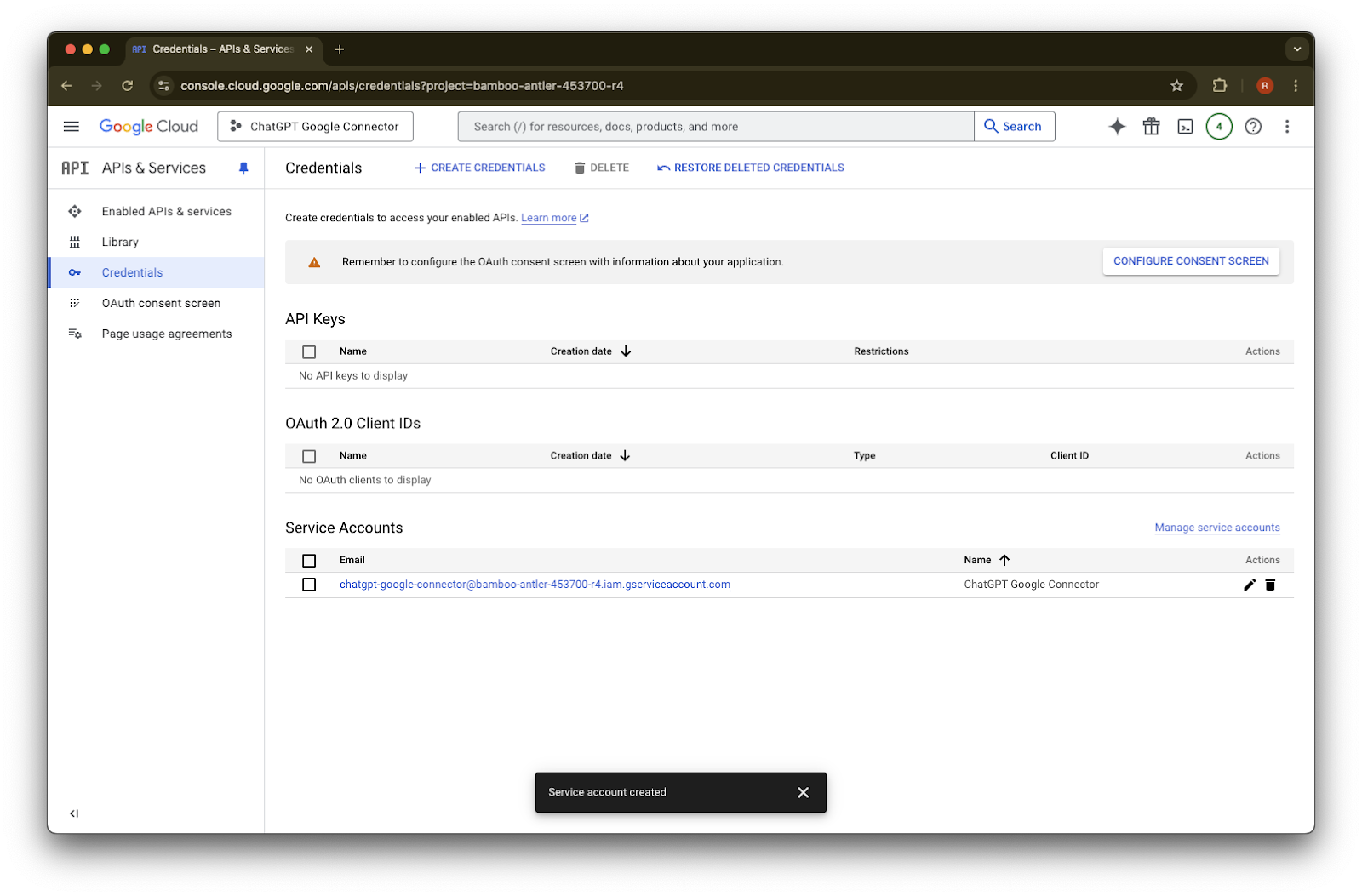
  27. 이제 생성된 service account를 클릭합니다.

    Google Cloud Credentials page listing the newly created ChatGPT Google Connector service account
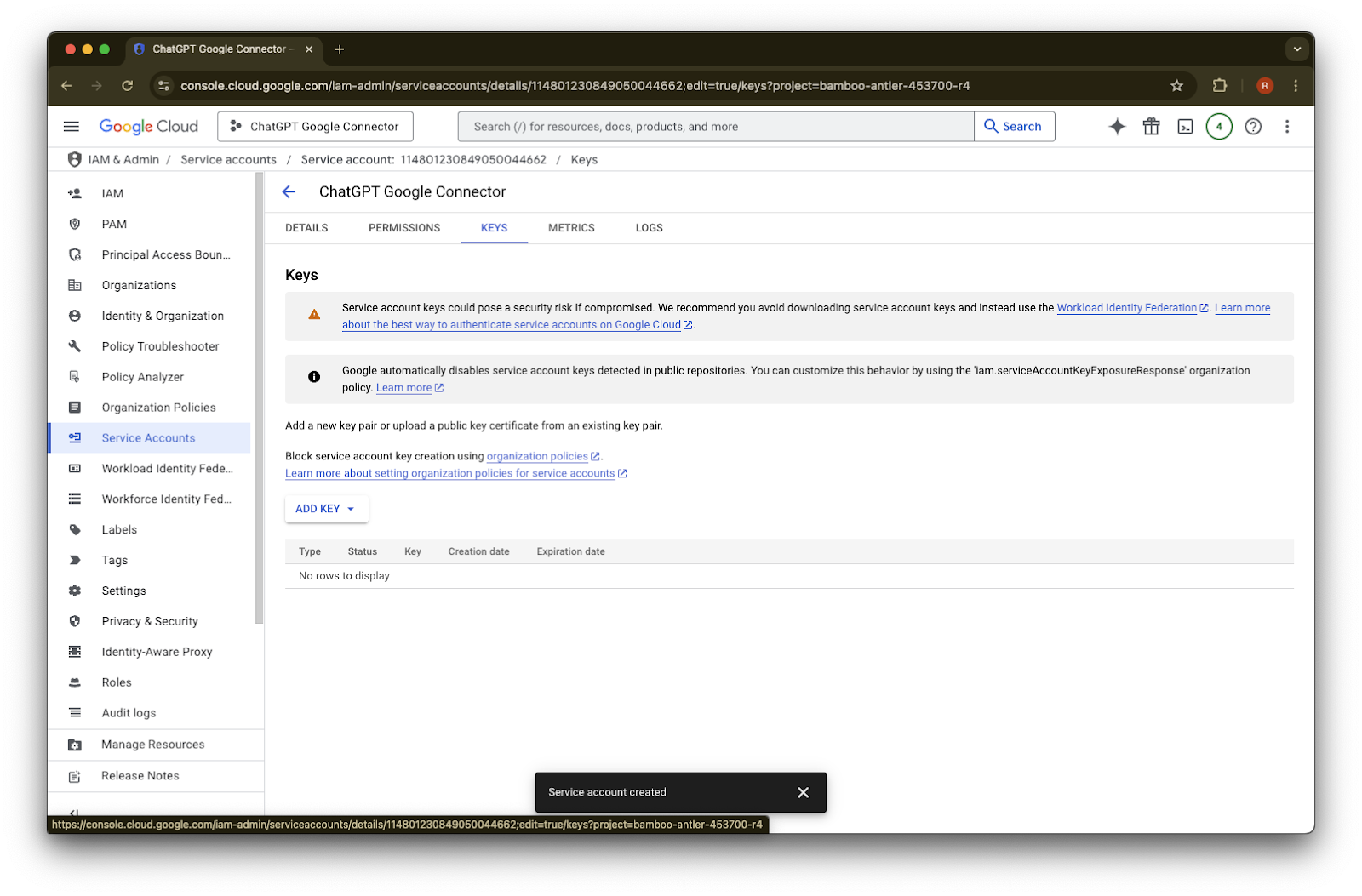
  28. keys.를 클릭합니다.

    Google Cloud IAM service account details for ChatGPT Google Connector, enabled after creation
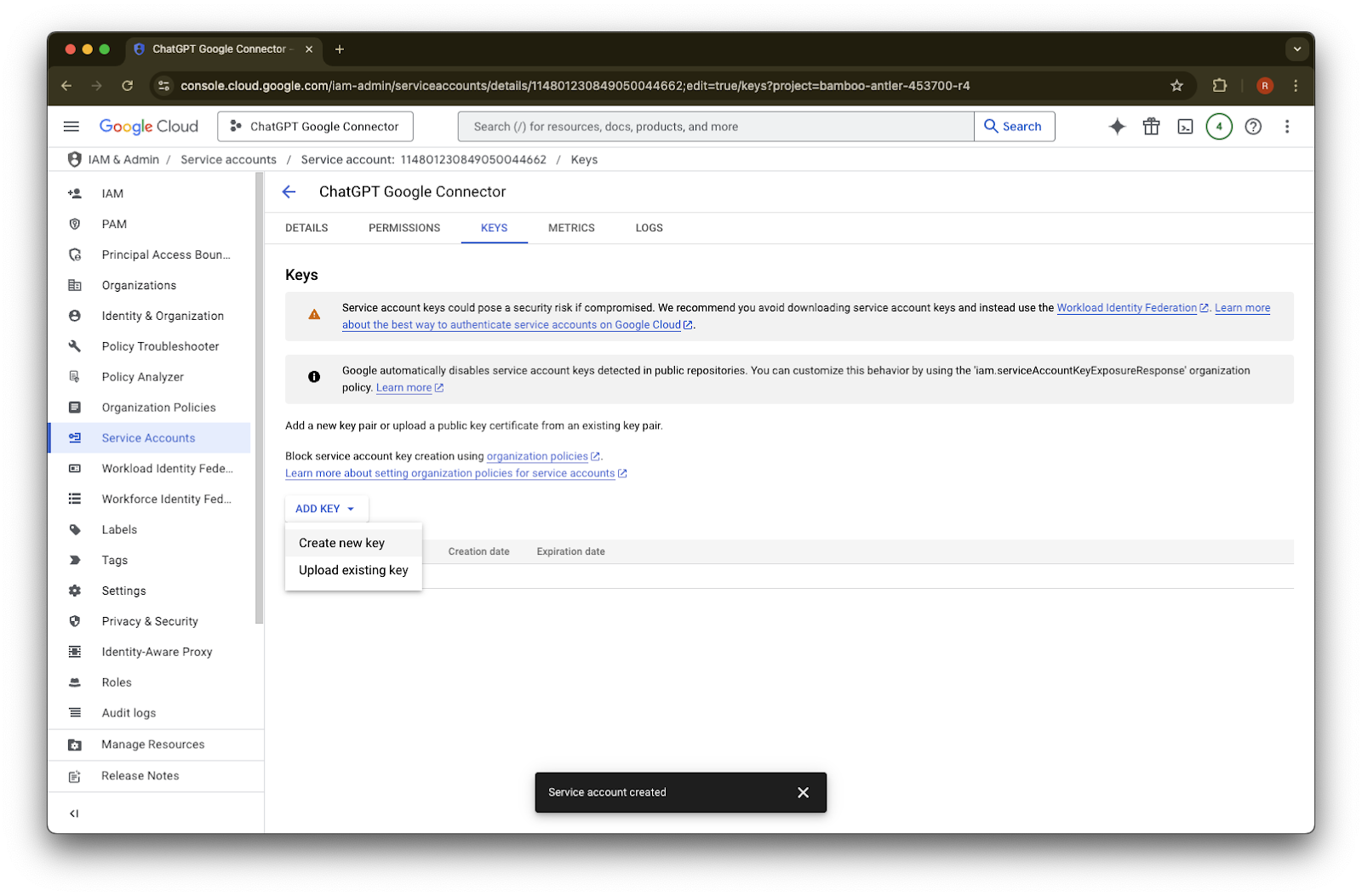
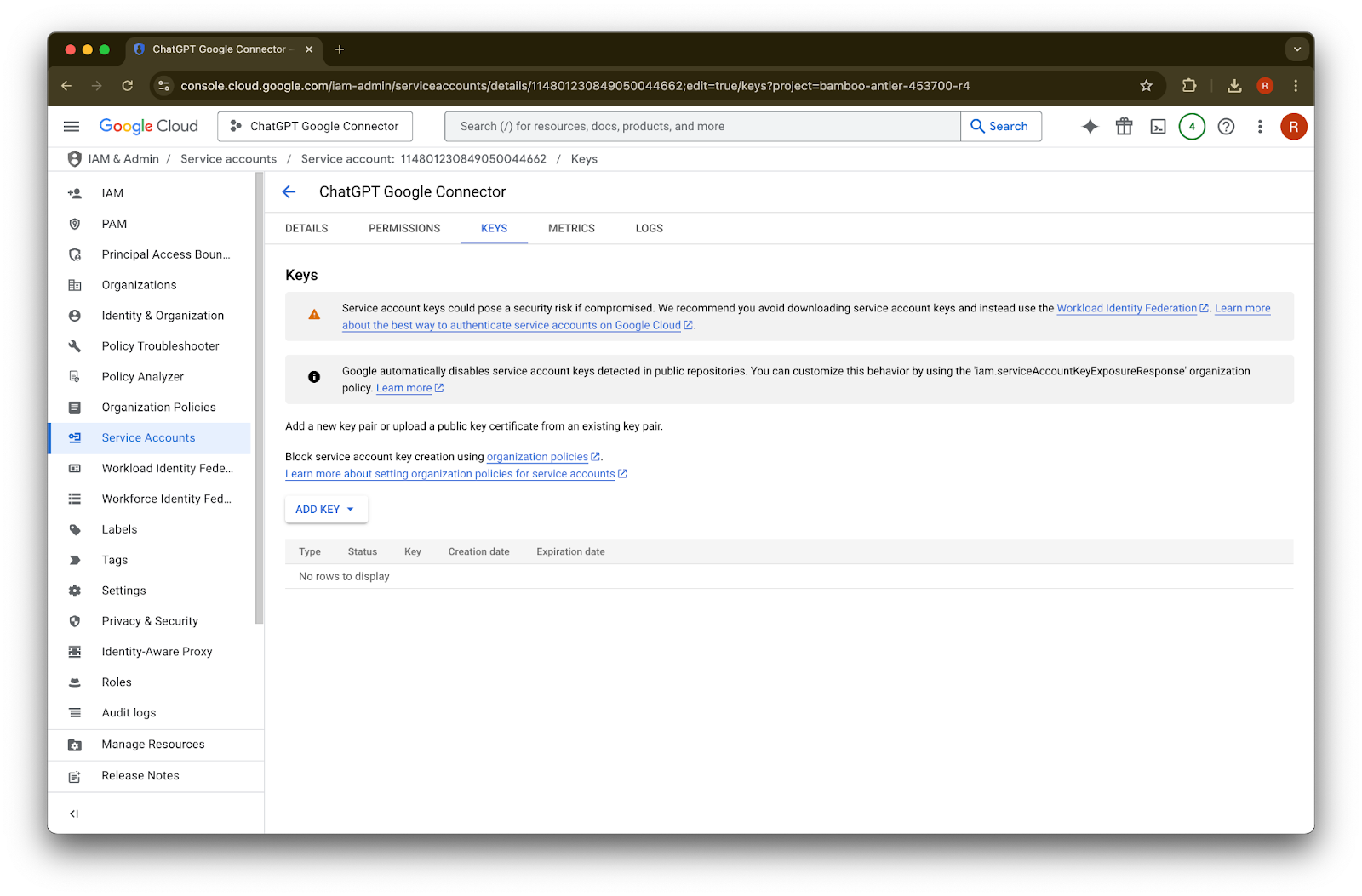
  29. Add Key를 클릭합니다.

    Image
  30. Create new key를 클릭합니다.

    Google Cloud service account Keys tab with Add key menu open to create or upload a key
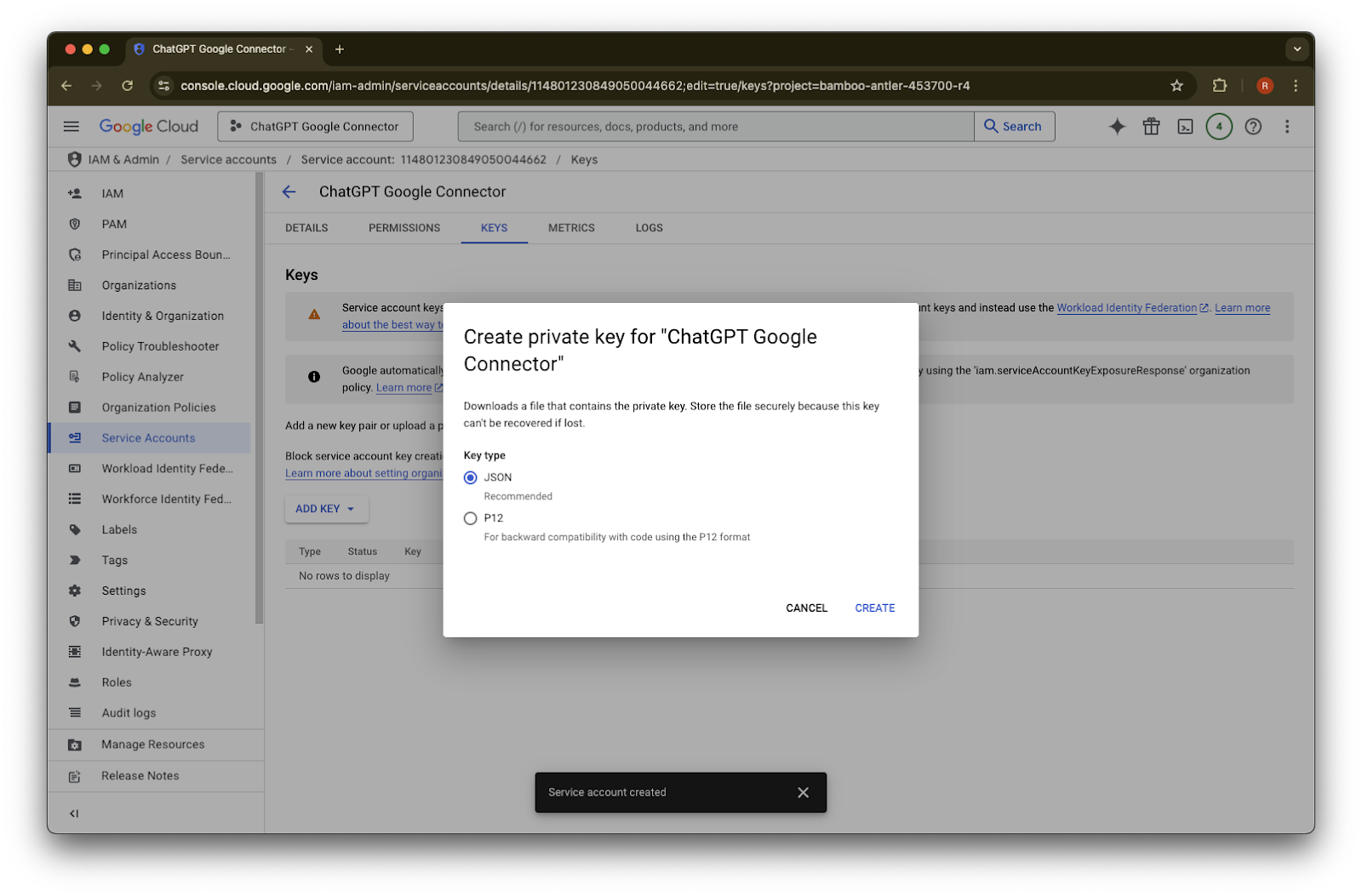
  31. 기본 JSON 키 유형을 유지하고 Create를 클릭합니다.
    “Service account key creation is disabled”라는 오류 메시지가 표시되면, 생성을 활성화하려면 이 단계를 따르세요.

    Create private key dialog for ChatGPT Google Connector with JSON key type selected
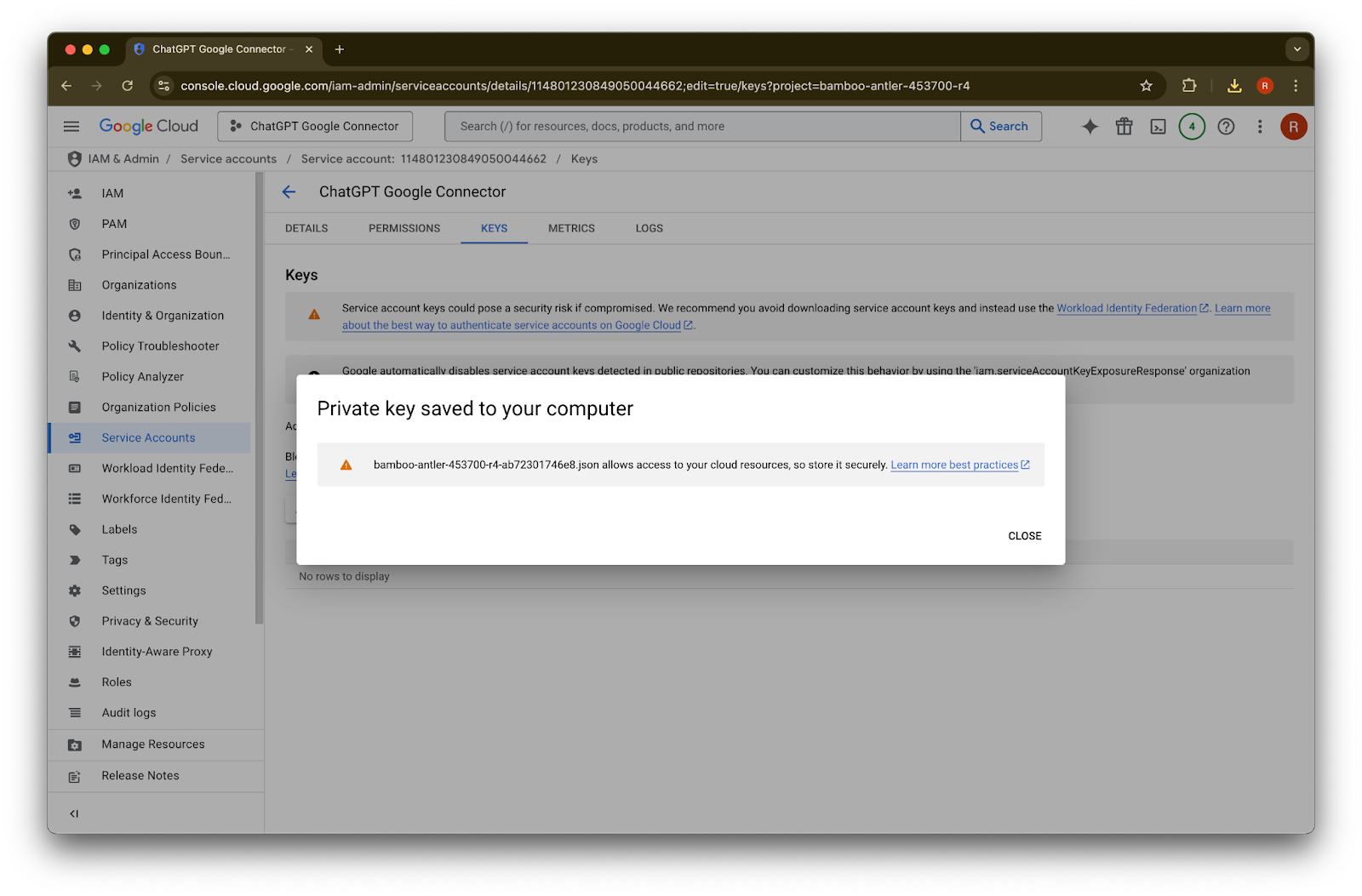
  32. Close를 클릭합니다. 이제 키가 컴퓨터에 다운로드되었습니다. 나중에 이를 ChatGPT 관리자 콘솔에 업로드하게 됩니다.

    Google Cloud service account Keys tab with confirmation that a private key JSON file was saved to the computer
  33. details를 클릭합니다.

    Google Cloud service account Keys tab for ChatGPT Google Connector with Add Key button
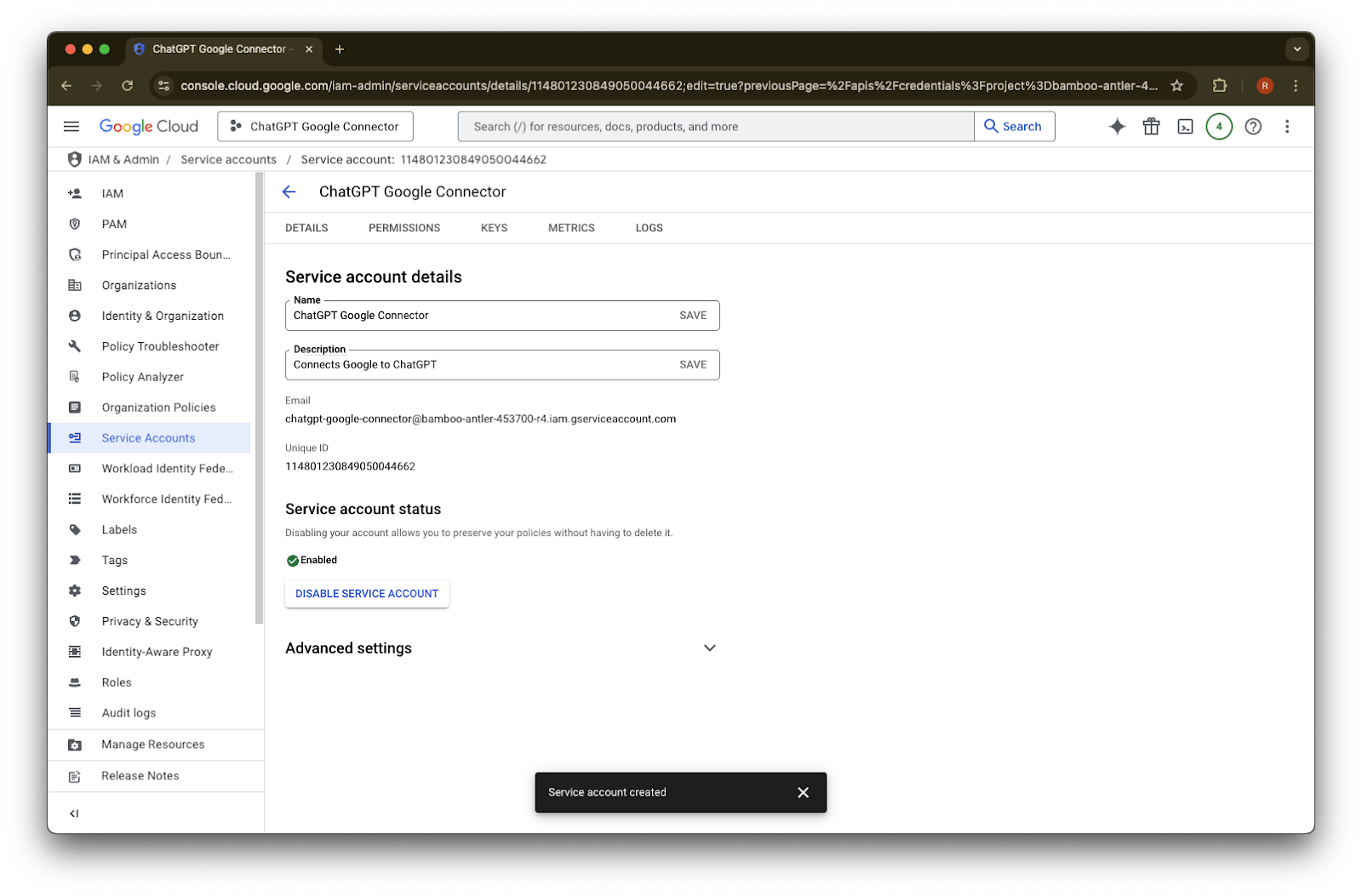
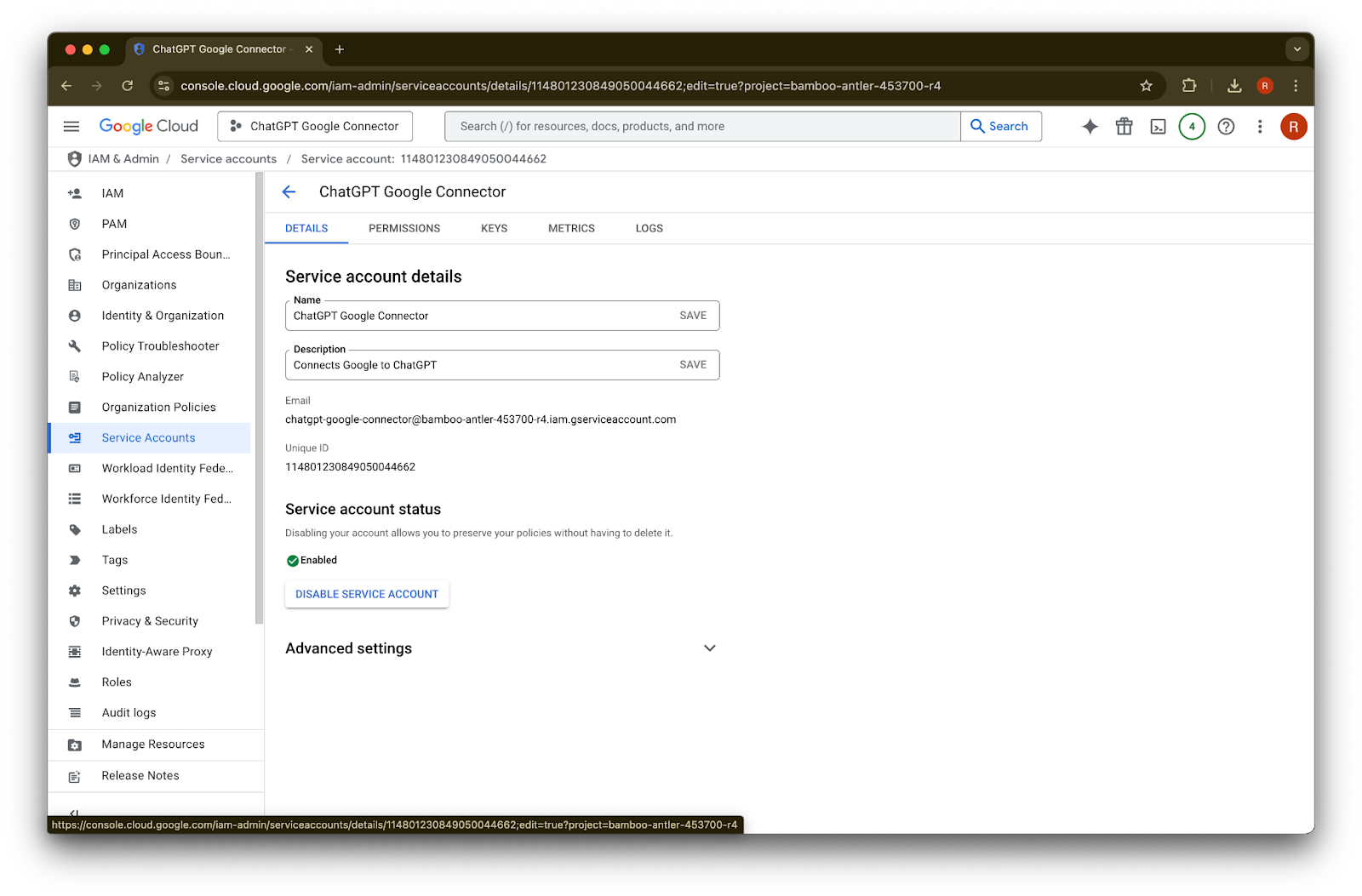
  34. Unique ID를 기록해 두세요. 42단계에서 필요합니다.

    Google Cloud service account details for ChatGPT Google Connector with status Enabled
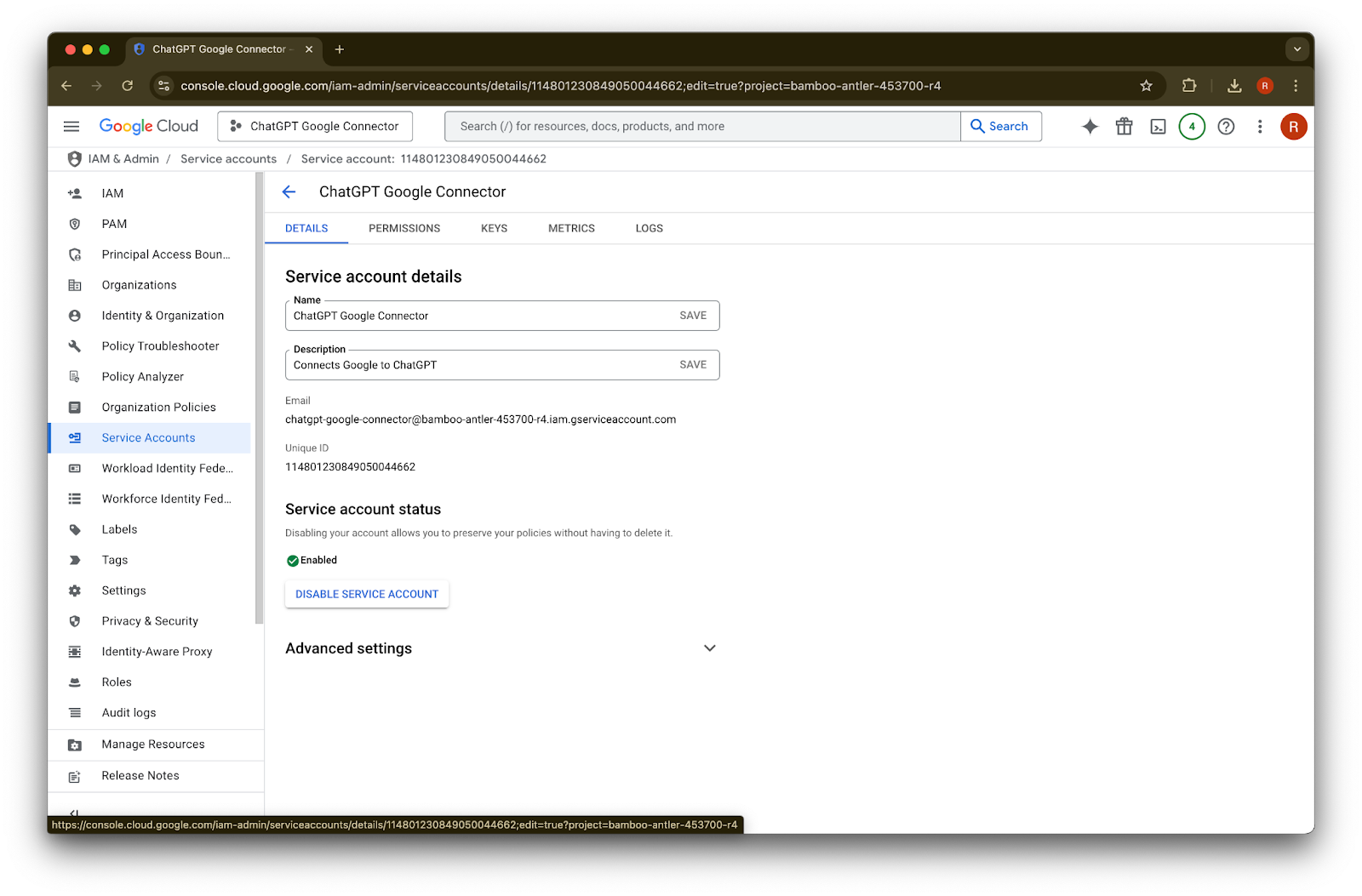
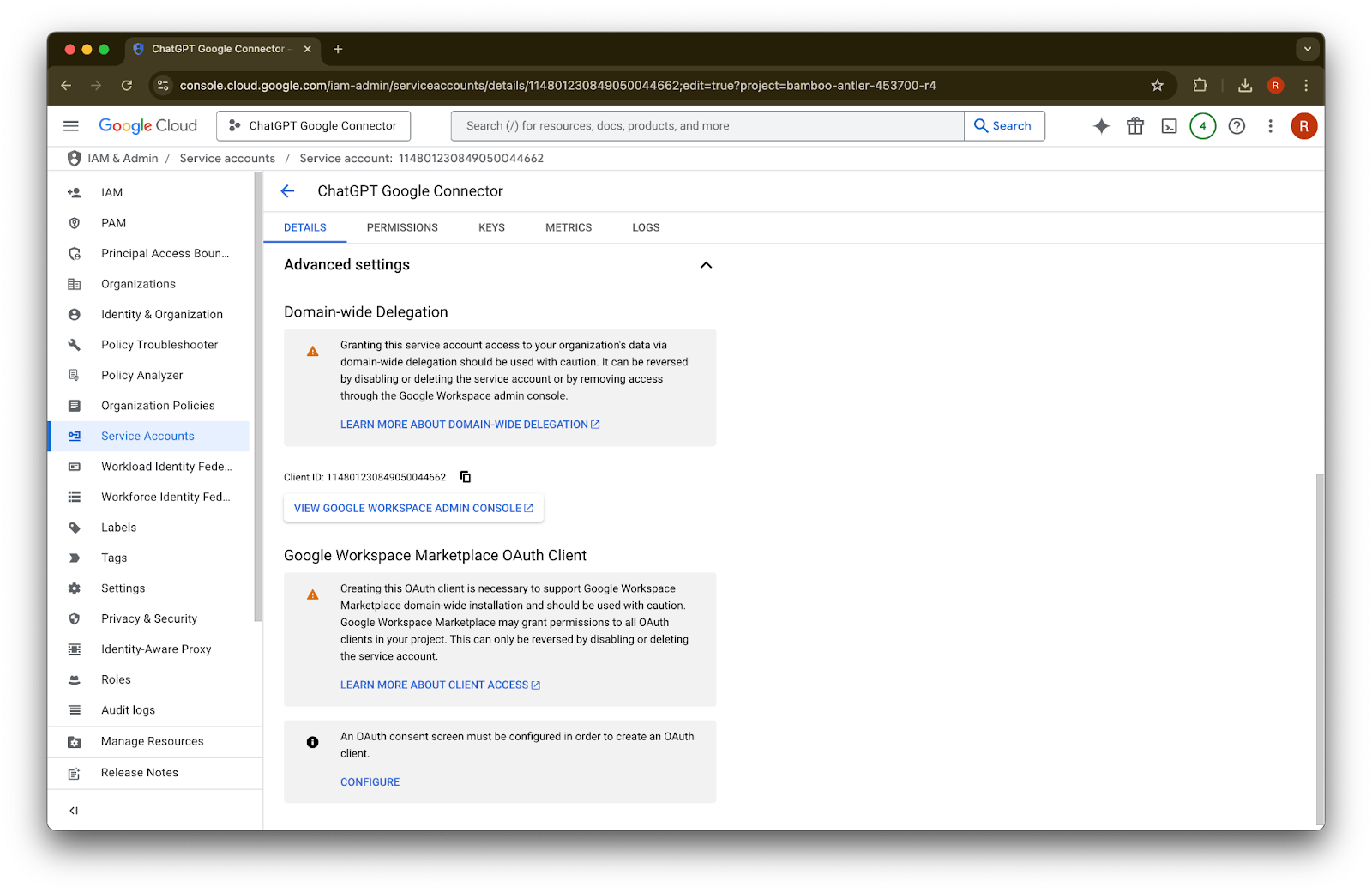
  35. Advanced settings를 펼칩니다.

    Google Cloud service account details for ChatGPT Google Connector with the account enabled
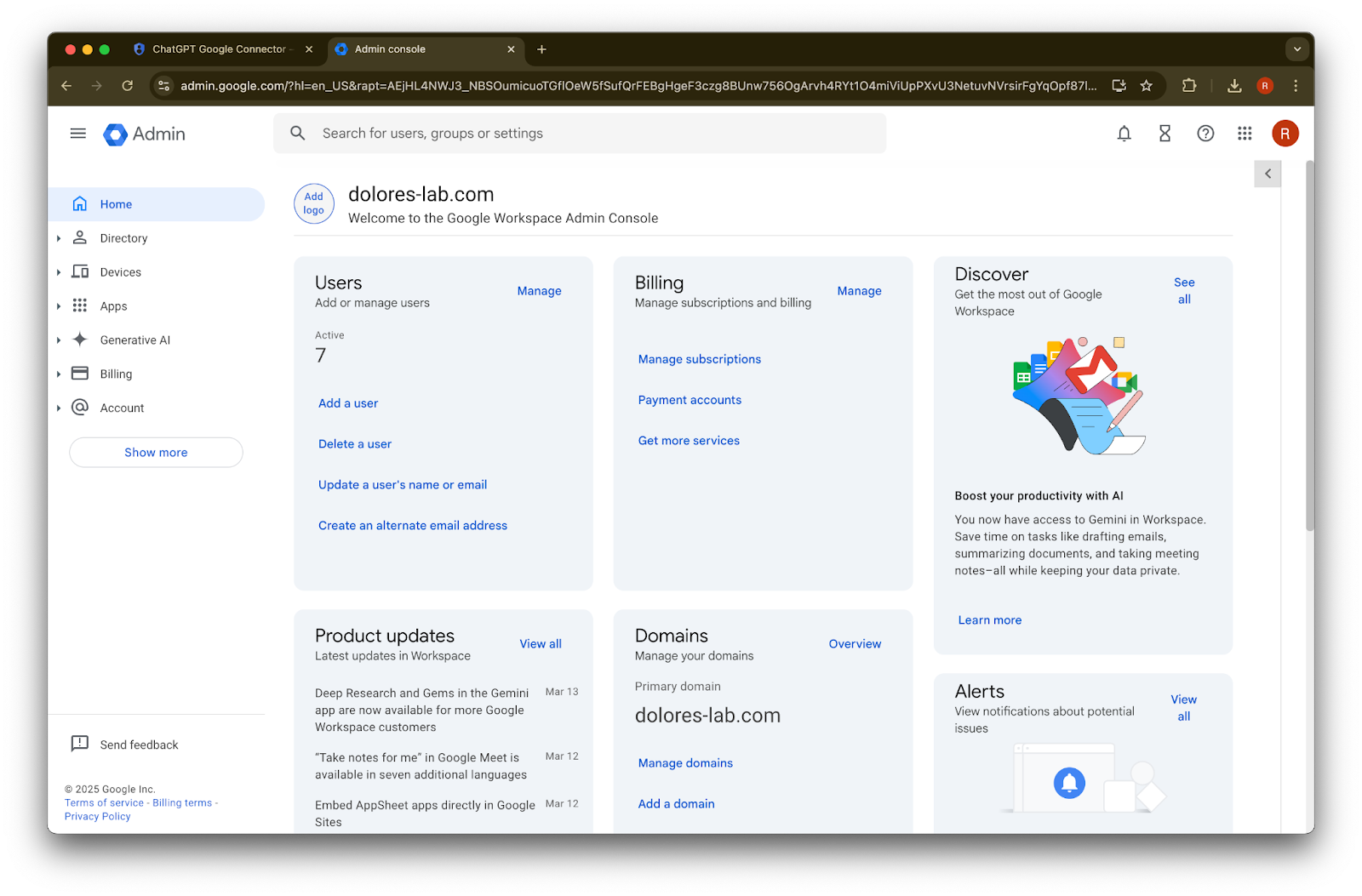
  36. 아래로 스크롤하여 View Google Workspace Admin Console를 클릭합니다. Google Workspace 콘솔이 새 탭에서 열립니다.

    Image
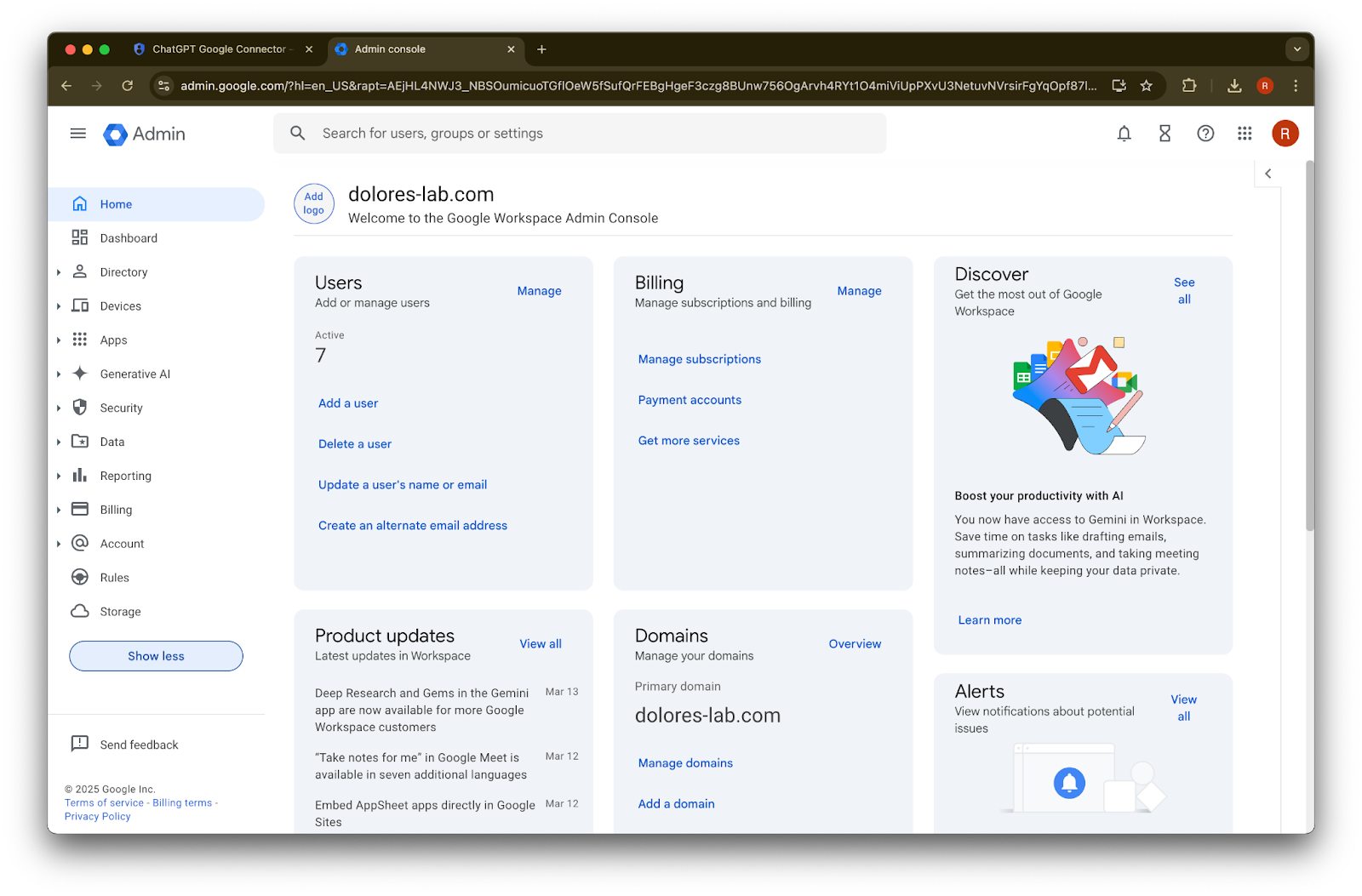
  37. Show more를 클릭합니다.

    Google Workspace Admin console home page for dolores-lab.com
  38. Security 섹션을 펼칩니다.

    Image
  39. Access and data controls 섹션을 펼칩니다.

    Google Workspace Admin console home with Security section expanded in the left navigation
  40. API controls 섹션을 클릭합니다.

    Google Workspace Admin console home with Security > Access and data control expanded in the sidebar
  41. Manage Domain Wide Delegation을 클릭합니다.

    Google Admin console API controls page under Security > Access and data control
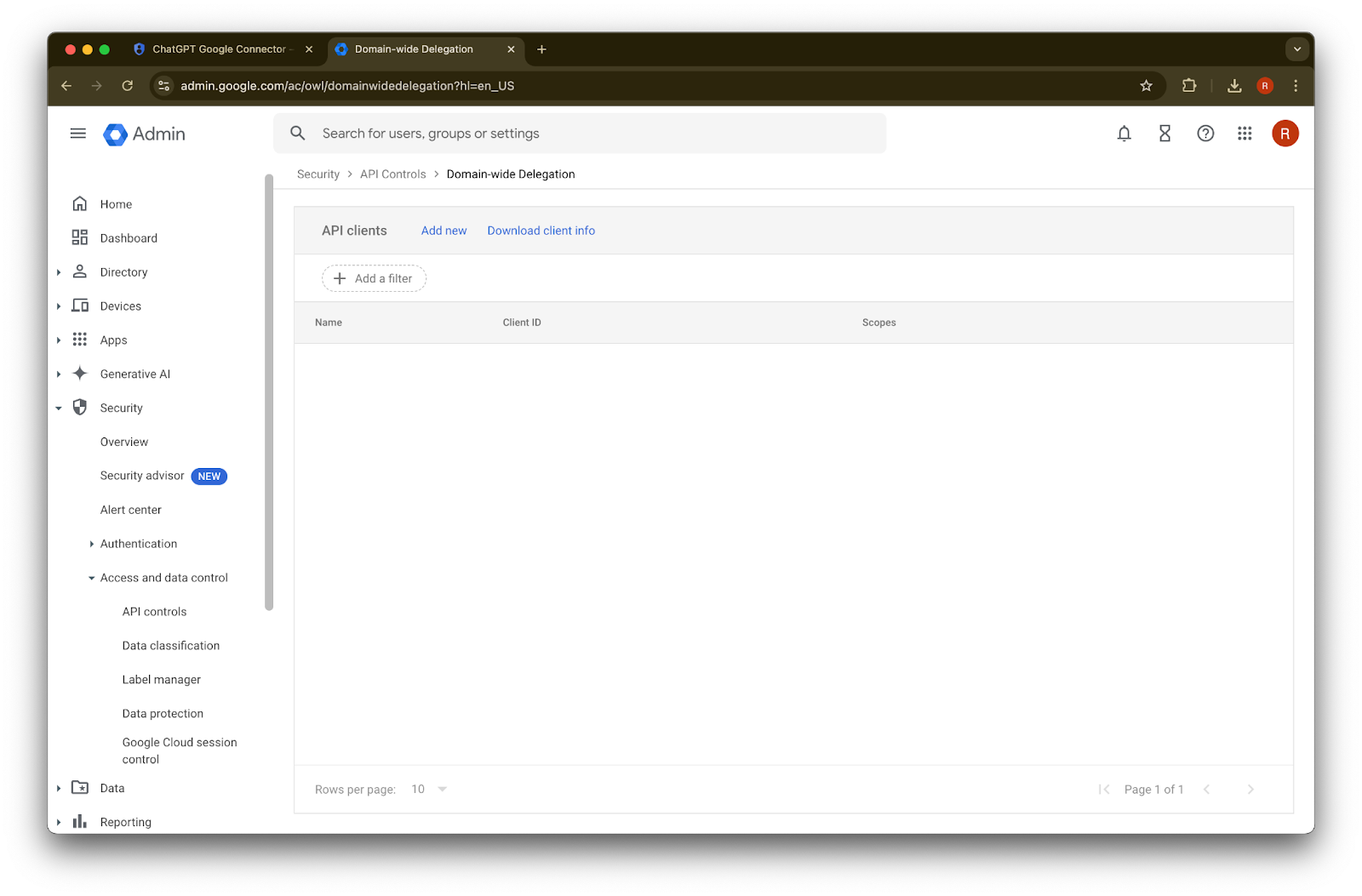
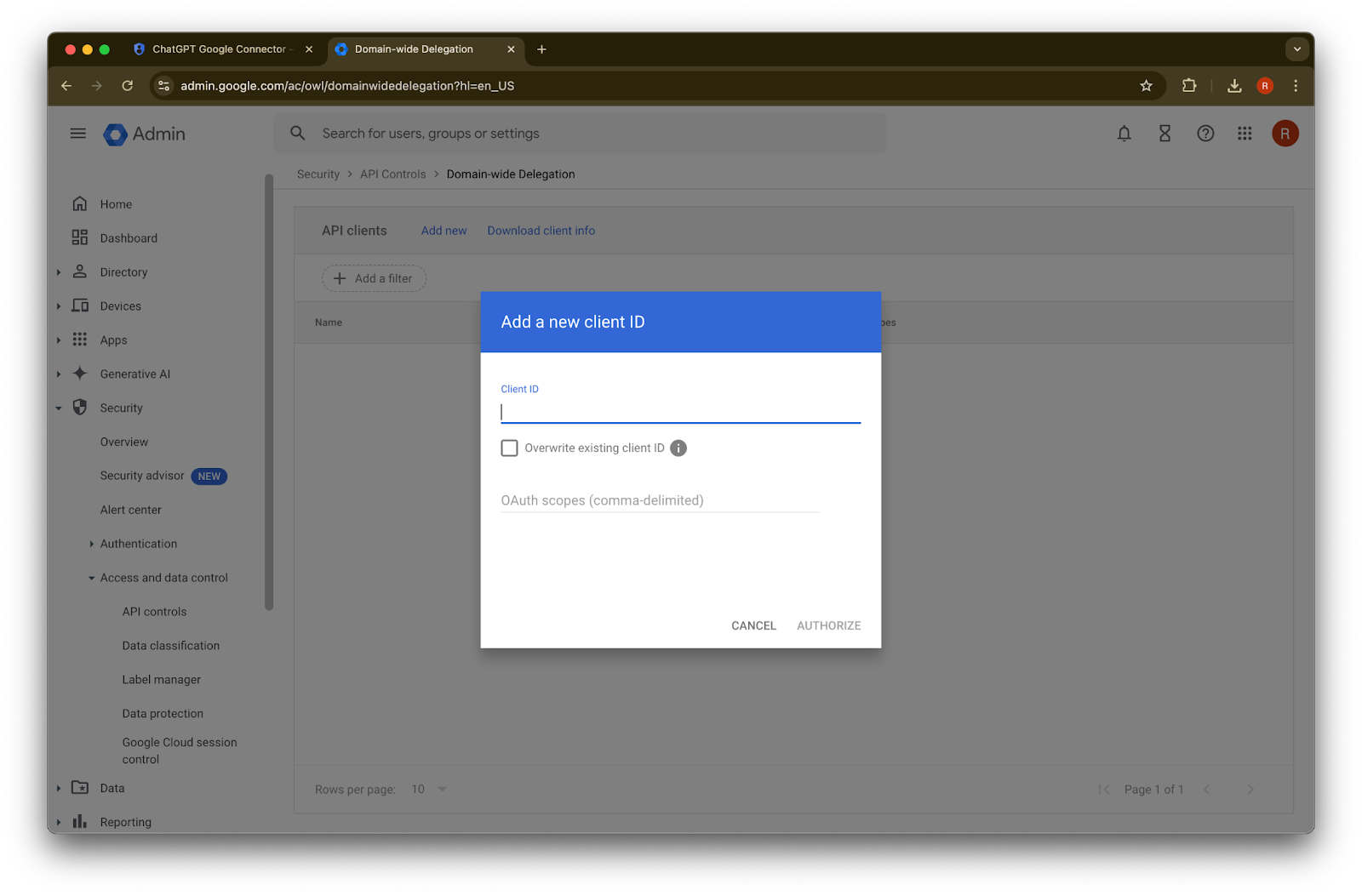
  42. Add new를 클릭합니다.

    Google Admin Domain-wide Delegation page with API clients list and Add new option
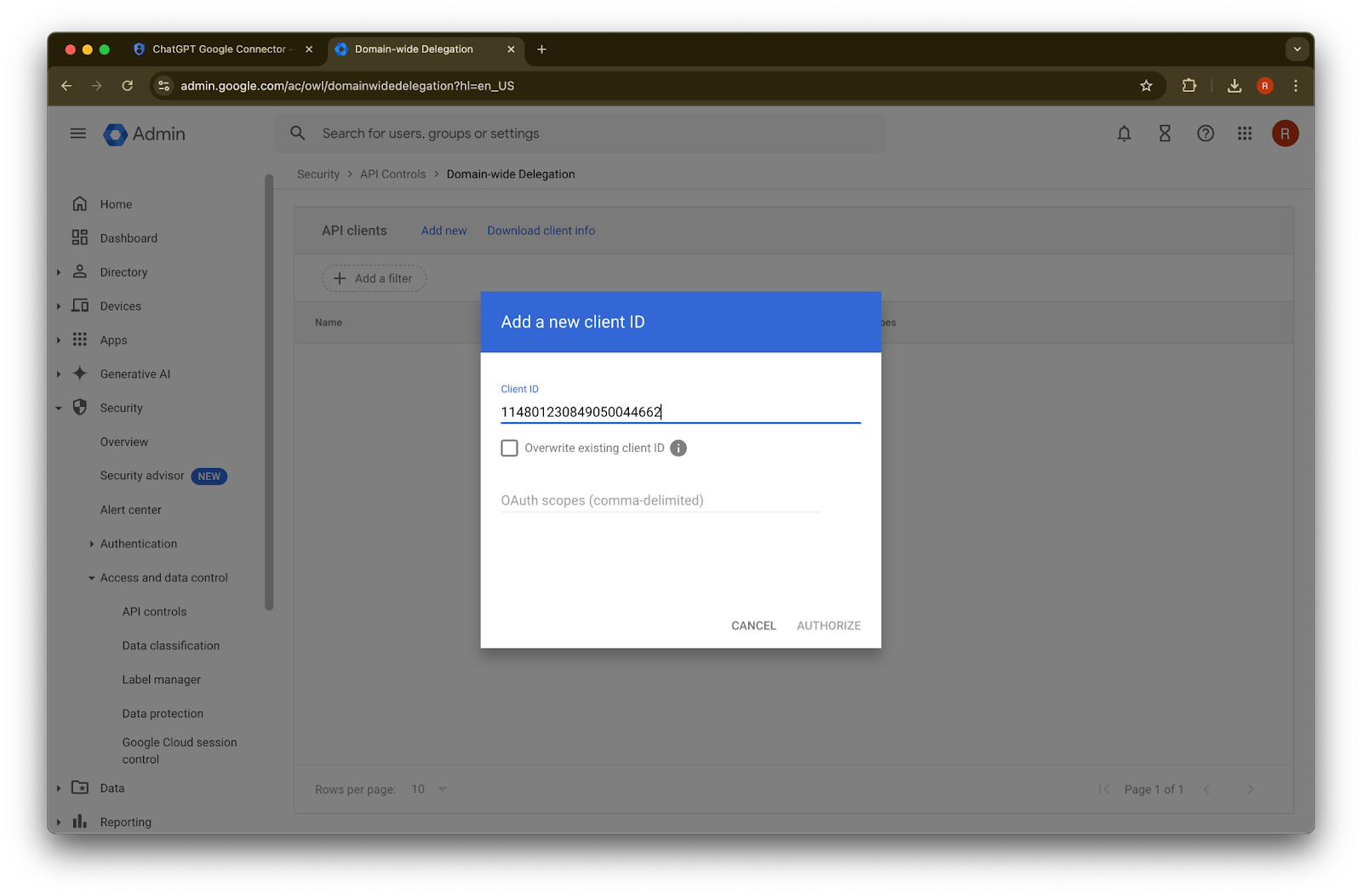
  43. 앞서 기록한 Unique ID 를 이 Client ID의 값으로 사용합니다.

    Google Admin Domain-wide Delegation dialog for adding a new client ID and OAuth scopes
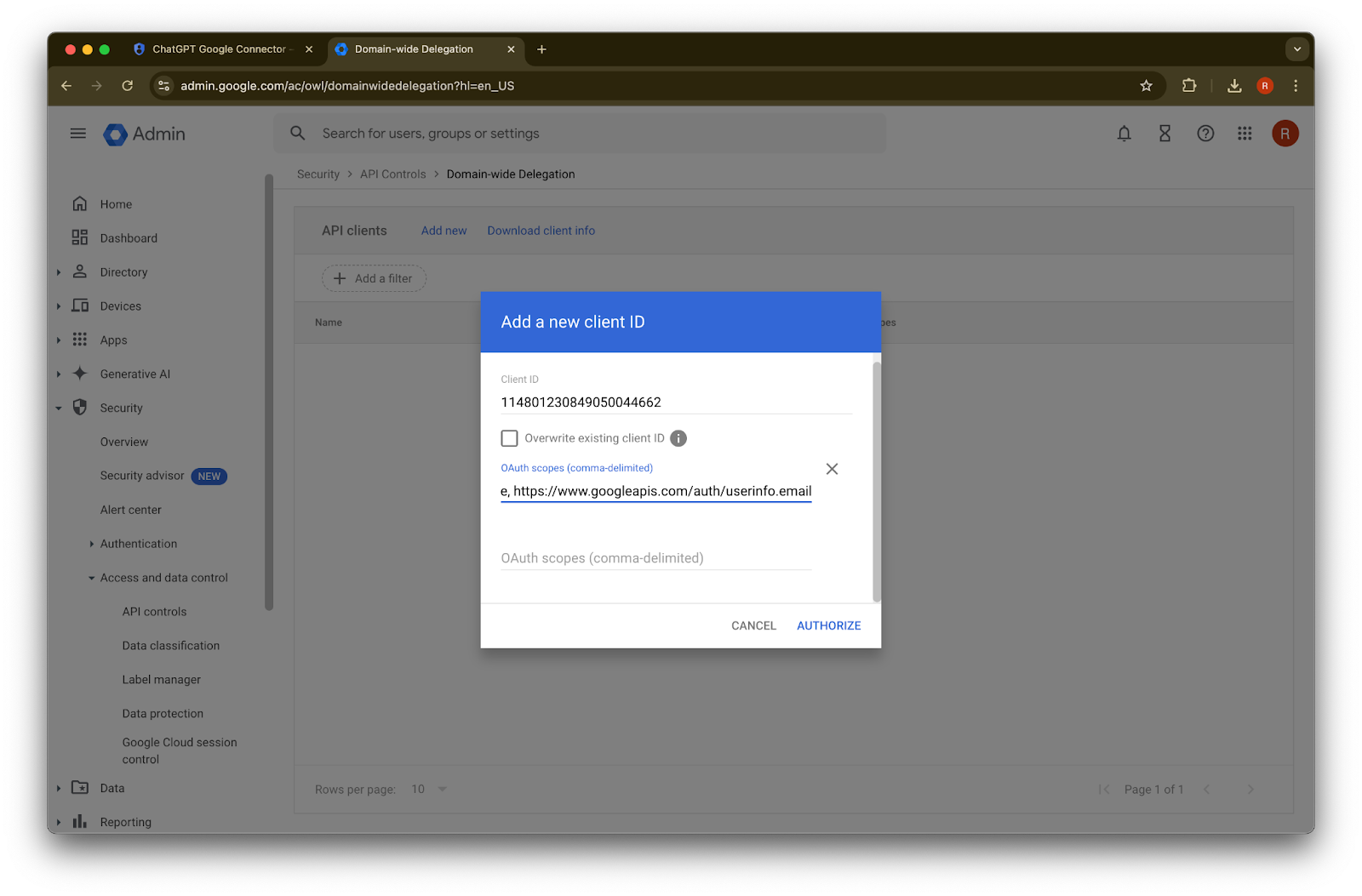
  44. OAuth scopes에는 아래의 쉼표로 구분된 auth scopes 값을 참고하여 복사해 붙여넣으세요.
https://www.googleapis.com/auth/admin.directory.group.readonly, https://www.googleapis.com/auth/admin.directory.group.member.readonly, https://www.googleapis.com/auth/admin.directory.user.readonly, https://www.googleapis.com/auth/admin.directory.user.alias.readonly, https://www.googleapis.com/auth/drive.activity.readonly, https://www.googleapis.com/auth/drive.metadata.readonly, https://www.googleapis.com/auth/drive.readonly, https://www.googleapis.com/auth/userinfo.profile, https://www.googleapis.com/auth/userinfo.email
범위추론
admin.directory.group.readonly그룹 기반 권한 적용
admin.directory.group.member.readonly그룹 기반 권한 적용
admin.directory.user.alias.readonly사용자에게 별칭을 통해 권한이 부여된 경우 처리
drive.activity.readonly파일 변경 시 알림 수신
drive.metadata.readonly파일 콘텐츠와 관련 메타데이터 동기화(예: 마지막 수정 날짜)
drive.readonly파일 콘텐츠와 관련 메타데이터 동기화(예: 마지막 수정 날짜)
userinfo.profile파일을 동기화하는 대상 사용자 확인
userinfo.email파일을 동기화하는 대상 사용자 확인
Google Admin Domain-wide Delegation dialog for adding a new client ID and OAuth scopes

45. Authorize를 클릭합니다.

Image

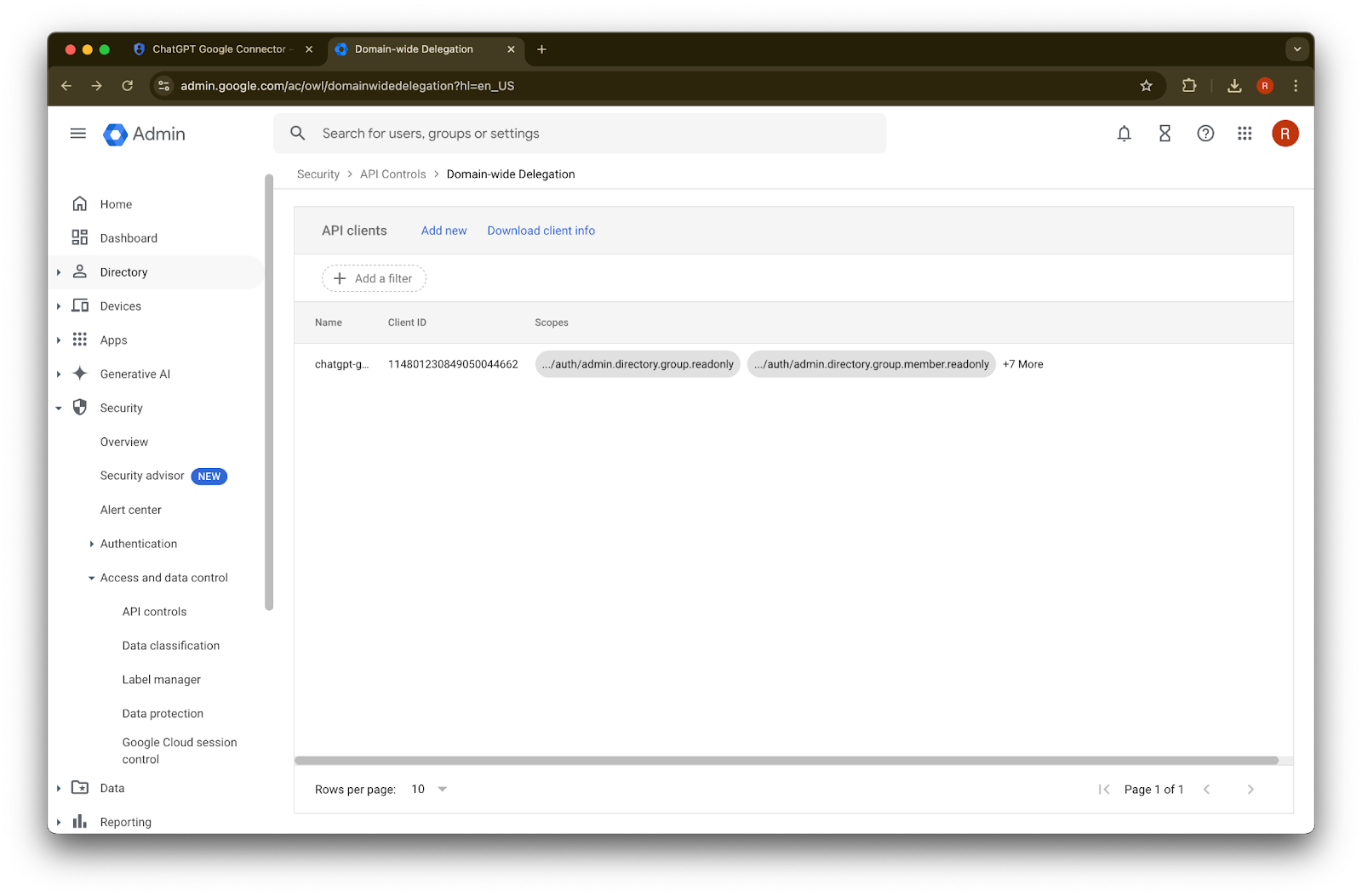
46. 성공!

Image

관리자 계정 설정하기

  1. Directory를 펼칩니다.

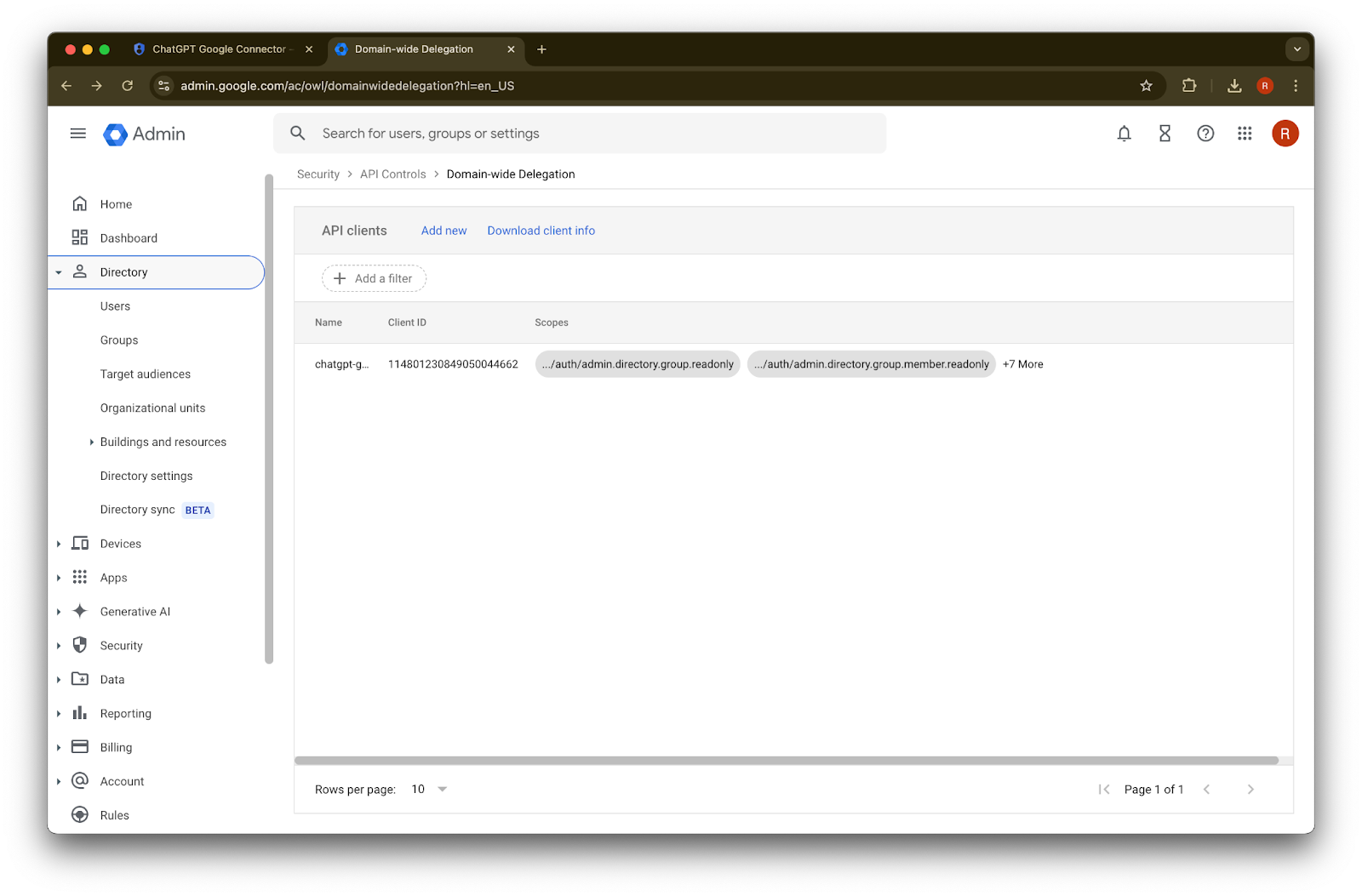
    Google Admin Domain-wide Delegation page with a ChatGPT API client and scopes listed
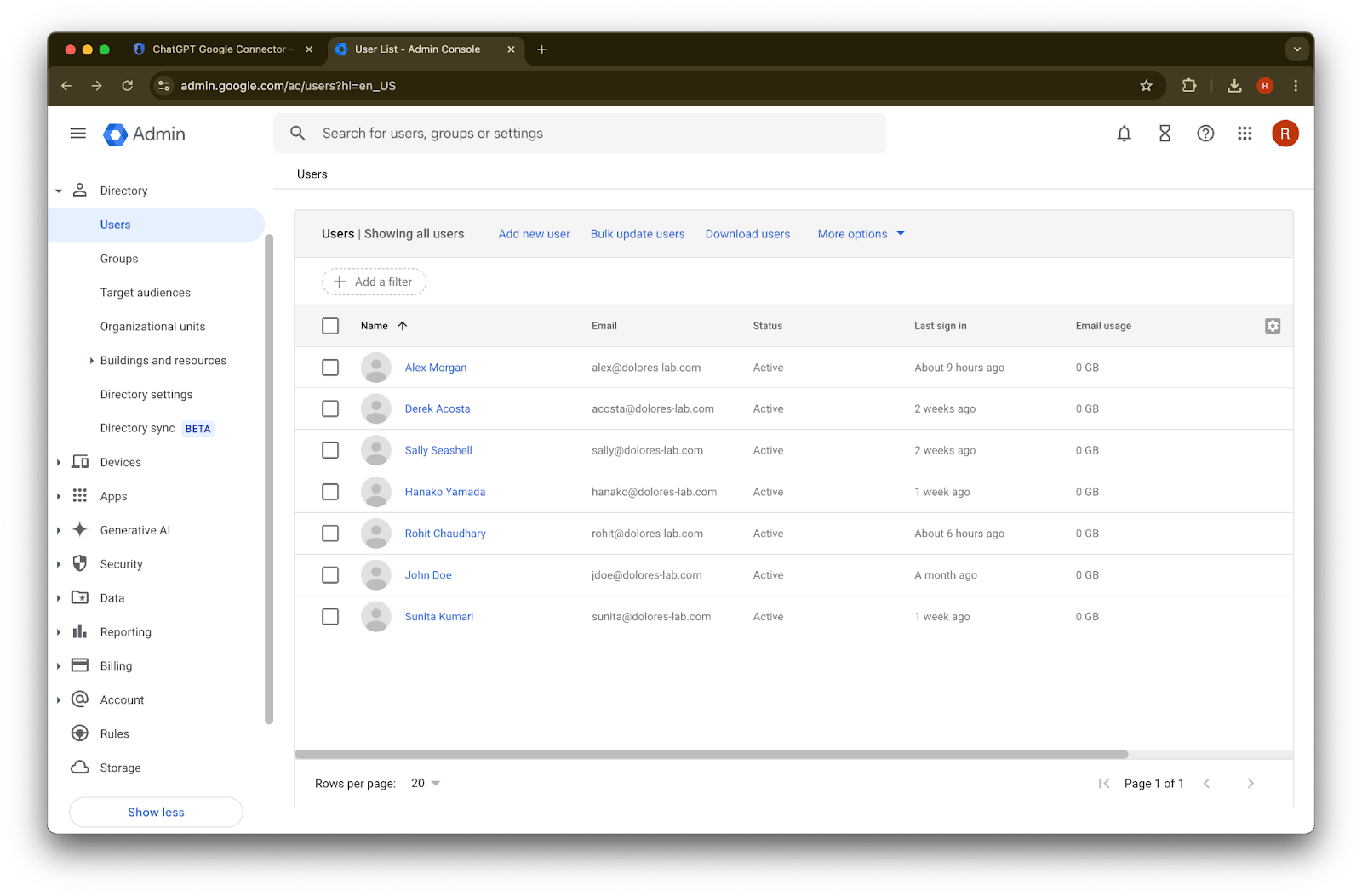
  2. Users를 클릭합니다.

    Google Admin domain-wide delegation page listing a ChatGPT Google Connector API client and scopes
    Google Admin console Users page listing workspace accounts for setup and management
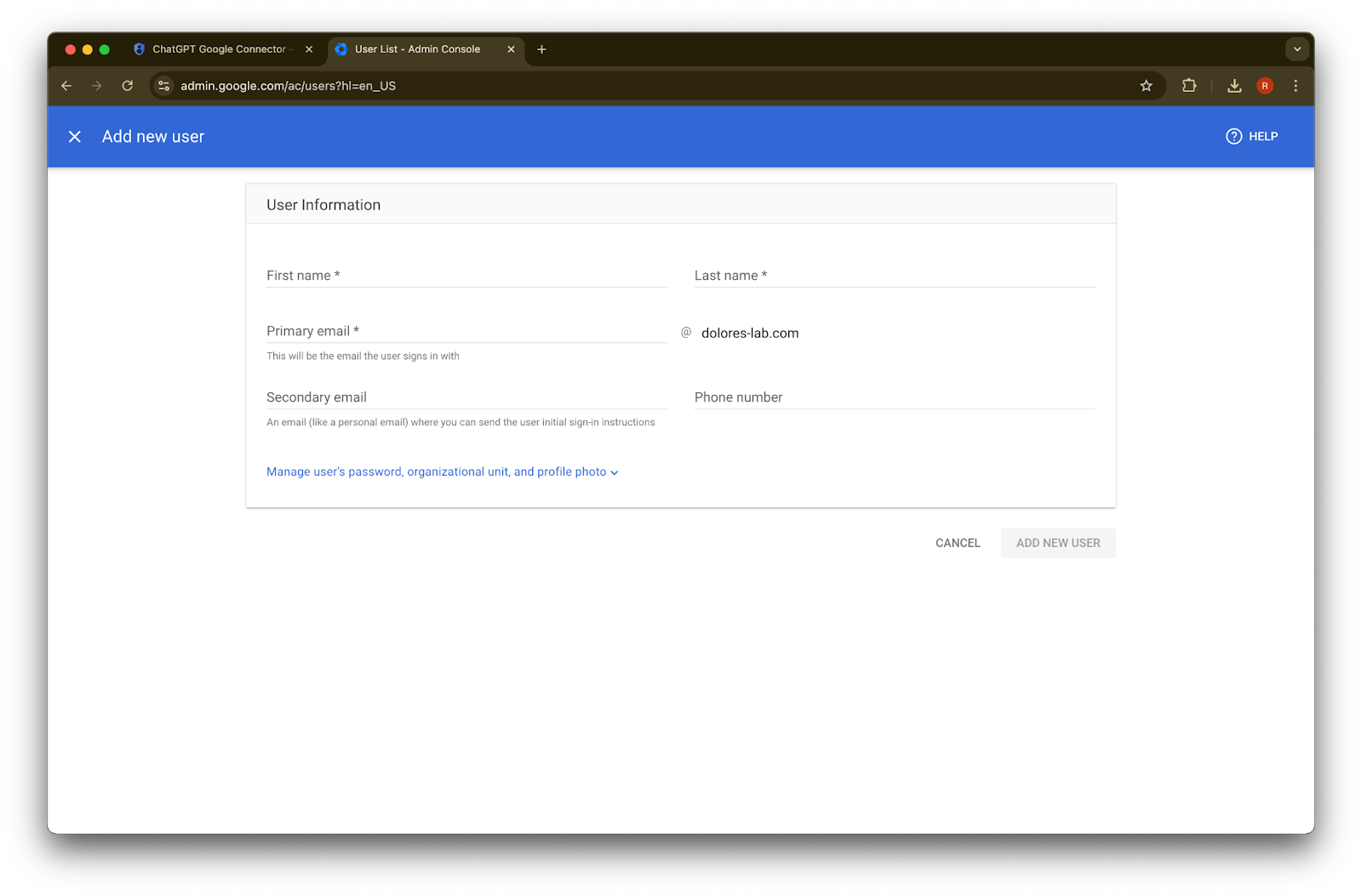
  3. 원하는 first name, last name, primary email 주소를 입력합니다.

    Google Admin console Add new user form for creating a Workspace user at dolores-lab.com
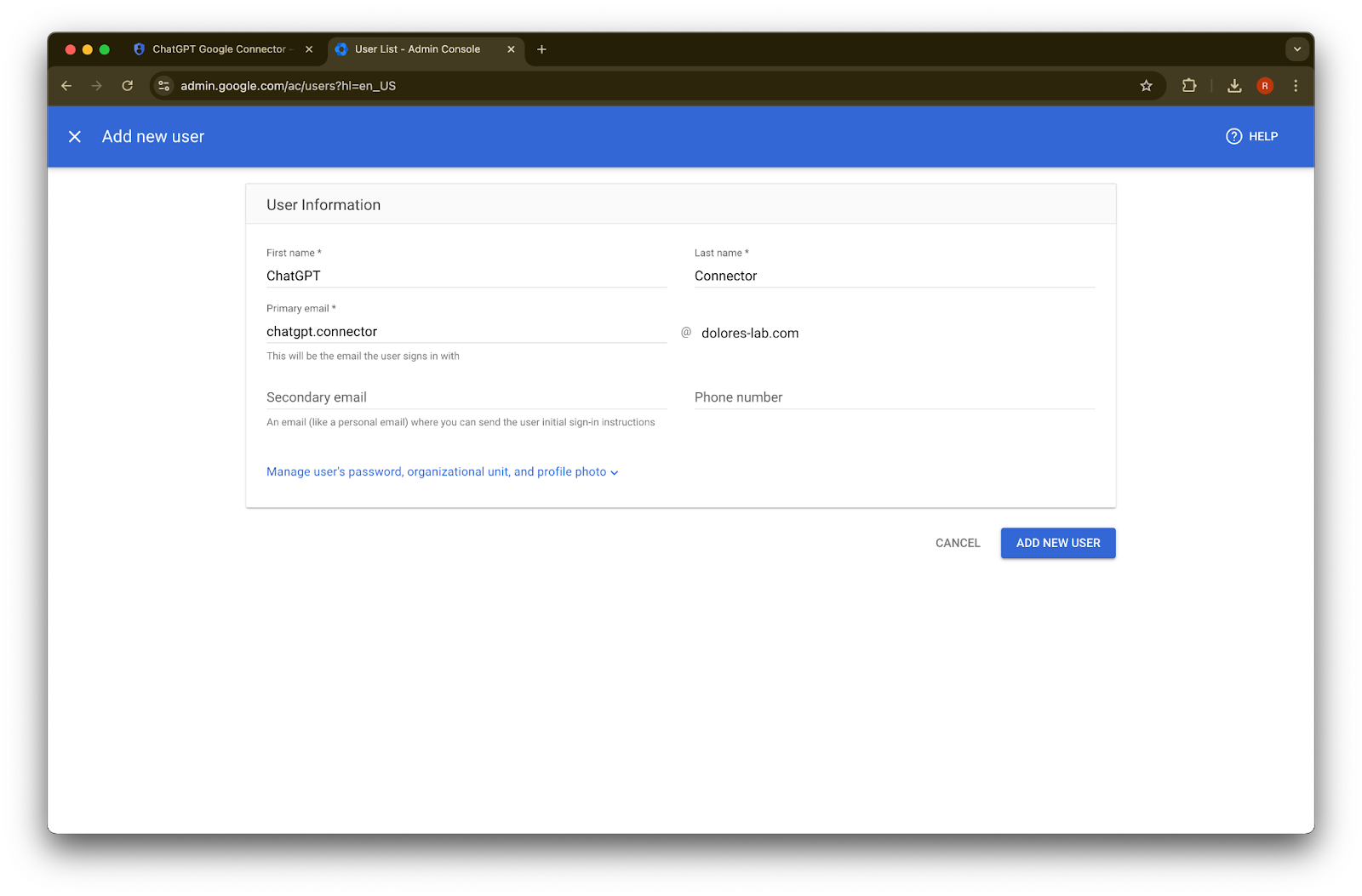
  4. Add new user
    를 클릭합니다.

    Google Admin console Add new user form filled for a ChatGPT Connector account
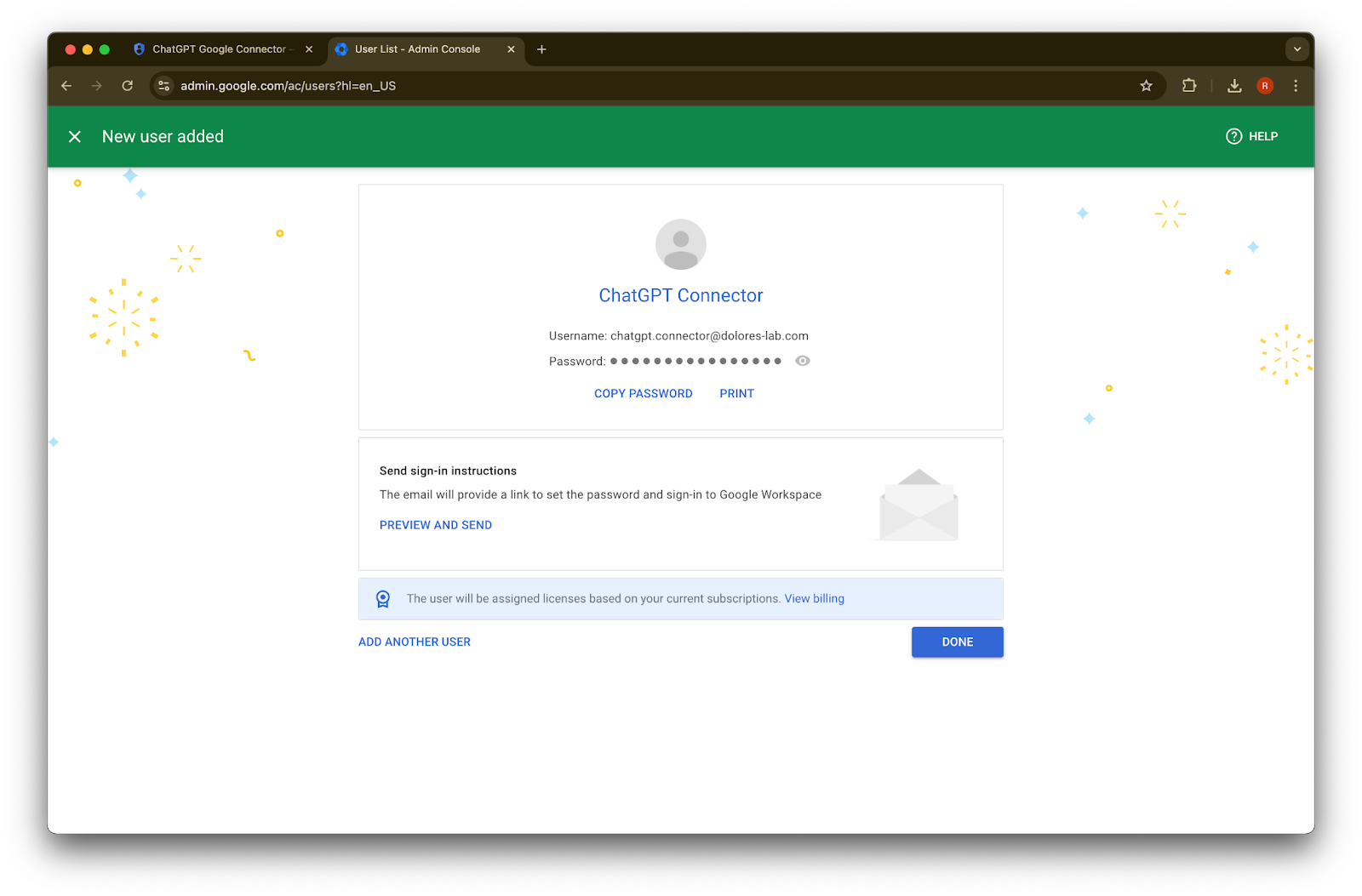
  5. (선택 사항) 이 자격 증명을 기록해 두세요. ChatGPT에는 이 자격 증명이 필요하지 않습니다.
    Google Admin Console New user added page for ChatGPT Connector with Copy Password and Done actions
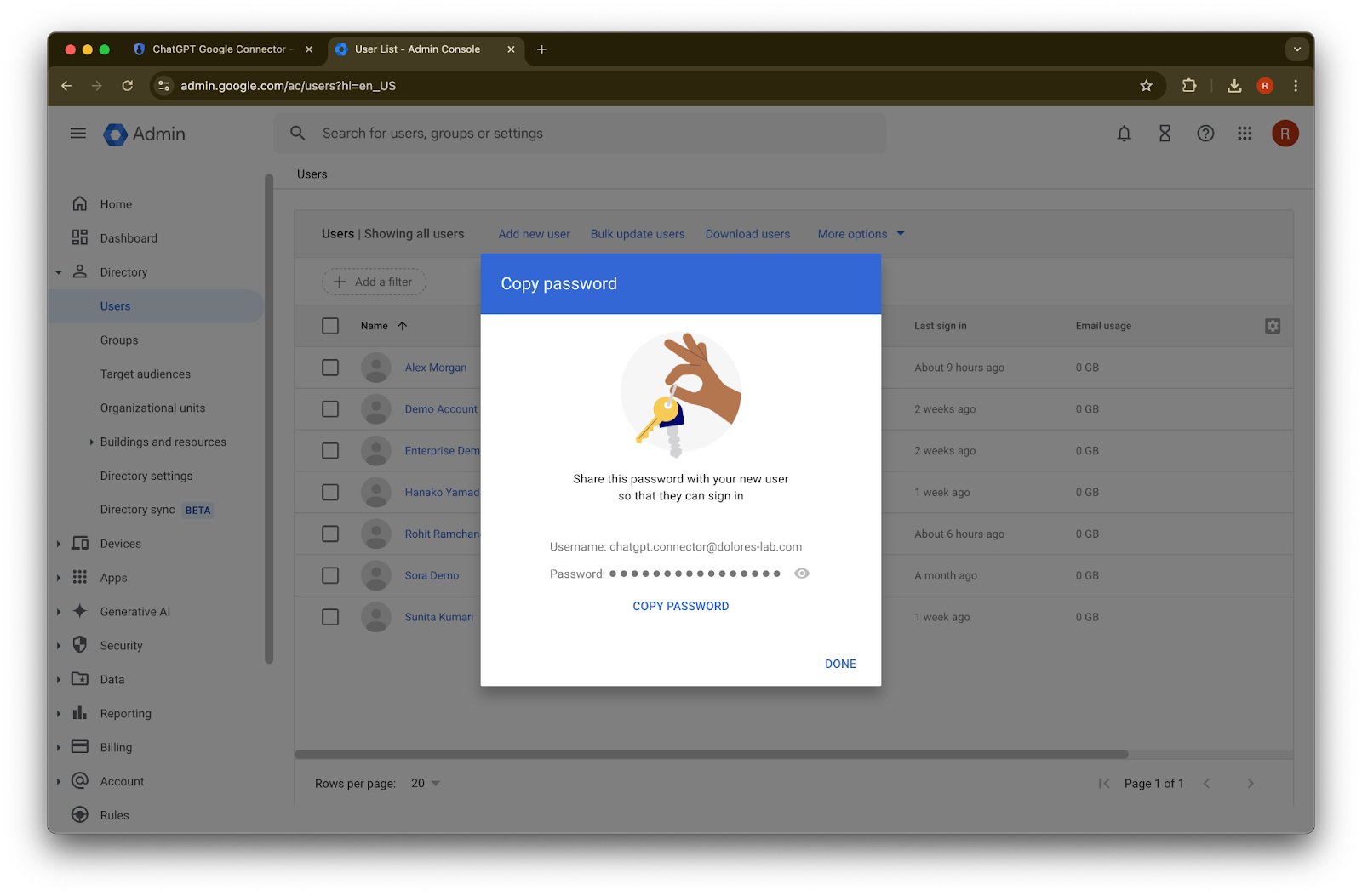
  6. Done을 클릭합니다.

    Google Admin console Copy password dialog for a newly created user account
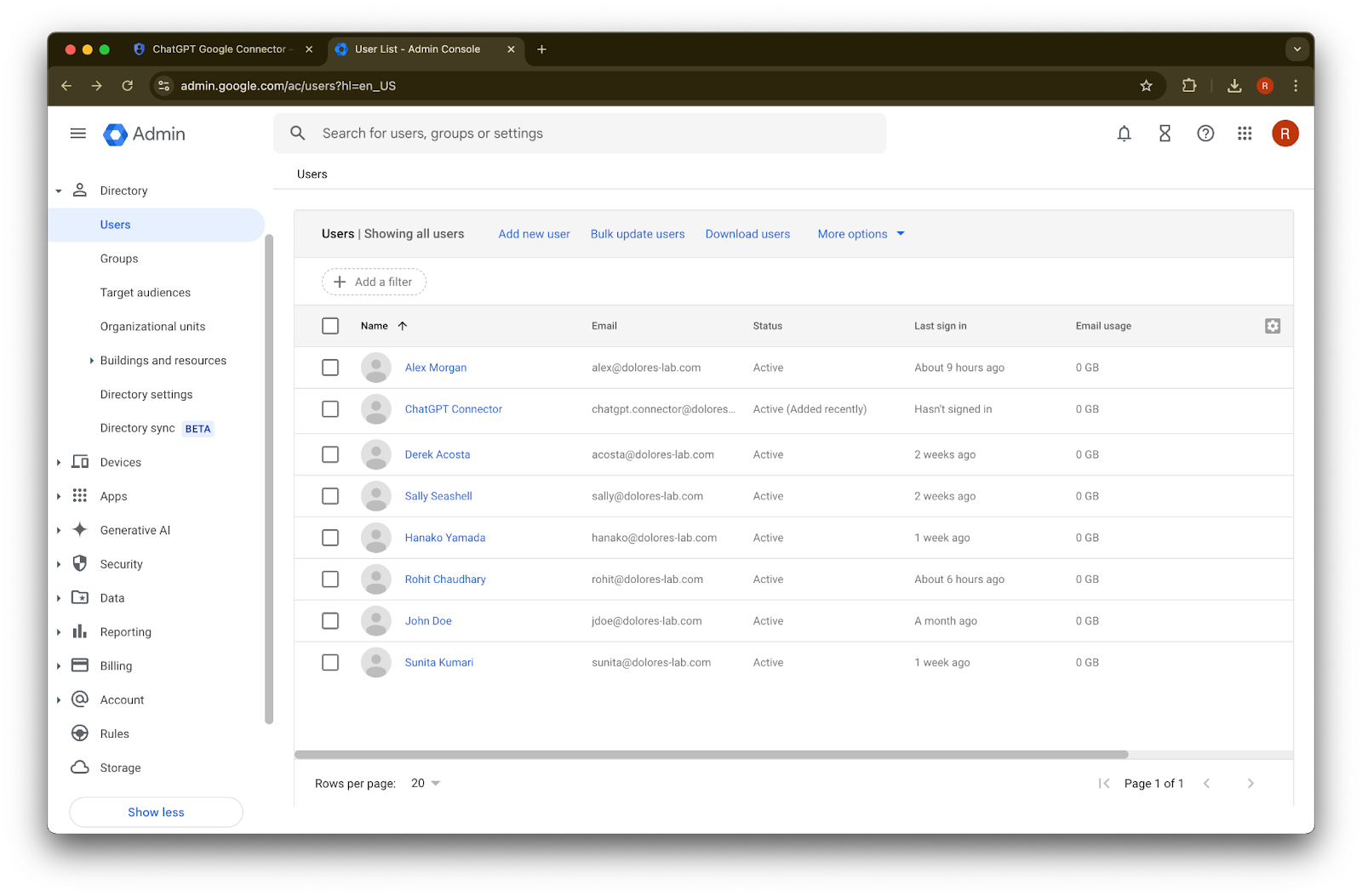
  7. 방금 만든 account를 클릭합니다. 목록에 표시되지 않으면 페이지를 새로고침하거나 캐시와 쿠키를 지운 뒤 다시 시도하세요.
    Google Admin console Users page listing accounts including ChatGPT Connector
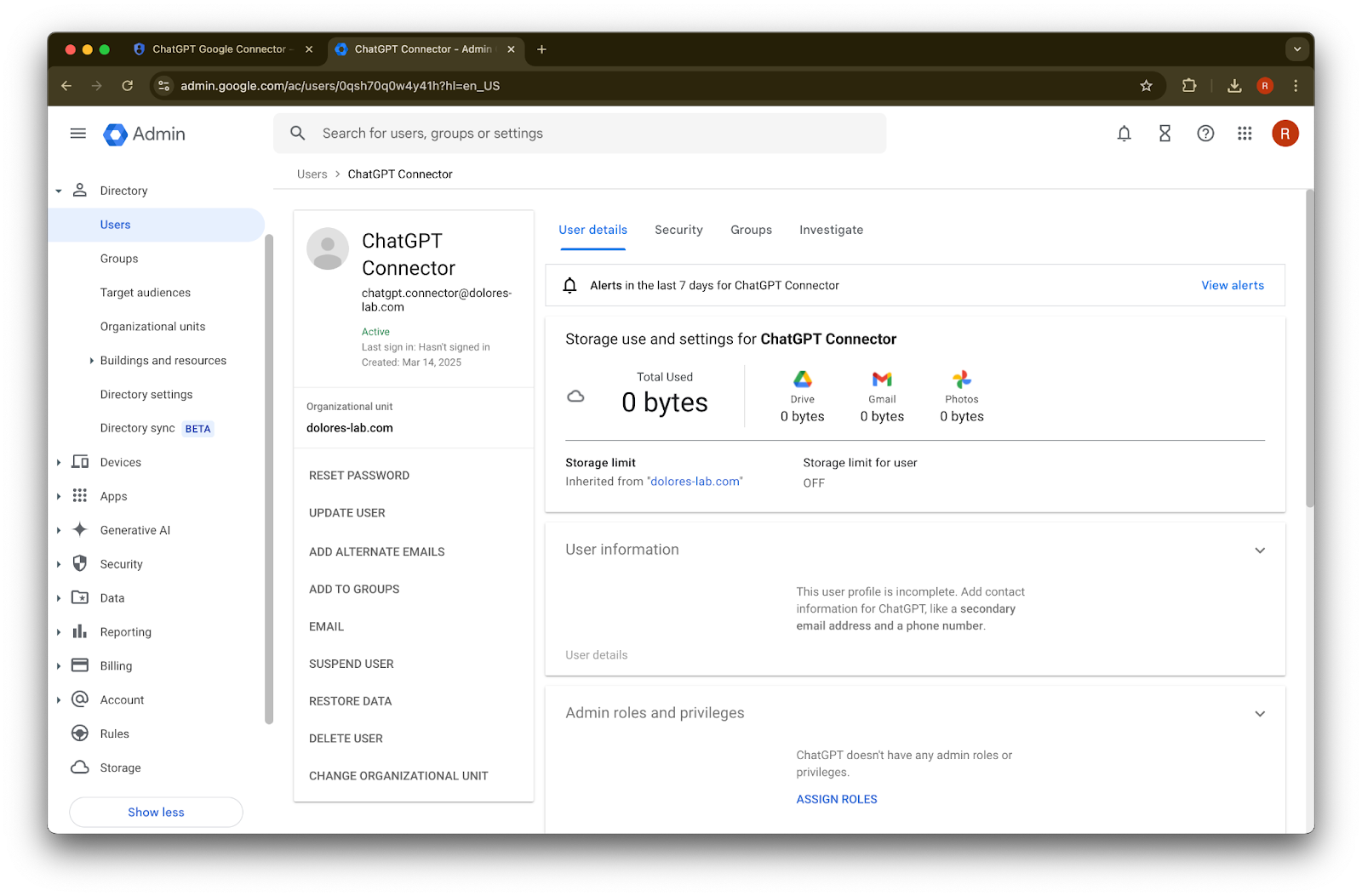
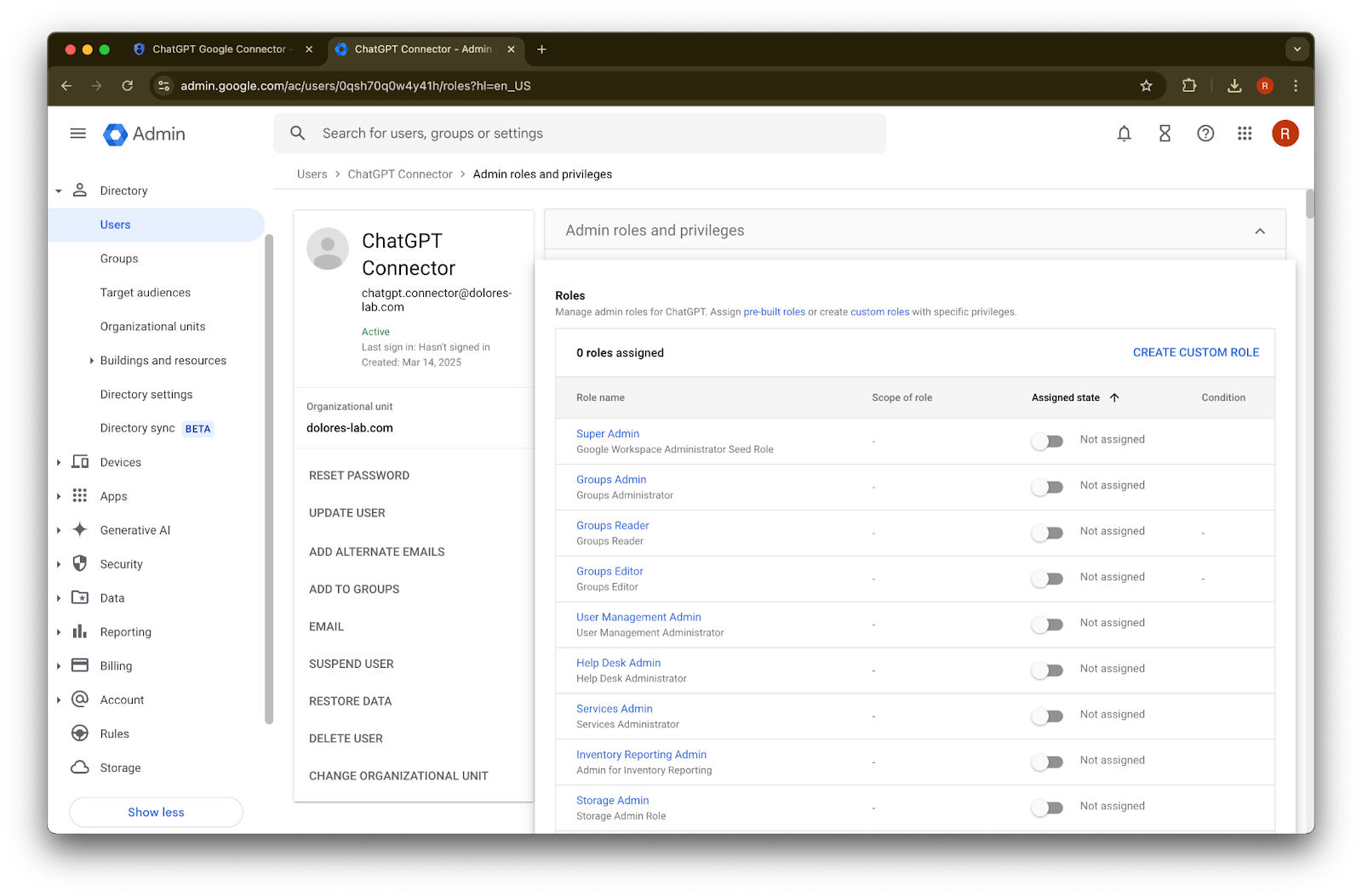
  8. assign roles를 클릭합니다.
    Google Admin user details page for the ChatGPT Connector service account
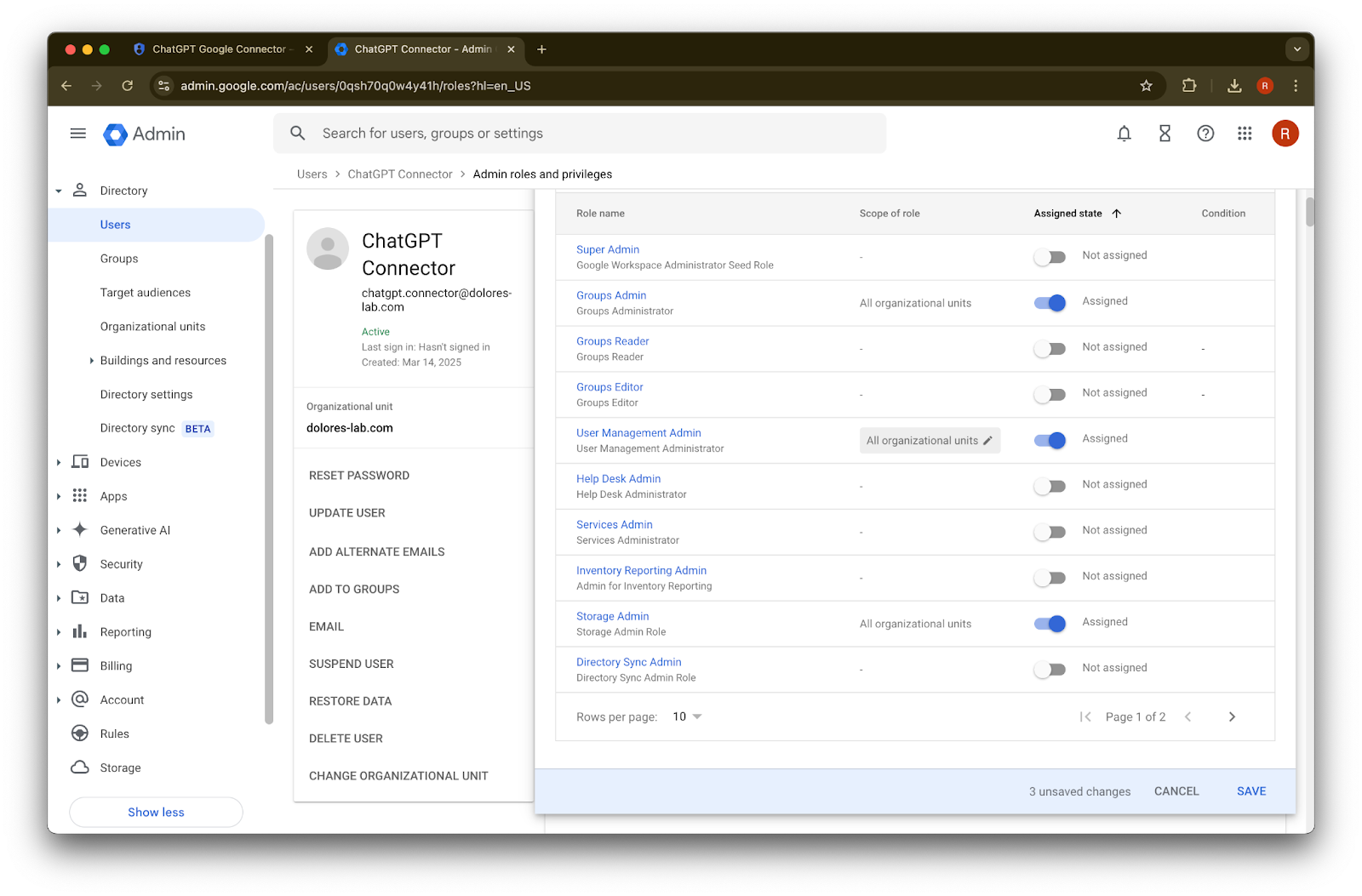
  9. Groups Reader, User Management Admin,Storage Admin 역할을 켭니다.

    Google Admin ChatGPT Connector user page with Admin roles and privileges open and no roles assigned
  10. 아래로 스크롤하여 Save.를 클릭합니다. 이제 관리자 계정이 성공적으로 생성되고 구성되었습니다.
Image

ChatGPT 관리자 콘솔에서 설정 완료하기

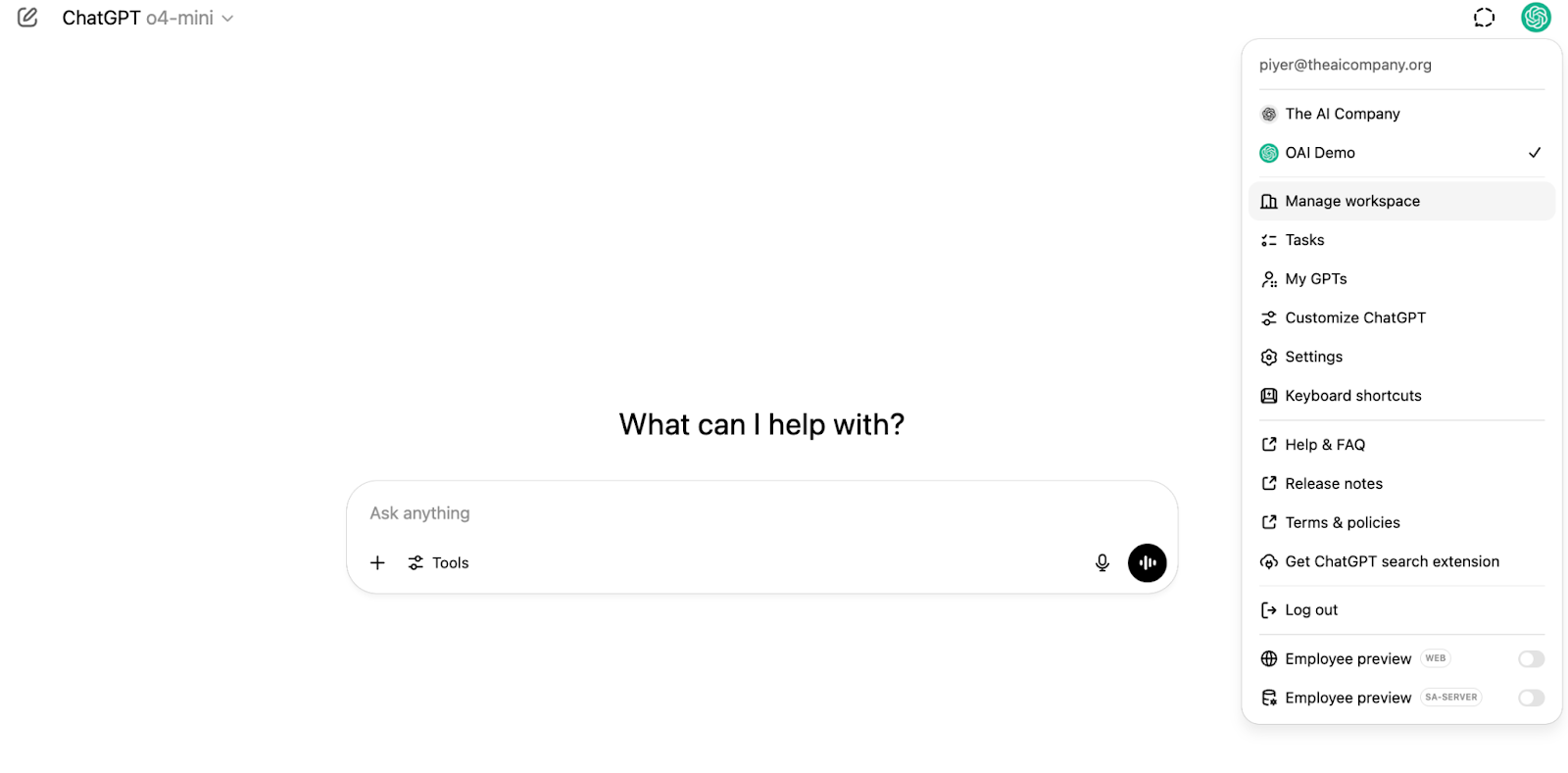
  1. ChatGPT로 이동한 다음 페이지 오른쪽 상단의 프로필 아이콘을 클릭합니다.

    Image
  2. 워크스페이스 관리
    를 클릭합니다.

    ChatGPT workspace menu with Manage workspace selected under the organization switcher
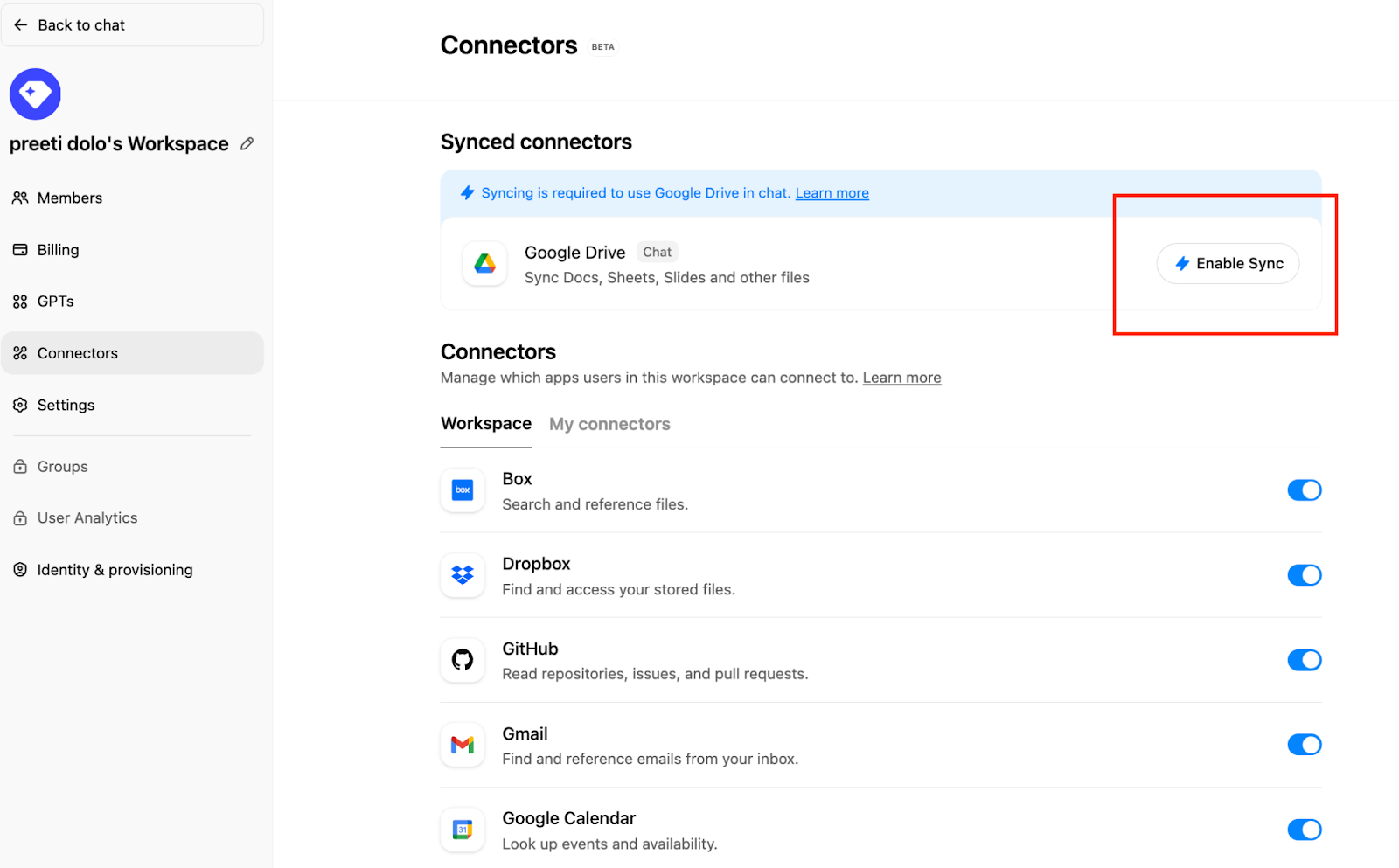
  3. Connections 를 클릭한 다음 ‘Synced connectors’ 아래에서 → Enable Sync 를 클릭합니다.

    Connectors page with Google Drive sync prompt and Enable Sync button highlighted
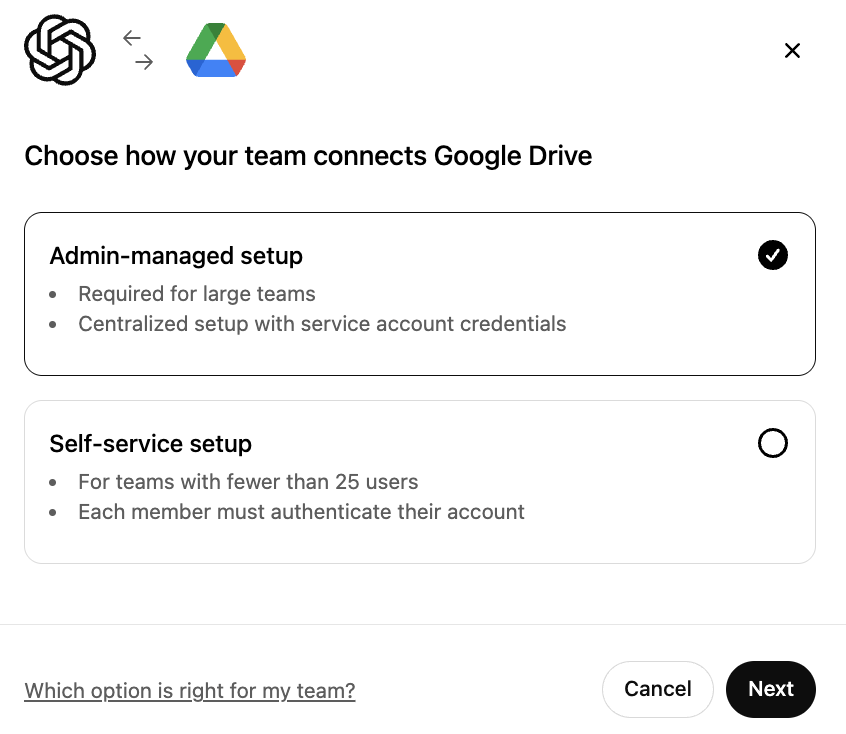
  4. Admin-managed가 선택되어 있는지 확인하고 Next를 클릭합니다.

    Google Drive connection setup with Admin-managed setup selected over Self-service setup
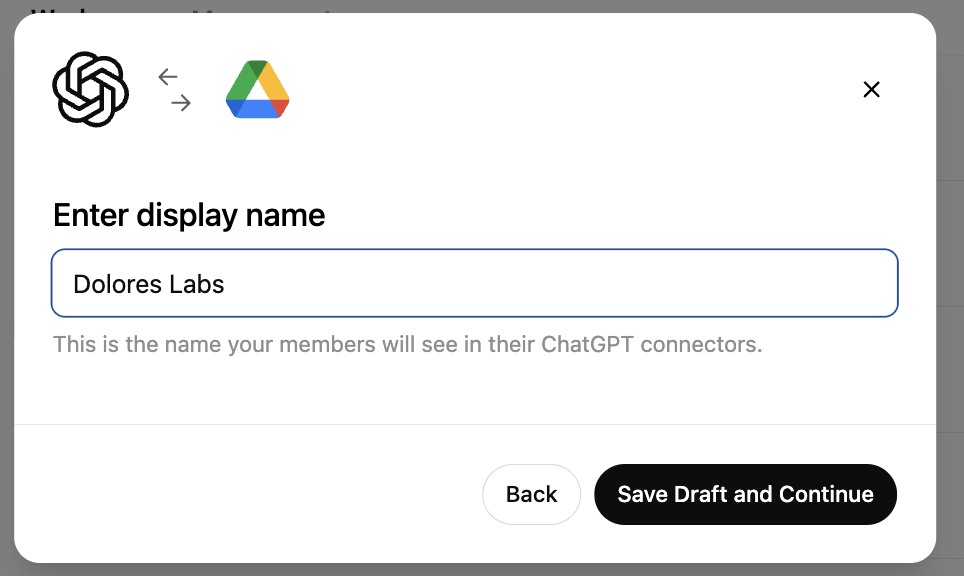
  5. display name을 입력합니다. Google Workspace 이름을 사용하는 것을 권장합니다.

    현재는 연결 이름 변경을 지원하지 않습니다.

    Google Workspace connector setup dialog with display name Dolores Labs entered
  6. Save Draft and Continue를 클릭합니다.

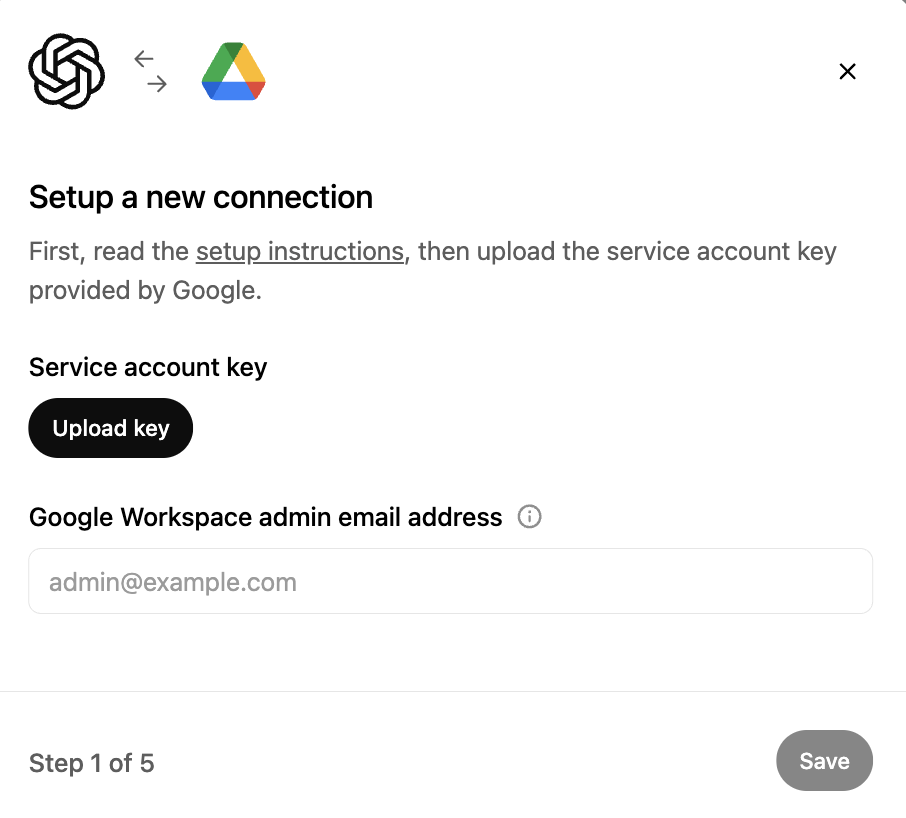
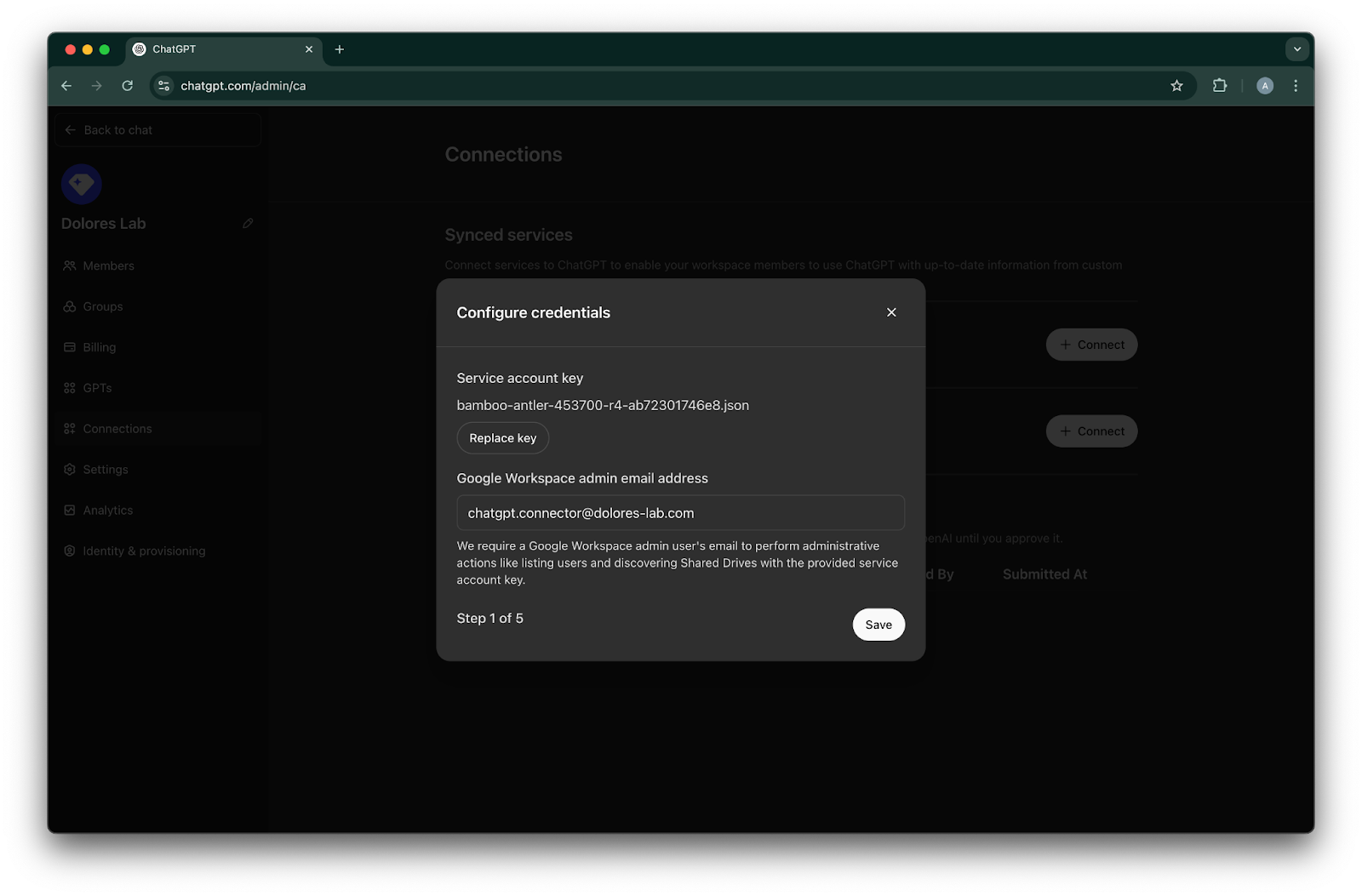
  7. Upload key를 클릭합니다. 위에서 서비스 계정을 설정하는 과정에서 다운로드한 키인 JSON 파일을 선택합니다. 이 키가 정확한지 확인하세요.

    Google Workspace connection setup step prompting upload of a service account key and admin email address
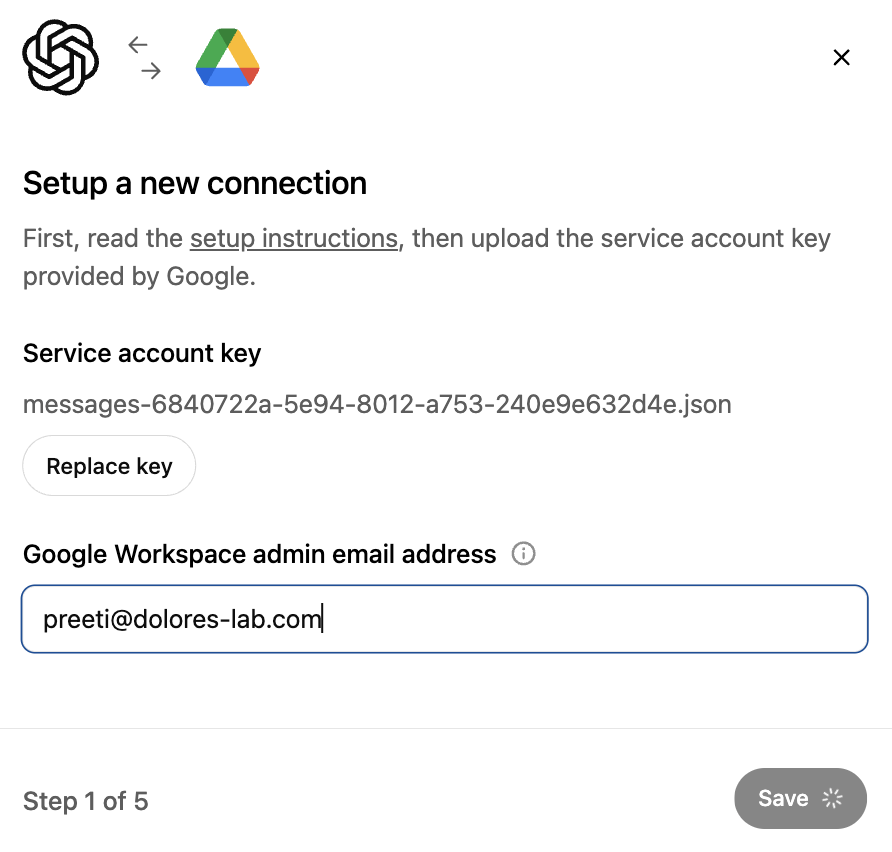
  8. admin email address를 입력합니다. 이전에 만든 관리자 계정입니다.

    Image
  9. Save.를 클릭합니다.

    ChatGPT Connections credentials dialog with service account key and Google Workspace admin email entered
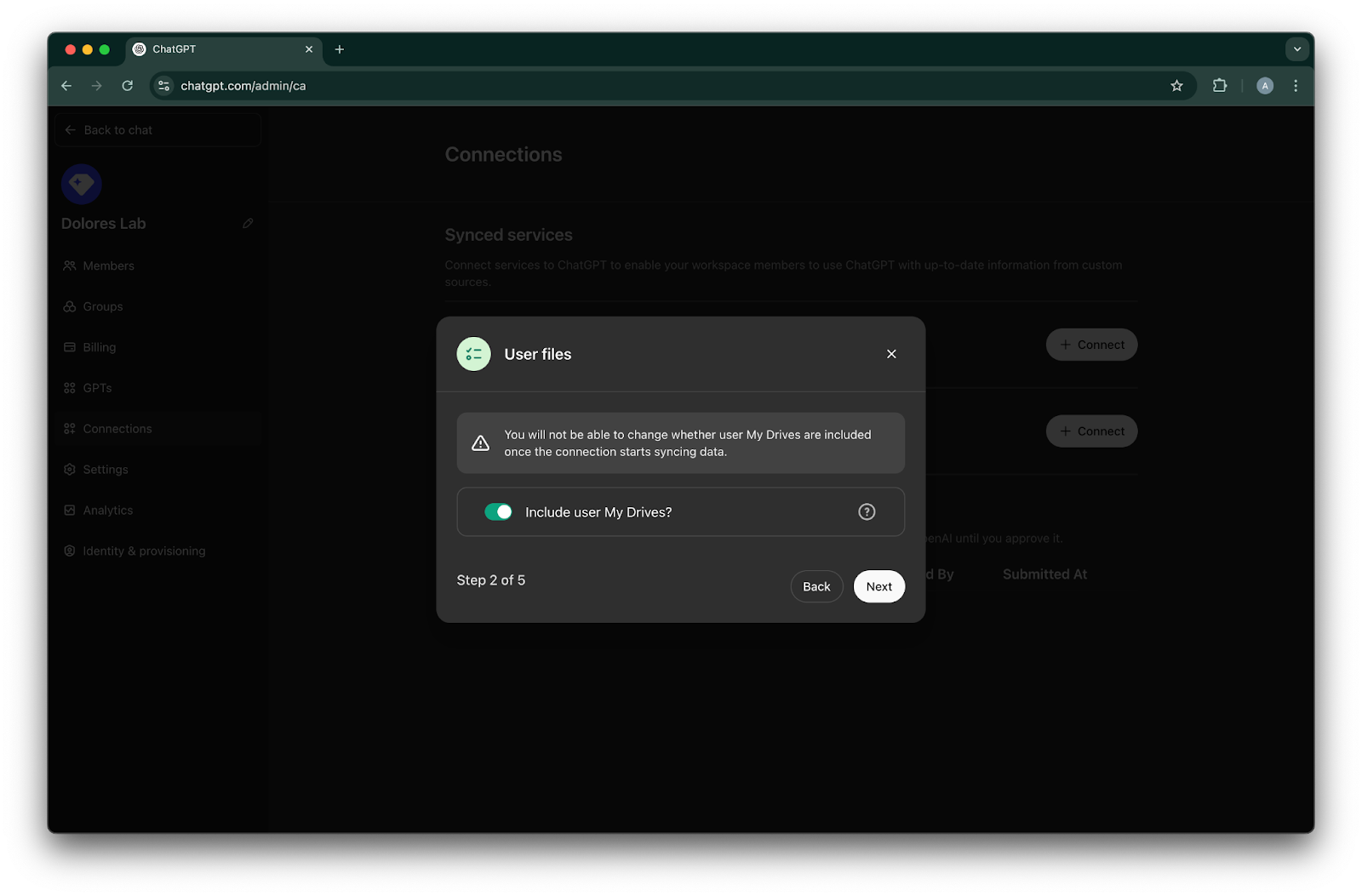
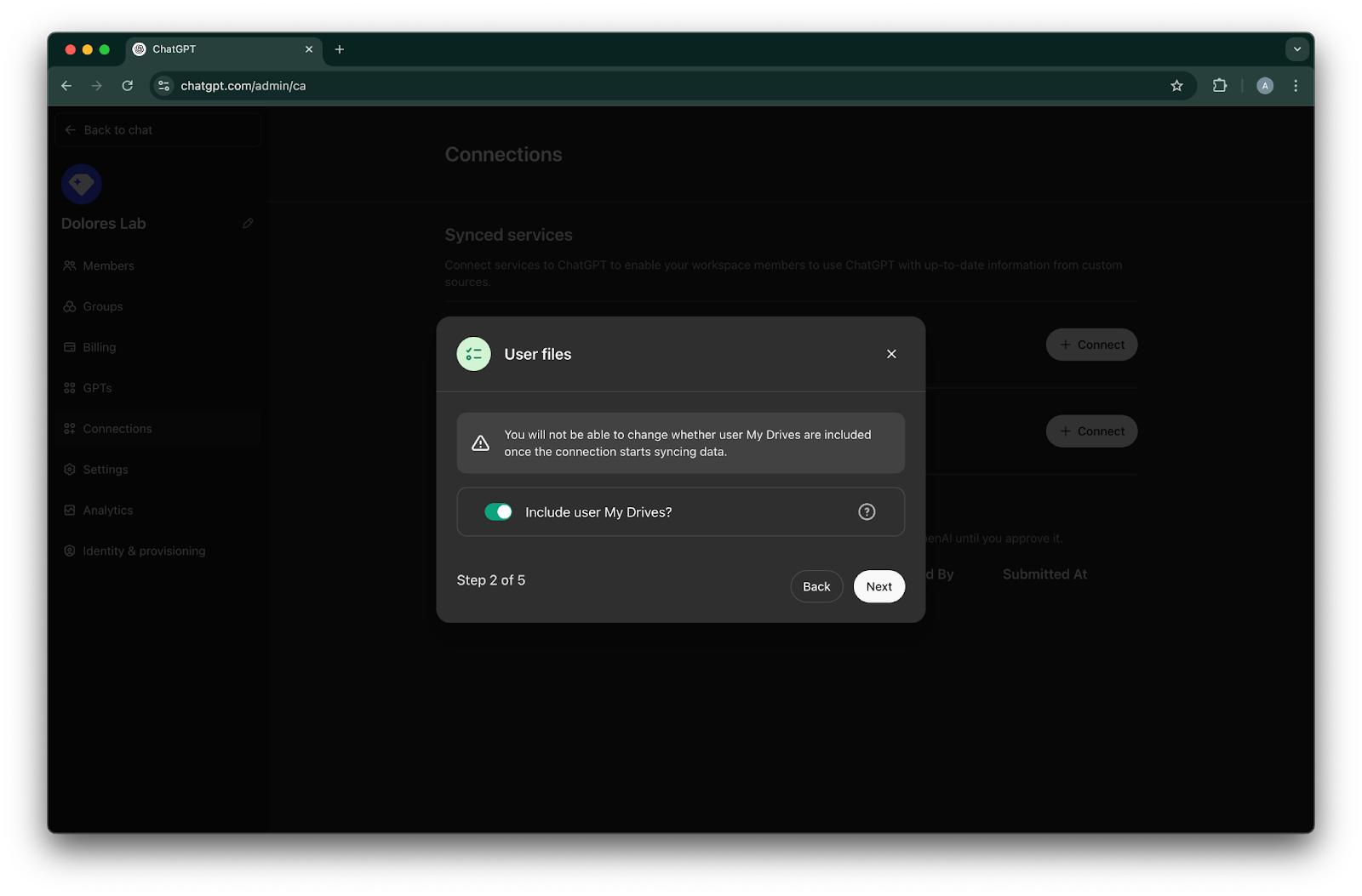
  10. 모든 사용자의 My Drive에 있는 파일을 포함할지 선택합니다.

    ChatGPT Connections modal for User files with Include user My Drives enabled at step 2 of 5
  11. Next를 클릭합니다.

    ChatGPT admin Connections modal for User files with Include user My Drives enabled in step 2 of 5
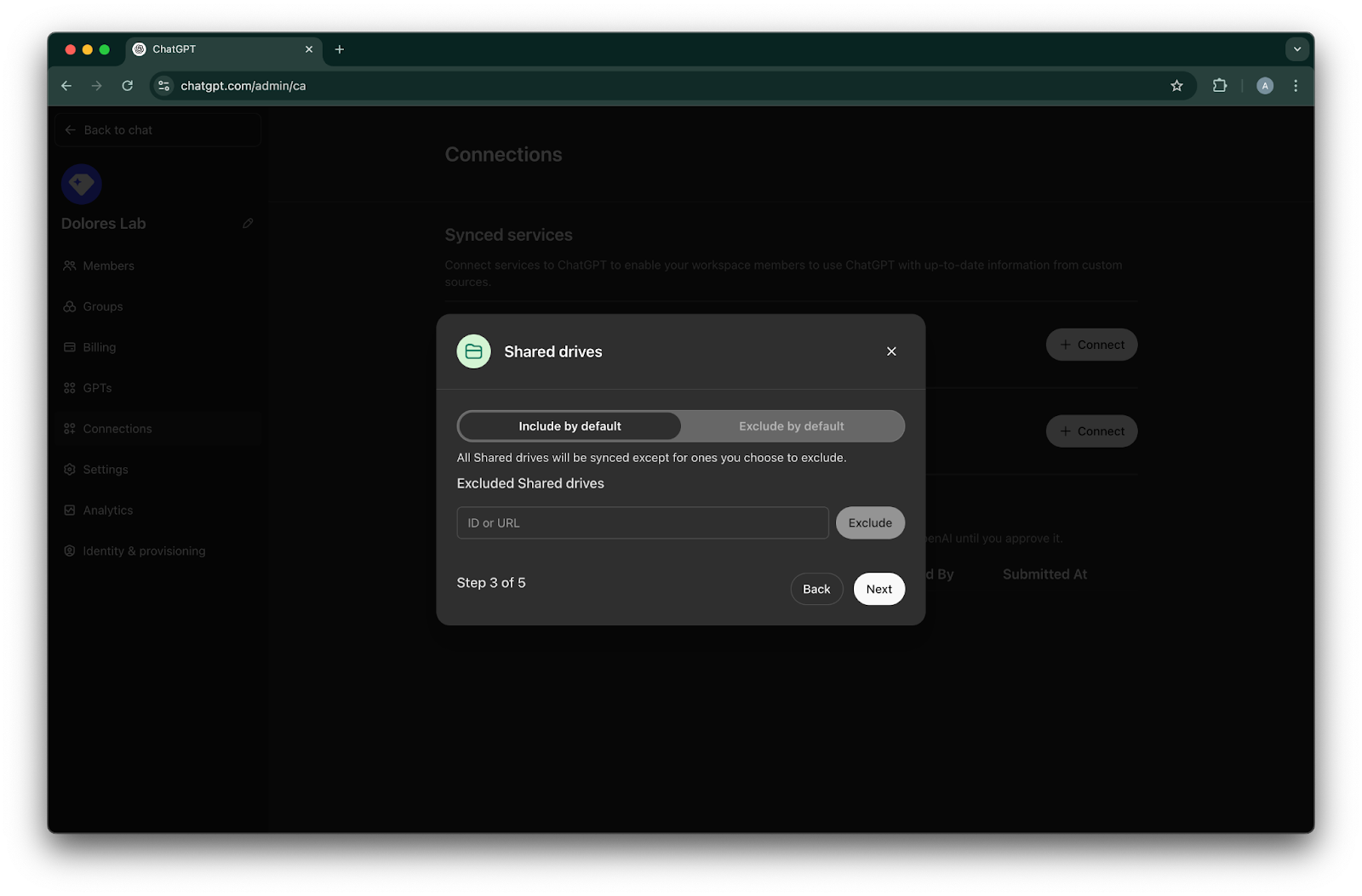
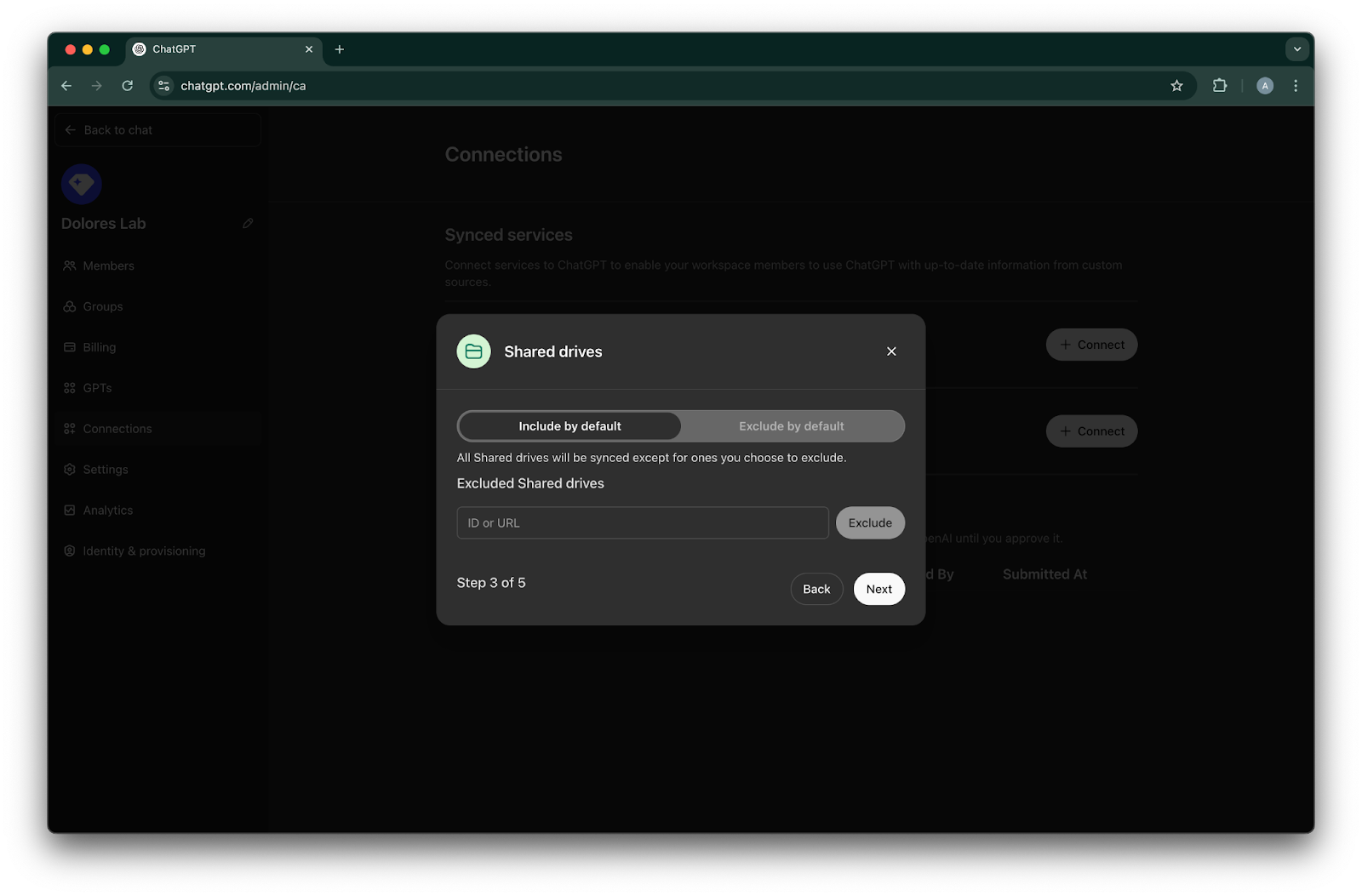
  12. 공유 드라이브를 관리하는 방법을 선택합니다. 다음 세 가지 시나리오를 지원합니다.

    1. 모든 공유 드라이브를 포함하려면 Include by default 를 선택하고 제외할 공유 드라이브 ID는 추가하지 마세요.

    2. 대부분의 공유 드라이브를 포함하려면 Include by default를 선택하고 제외하려는 공유 드라이브의 ID를 추가하세요.

    3. 대부분의 공유 드라이브를 제외하려면 Exclude by default를 선택하고 포함하려는 공유 드라이브의 ID를 추가하세요.

    ChatGPT admin Shared drives setup with Include by default selected and an Excluded Shared drives field
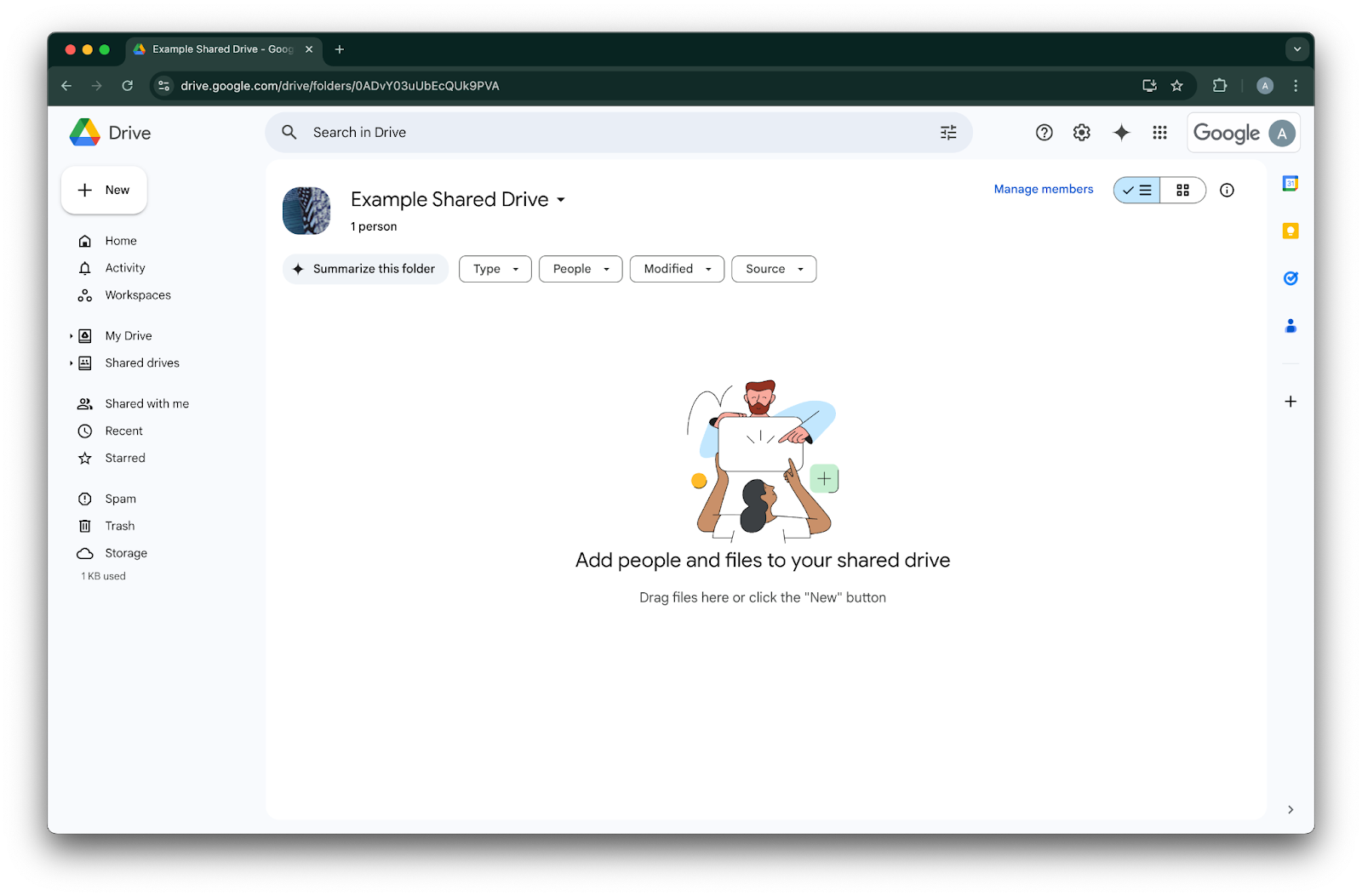
  13. 공유 드라이브의 ID를 확인하려면 웹 브라우저에서 해당 드라이브로 이동합니다. URL의 마지막 부분이 공유 드라이브 ID입니다.
    다음 예시에서는 `0ADvY03uUbEcQUk9PVA`'입니다.

    Google Drive shared drive with Manage members visible for Example Shared Drive
  14. Next를 클릭합니다.

    ChatGPT admin Connections modal for Shared drives with Include by default selected at step 3 of 5
  15. Google Drive 연결에 액세스할 사용자를 선택합니다. ChatGPT 워크스페이스의 관리자만 선택하거나 모든 사용자에 대해 활성화할 수 있습니다. 모든 사용자에 대해 활성화하면 워크스페이스에 새로 추가되는 사용자도 자동으로 포함됩니다.
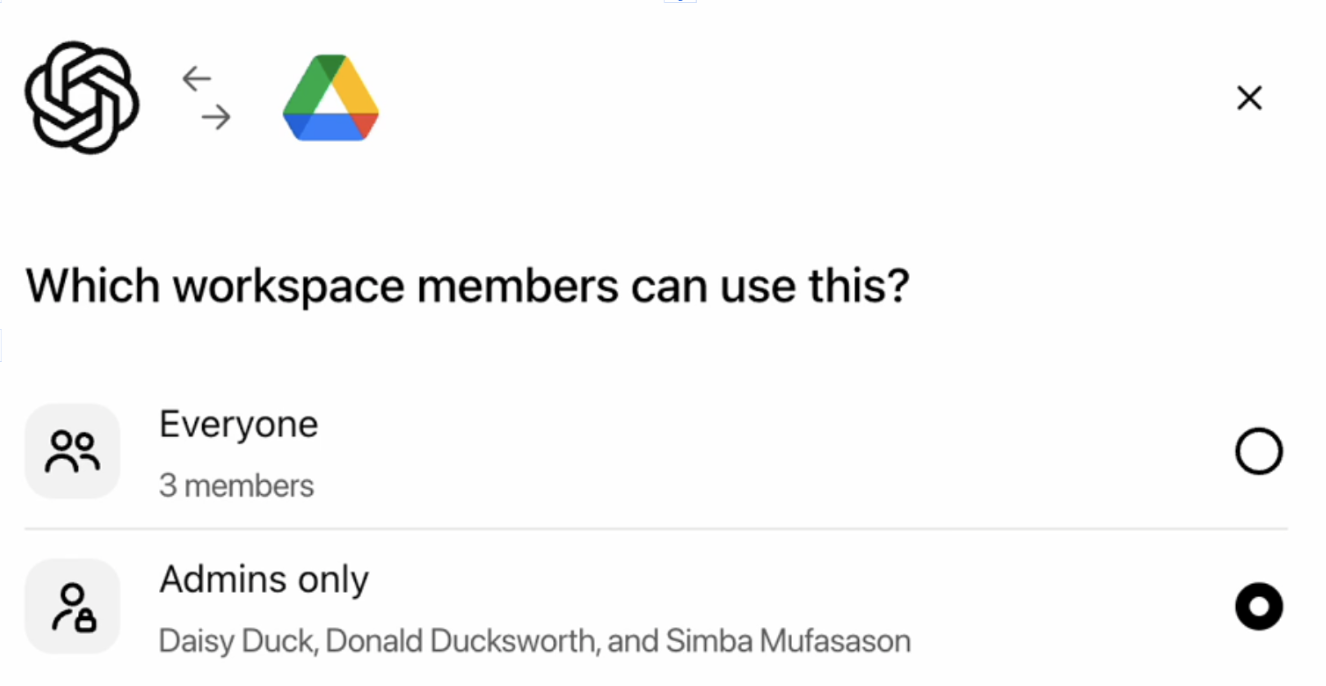
    Google Drive connector permission set to Admins only for workspace members
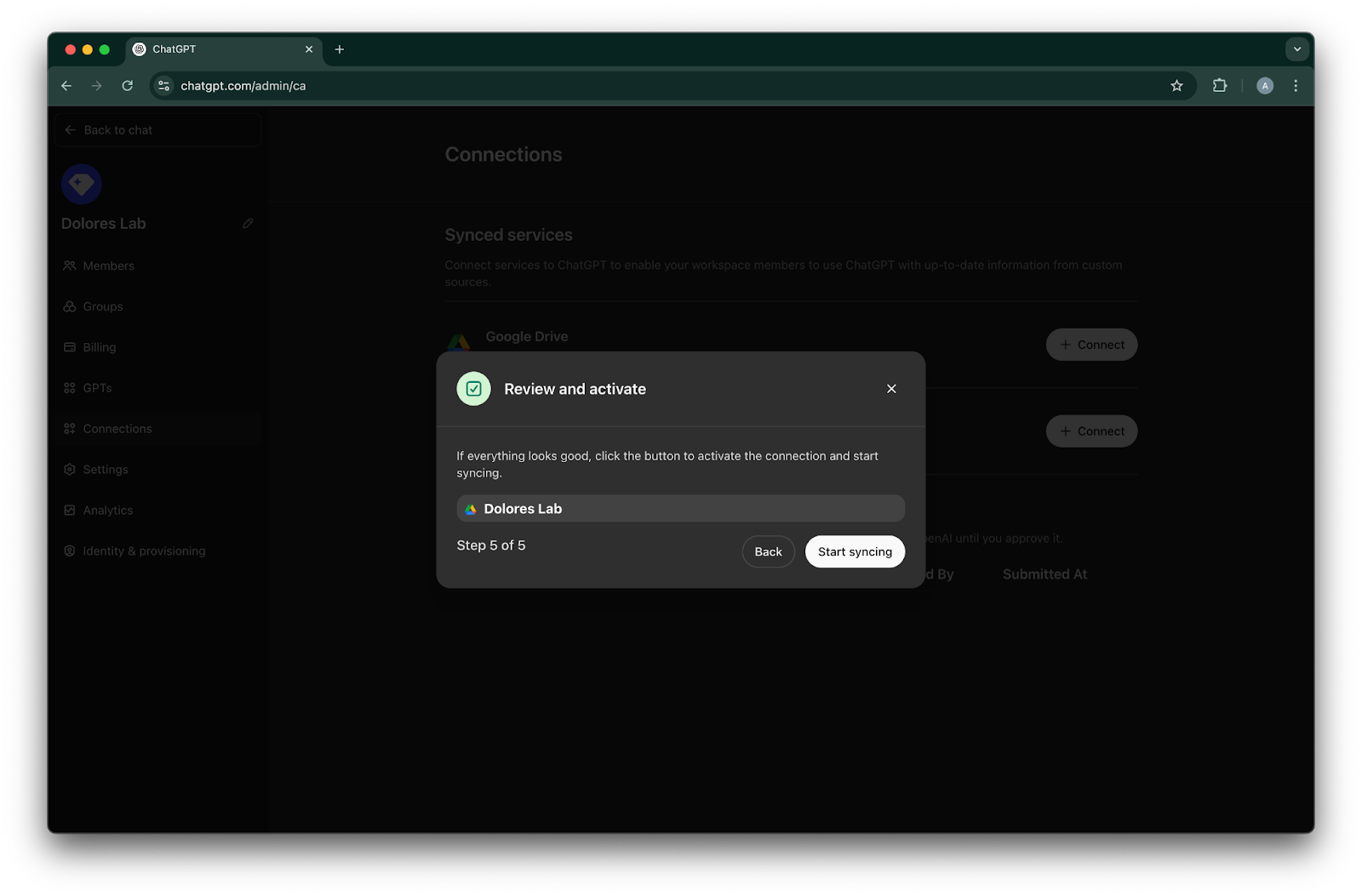
  16. Start syncing을 클릭합니다.

    Image
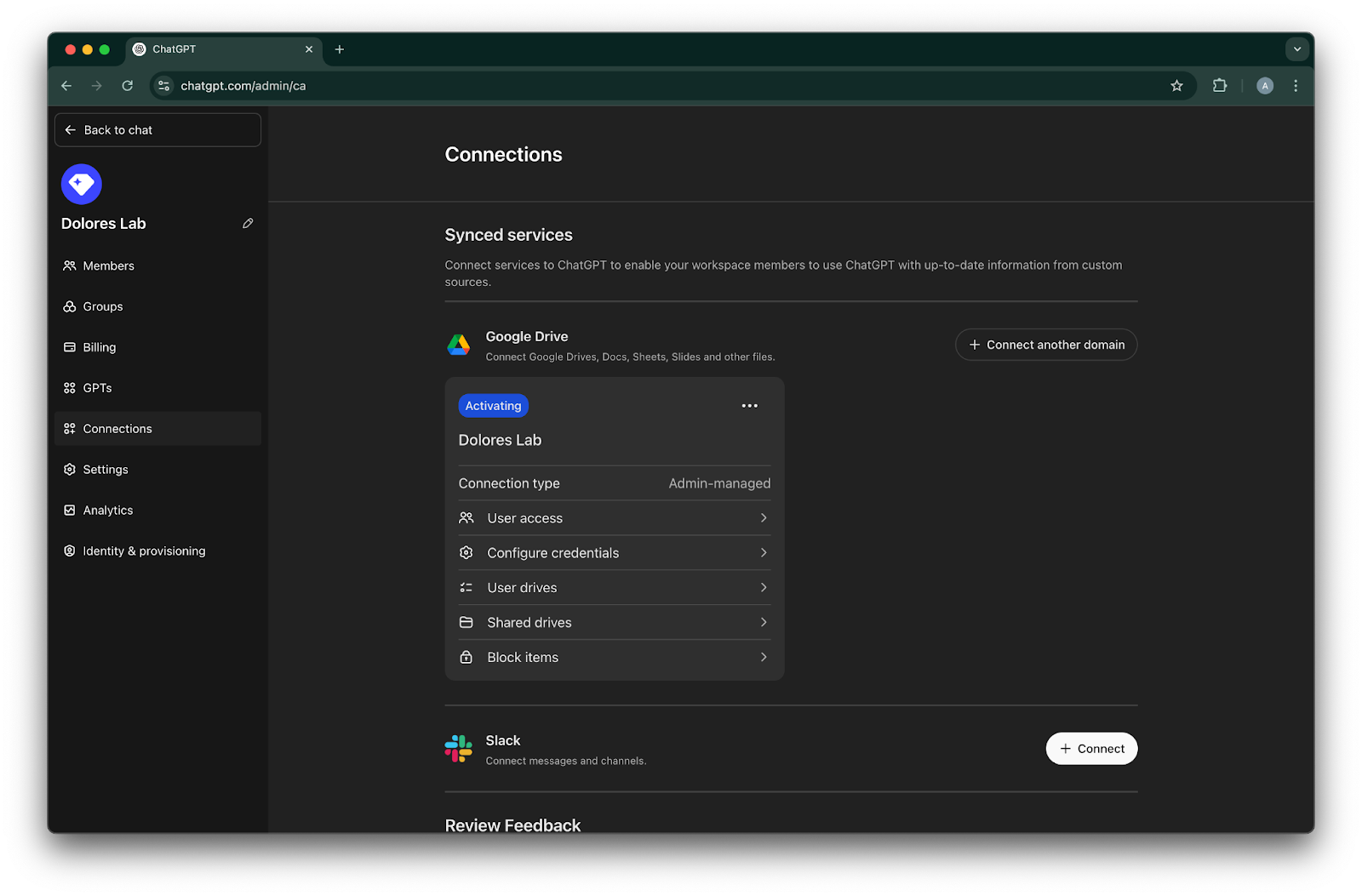
  17. 이제 Google Drive 연결이 성공적으로 생성되었습니다!
    동기화는 즉시 시작되지만, 설정에 따라 포함된 파일 수에 따라 완료까지 몇 시간에서 며칠이 걸릴 수 있습니다.
    지난 30일 동안 추가되거나 수정된 파일의 동기화가 완료되면, 이 커넥터는 활성화한 사용자에게 제공됩니다.
    Image

서비스 계정 키 생성 활성화

다음 오류가 발생하면 이 특정 프로젝트에 대해 서비스 계정 생성을 활성화해야 합니다.

> 조직에 ‘iam.disableServiceAccountKeyCreation’ 조직 정책 제약이 적용되어 있습니다.
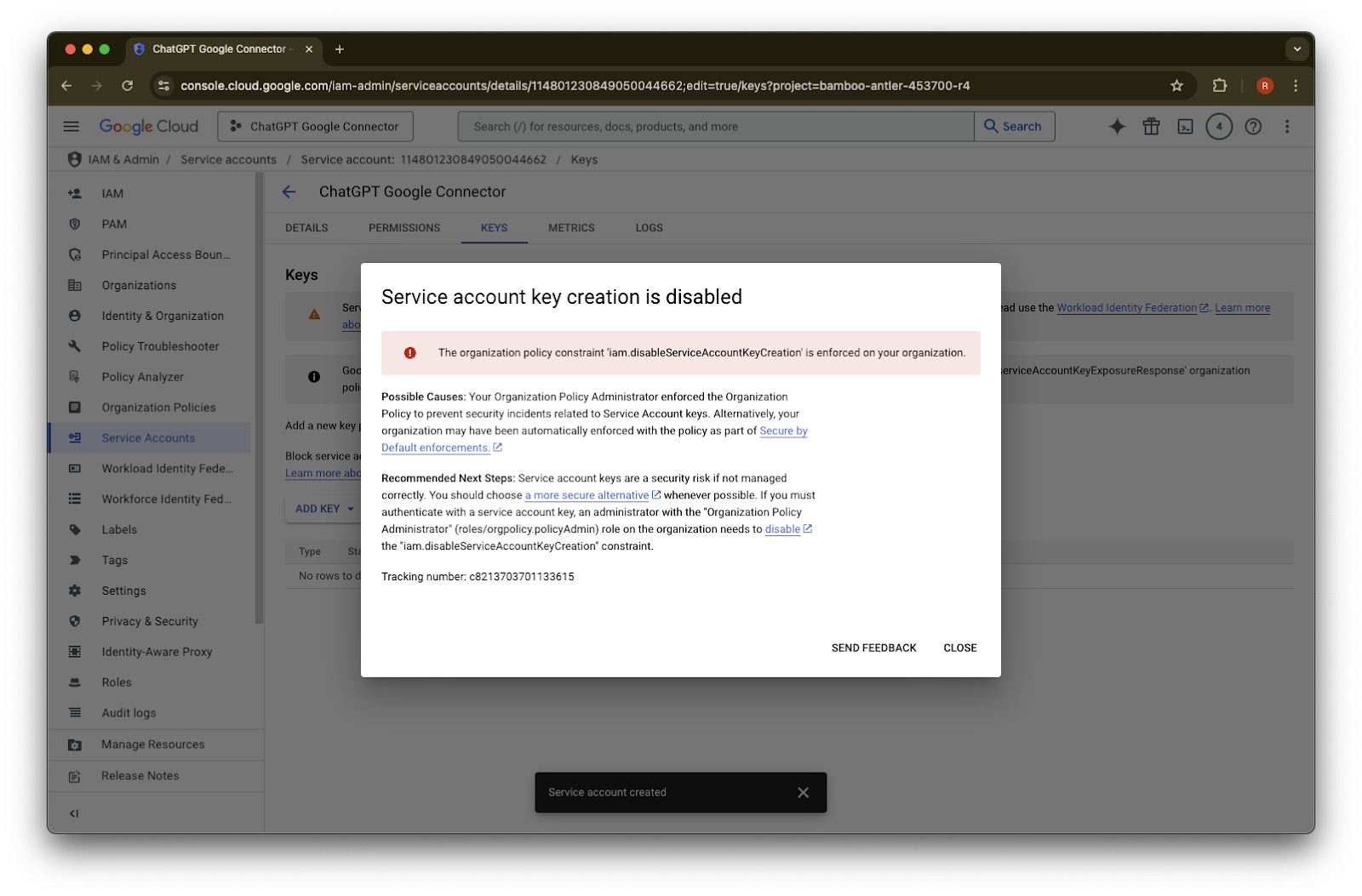
Google Cloud service account Keys tab with error that service account key creation is disabled
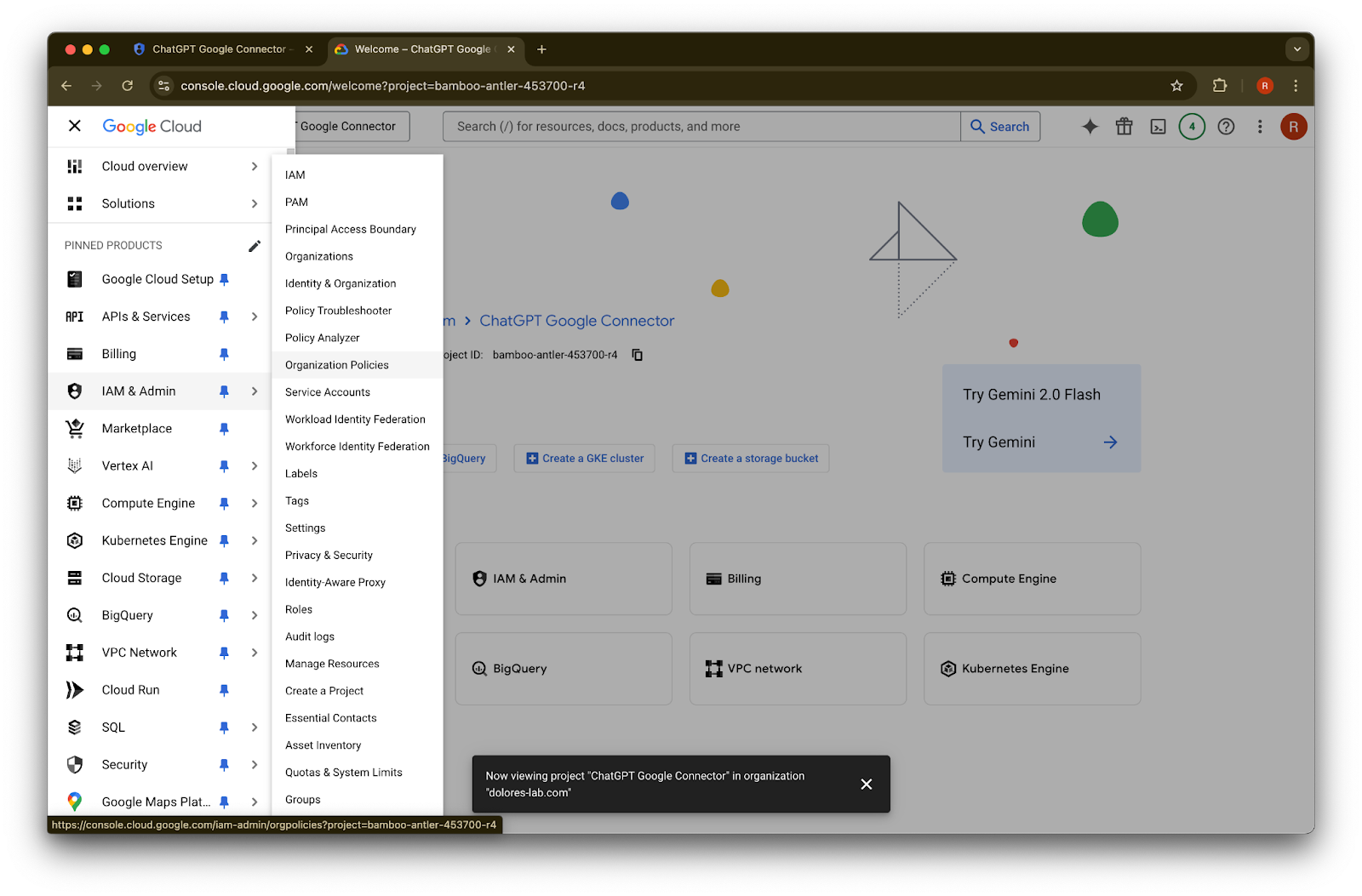
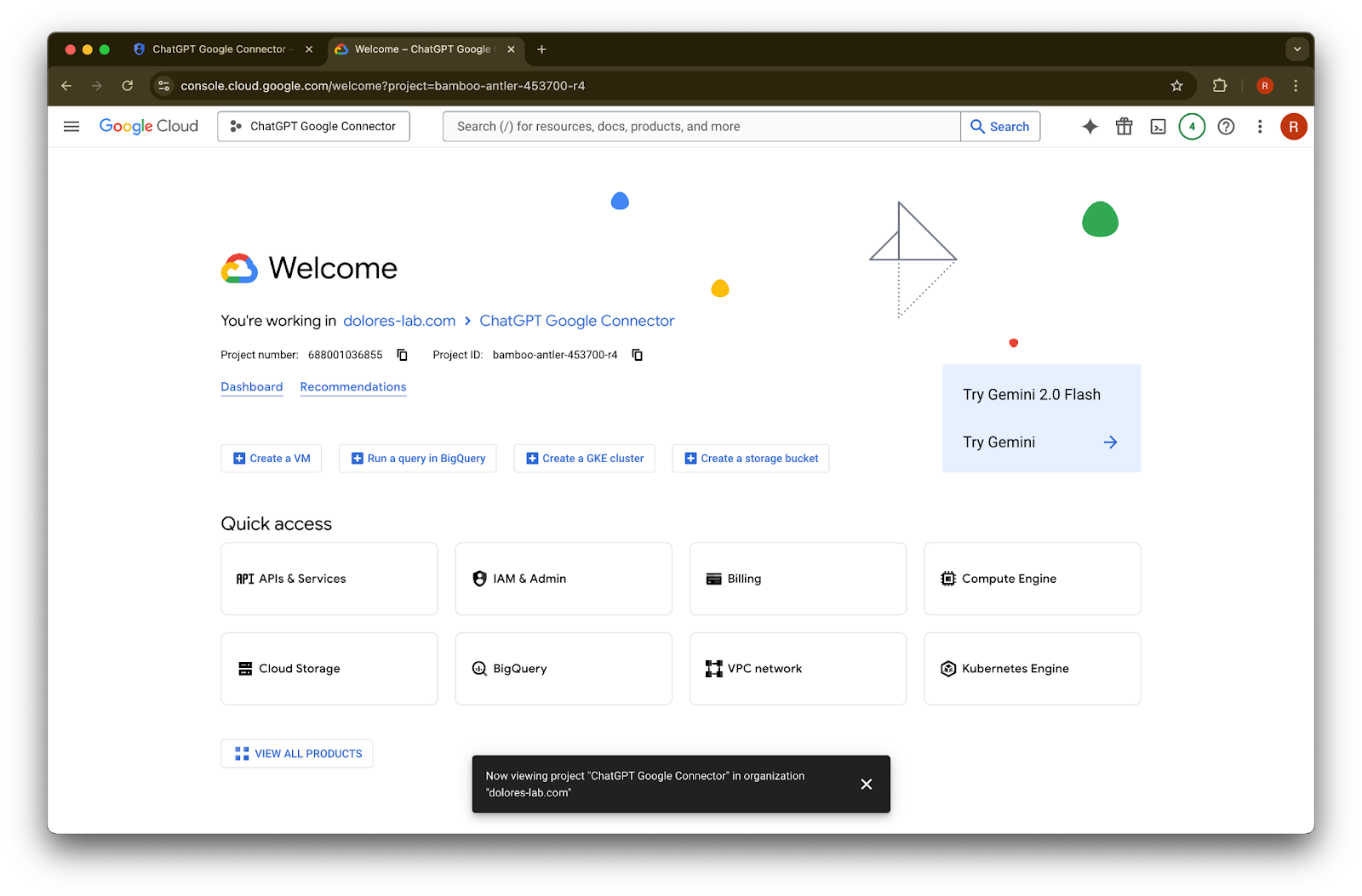
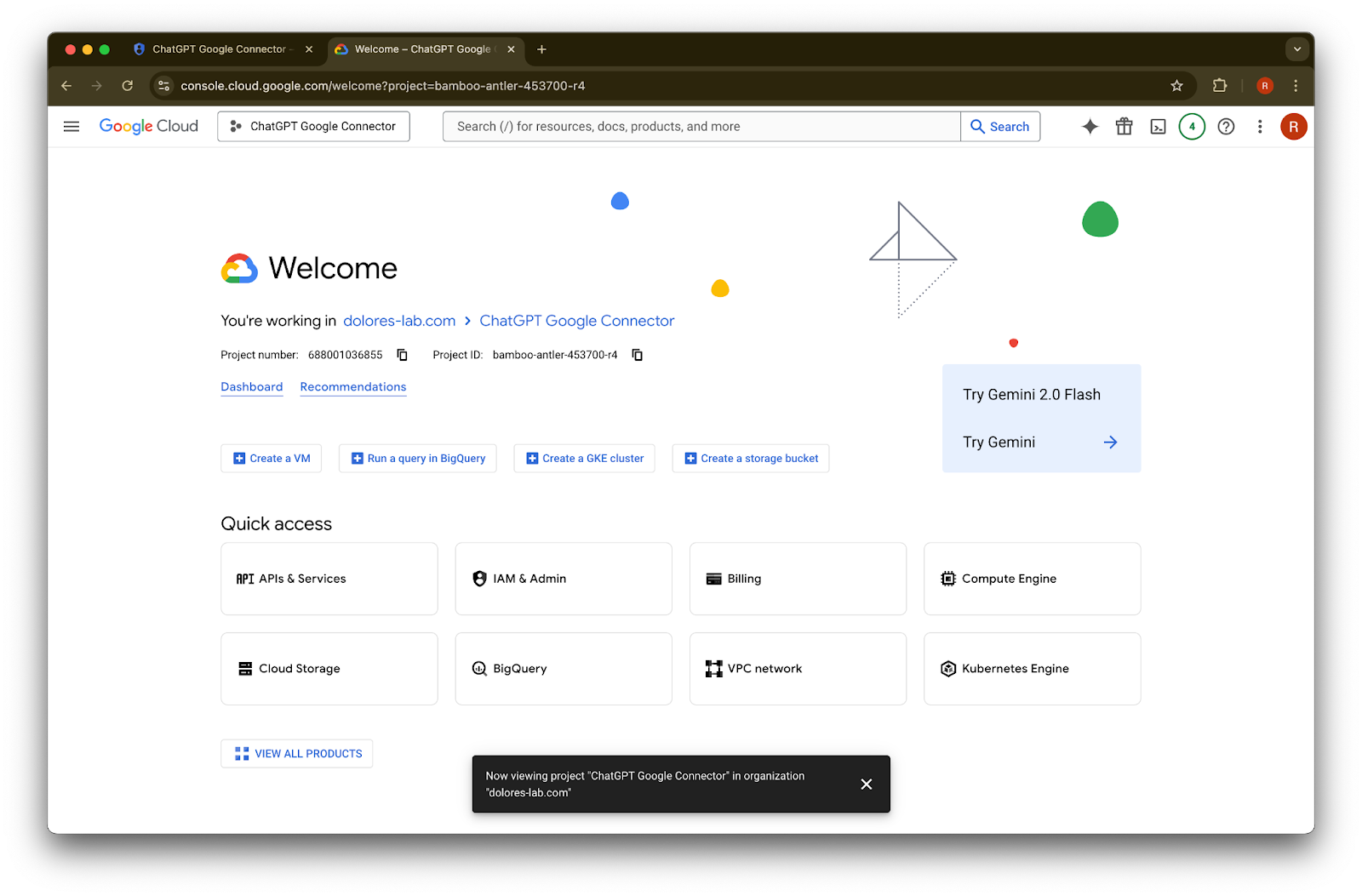
  1. 새 탭을 열고 console.cloud.google.com으로 이동합니다. 선택된 프로젝트가 이미 선택한 프로젝트인지 확인하세요.
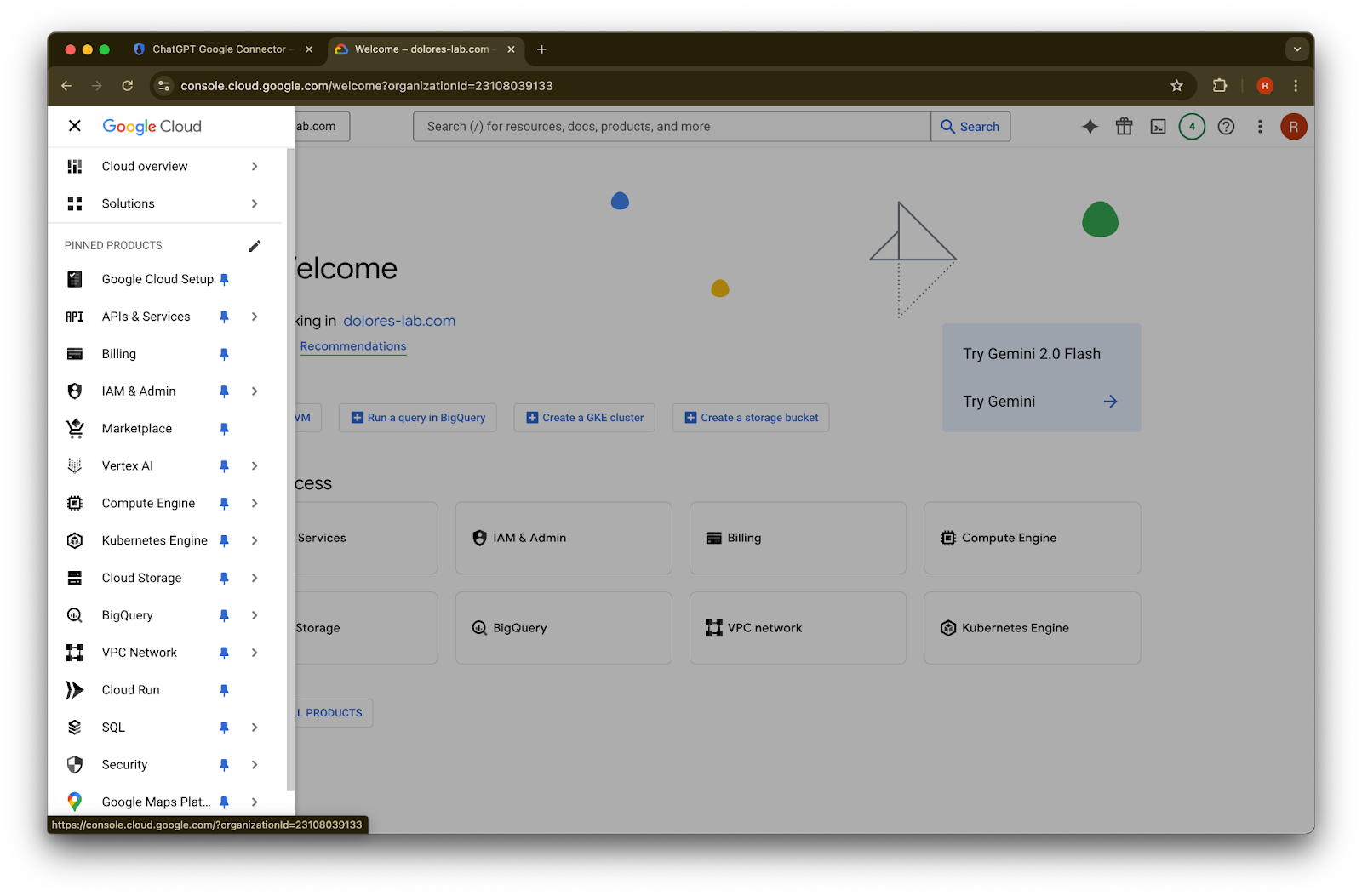
    왼쪽 상단의 menu icon을 클릭합니다.

    Google Cloud Console welcome page for the ChatGPT Google Connector project
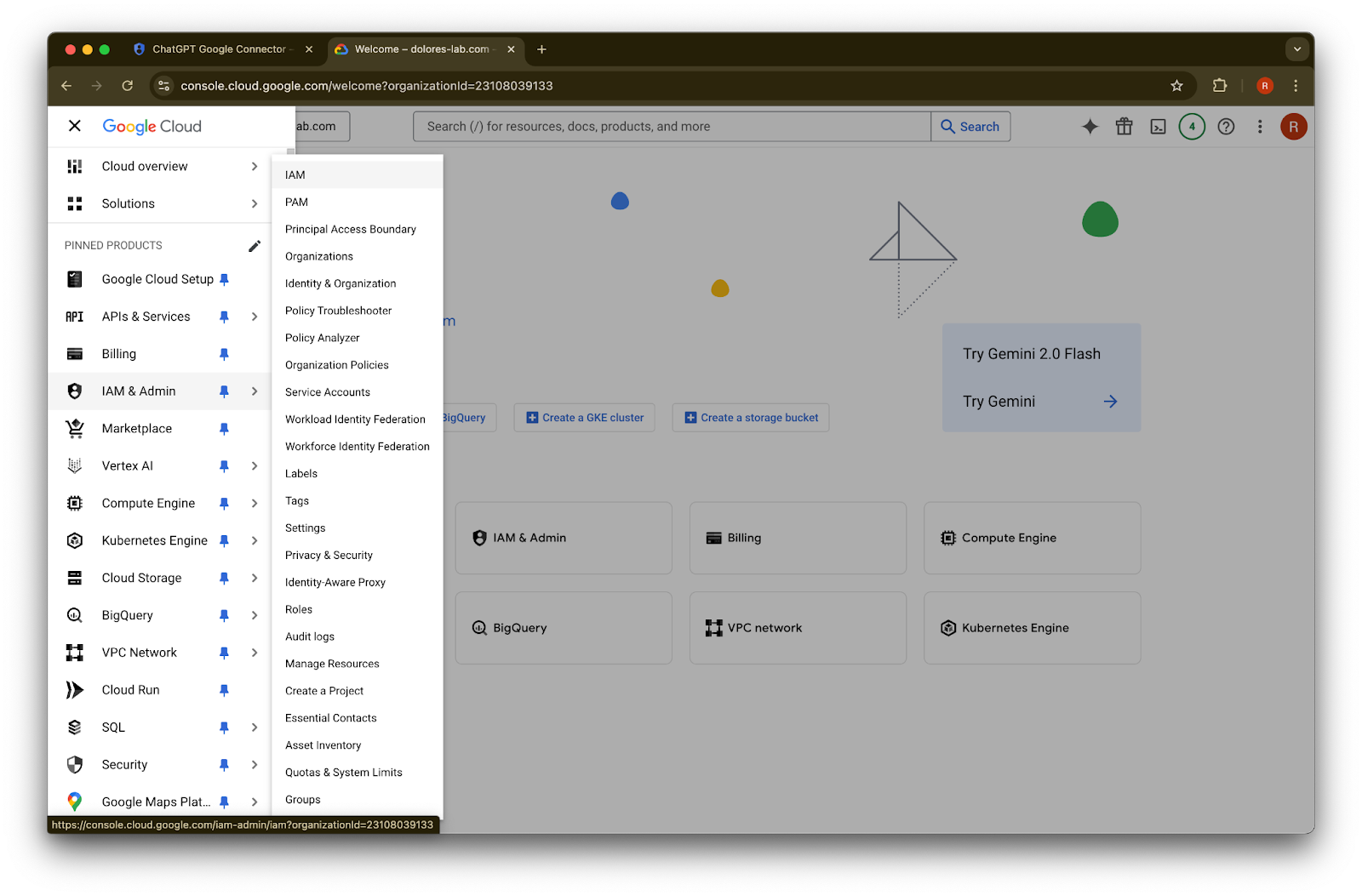
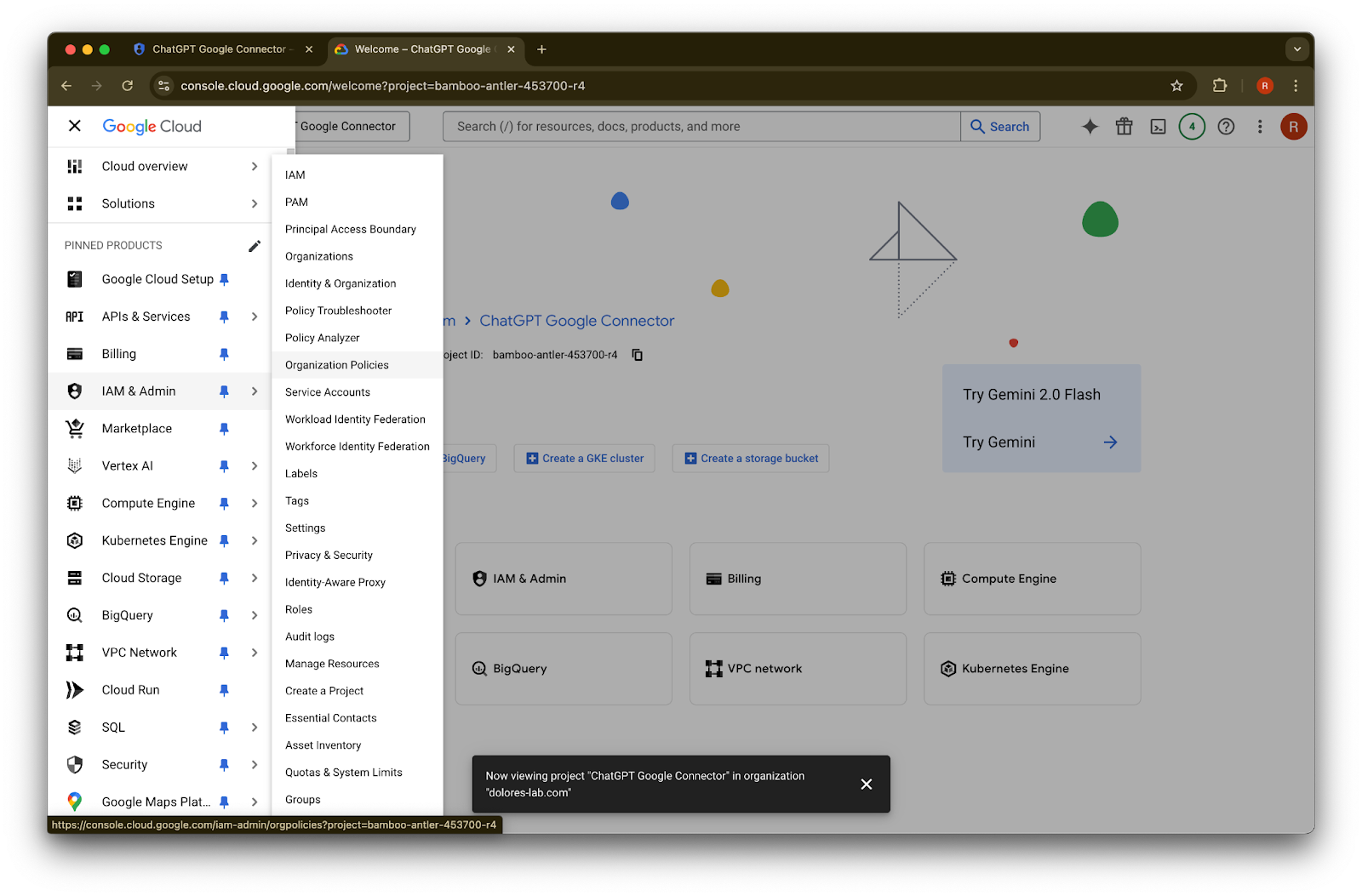
  2. IAM & Admin 위에 마우스를 올립니다.

    Google Cloud Console navigation with IAM & Admin open and Organization Policies selected
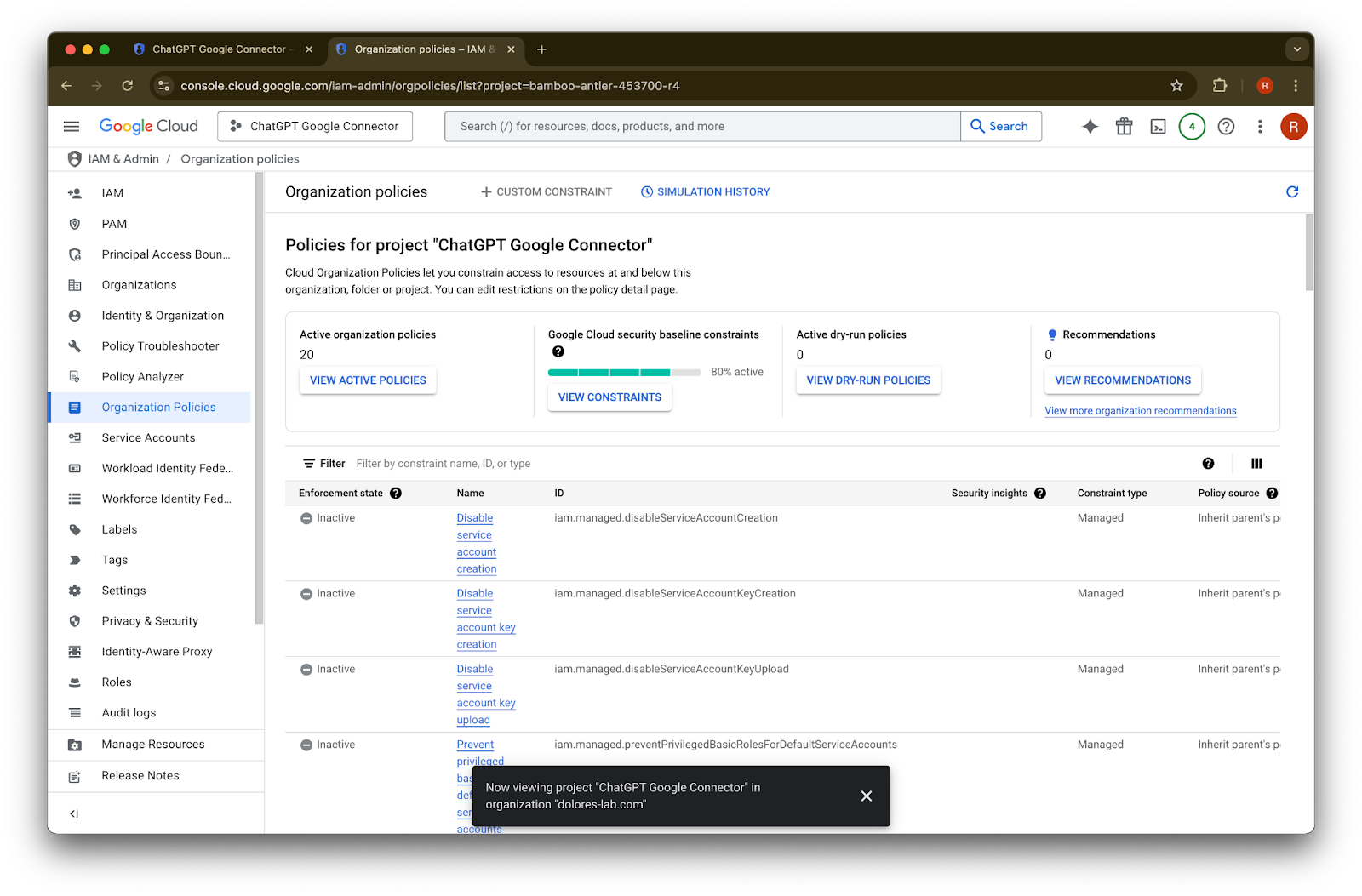
  3. Organizational Policies를 클릭합니다.

    Google Cloud Console IAM & Admin menu opened to Organization Policies
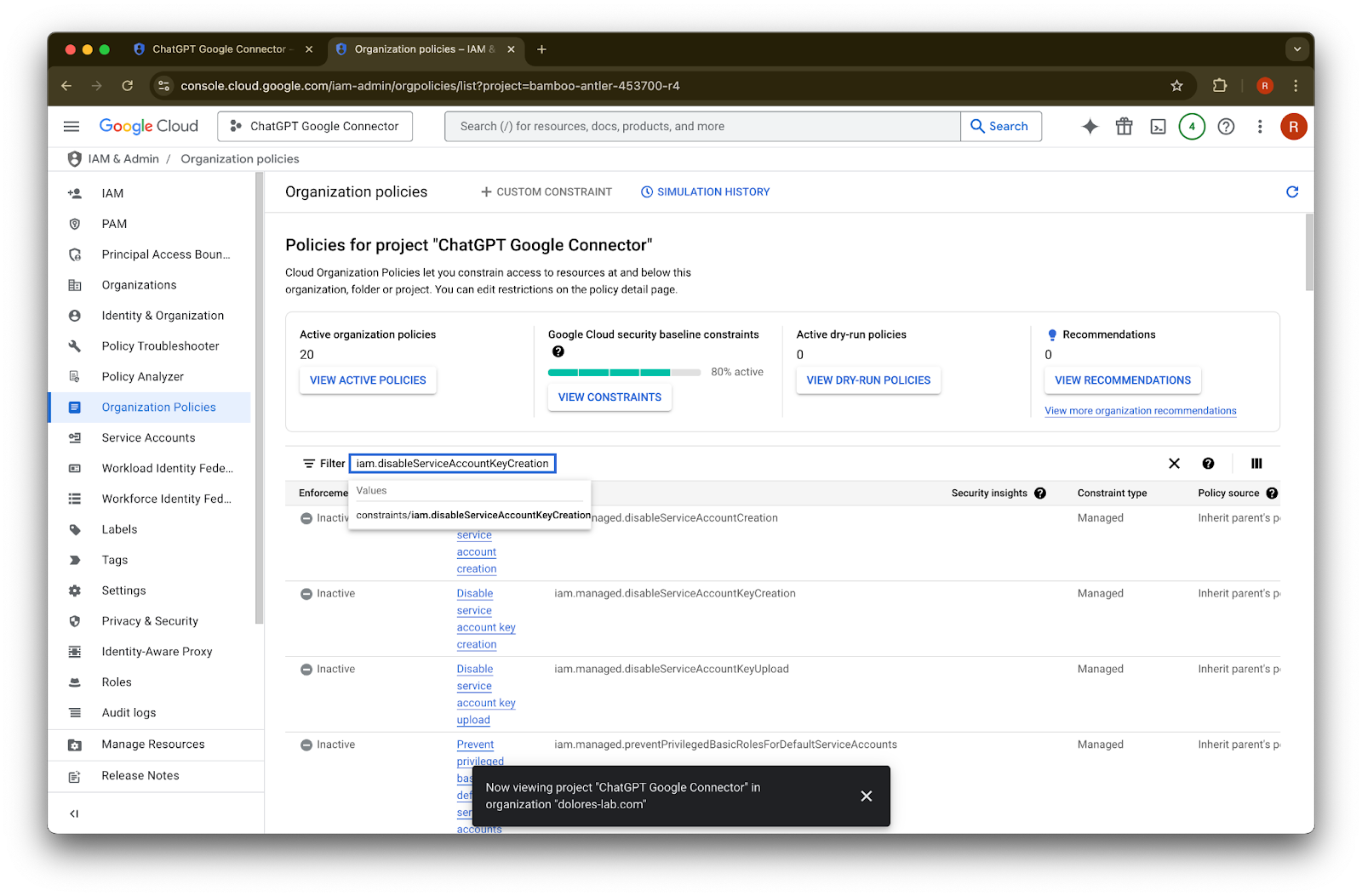
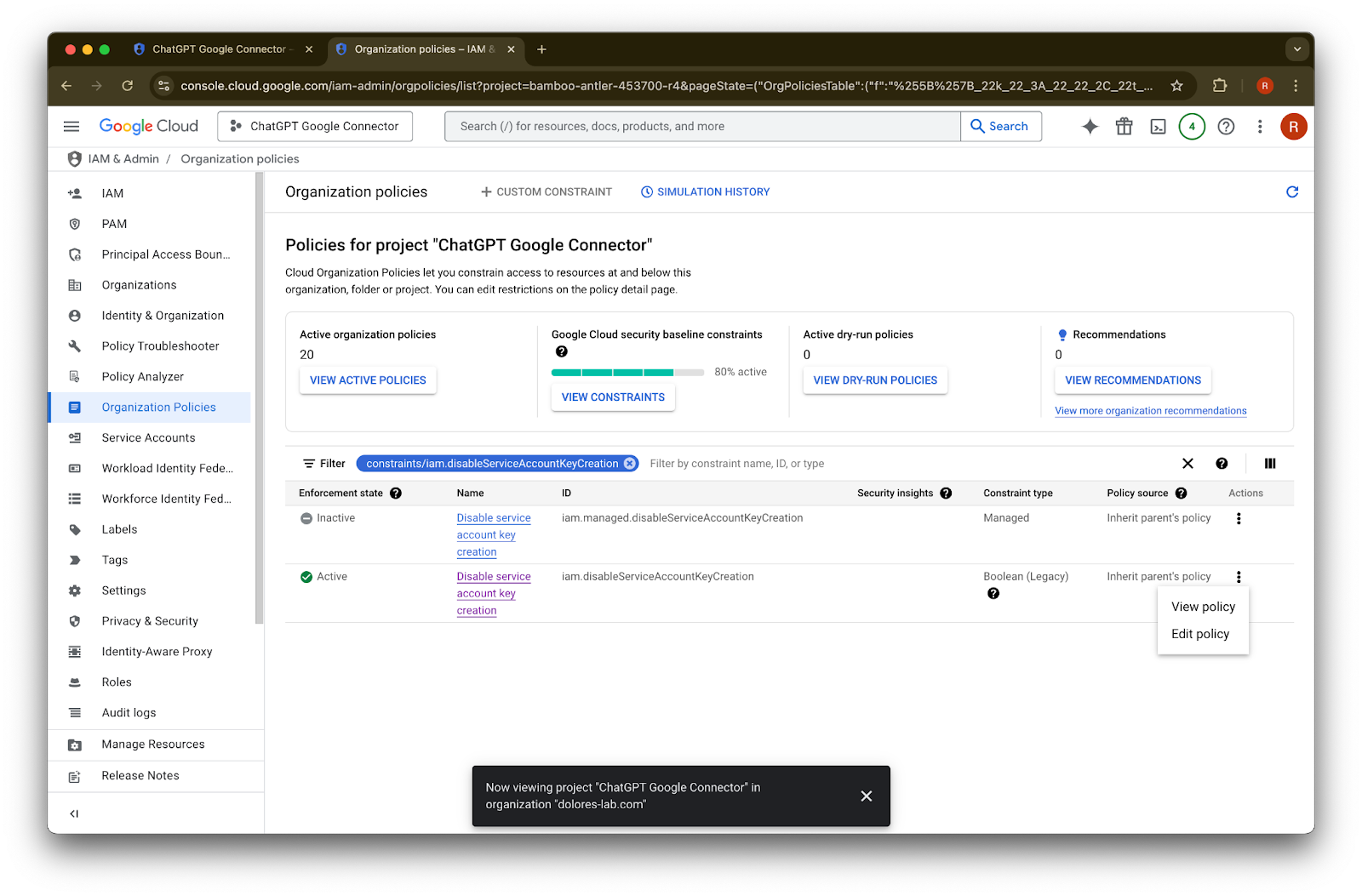
  4. iam.disableServiceAccountKeyCreation
    을 검색합니다.

    Google Cloud organization policies for the ChatGPT Google Connector project
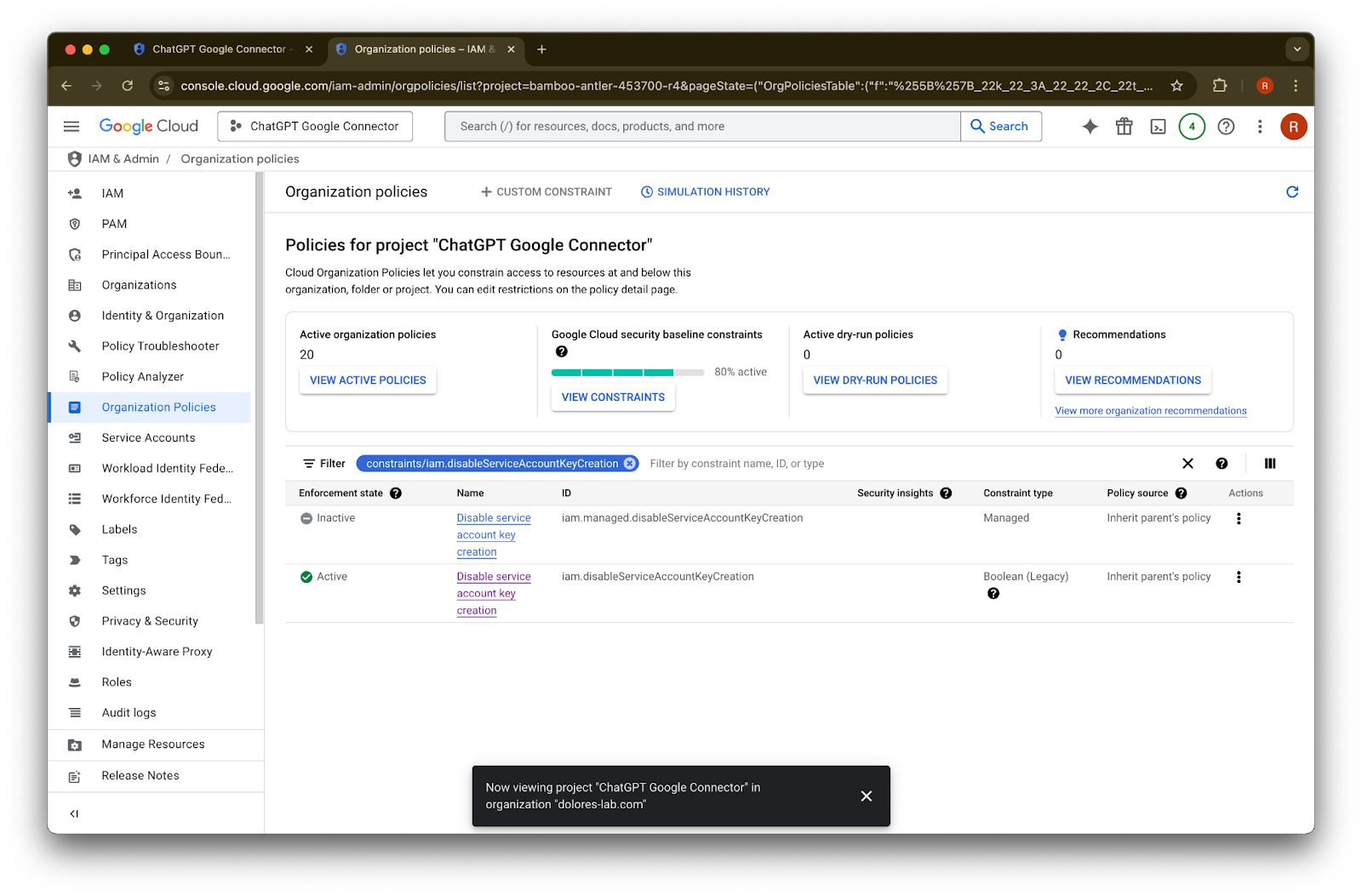
  5. constraints/iam.disableServiceAccountKeyCreation
    결과를 클릭합니다.

    Image
  6. ID가 iam.disableServiceAccountKeyCreation
    인 행의 …를 클릭합니다.

    Organization policies filtered to Disable service account key creation for the ChatGPT Google Connector project
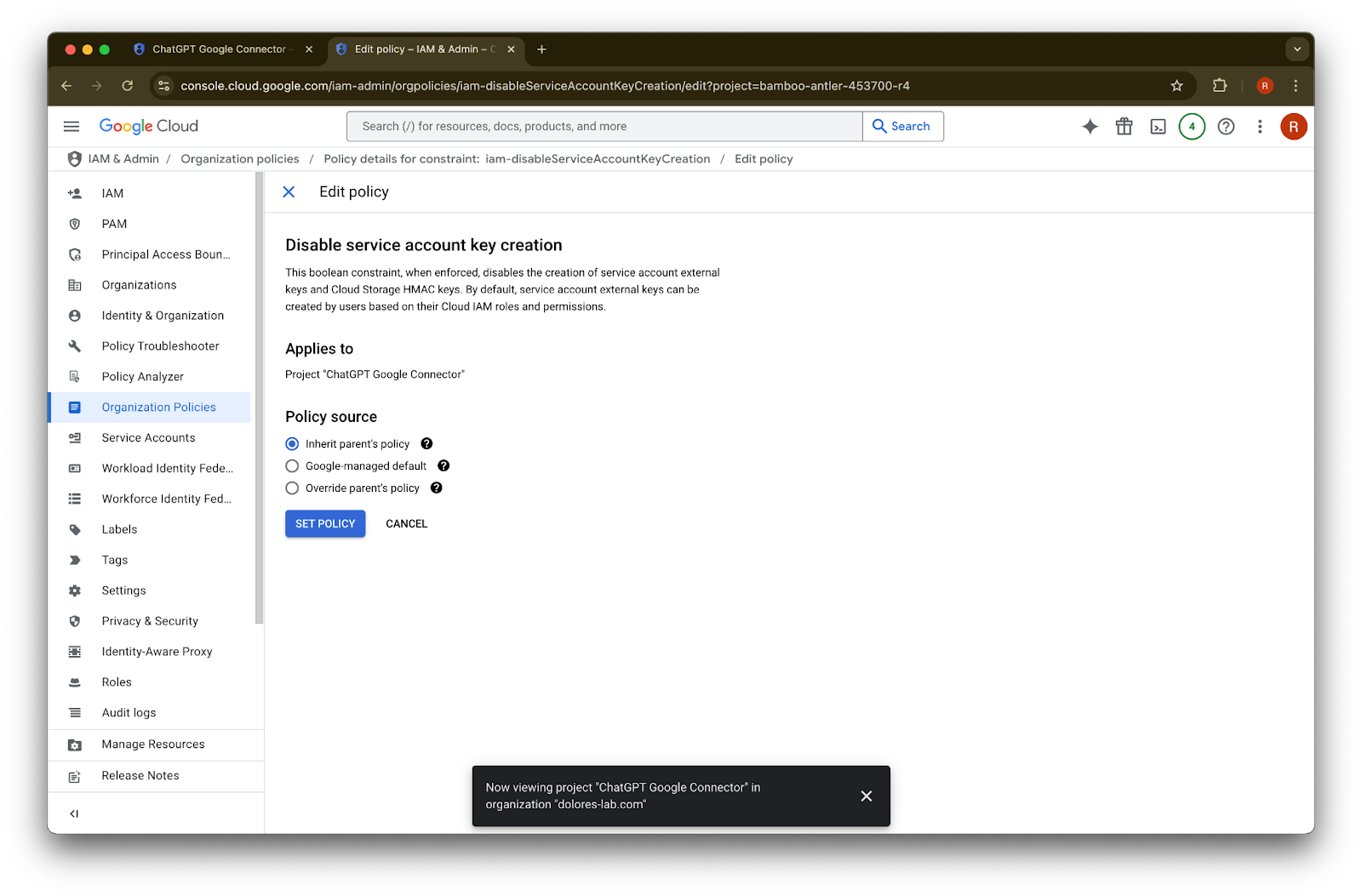
  7. Edit policy를 클릭합니다. Edit policy가 비활성화되어 있으면 Organization Policy Administrator가 되어야 합니다.

    Google Cloud Organization Policies filtered to Disable service account key creation with Edit policy menu open
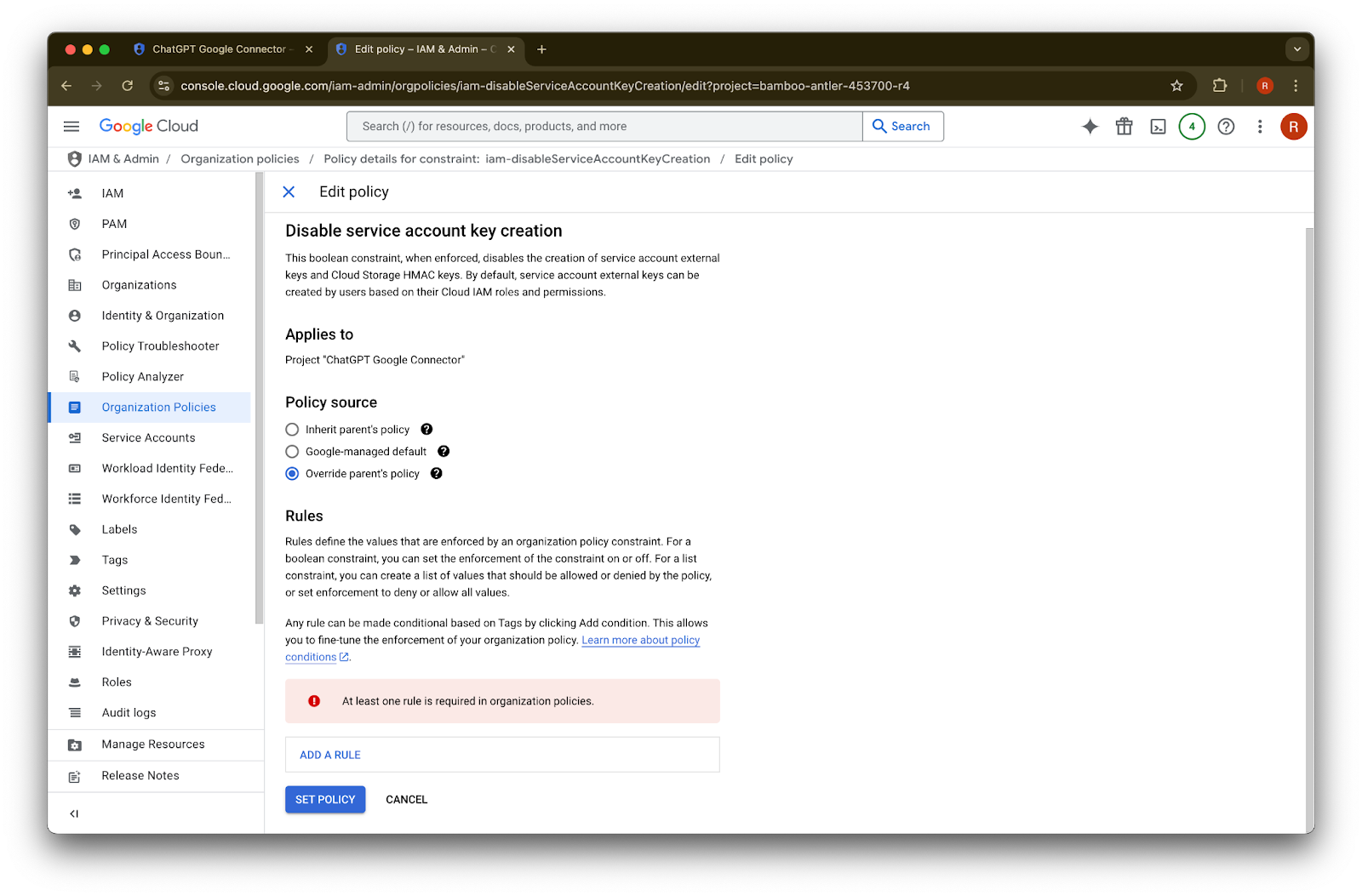
  8. Override parent’s policy
    를 클릭합니다.

    Image
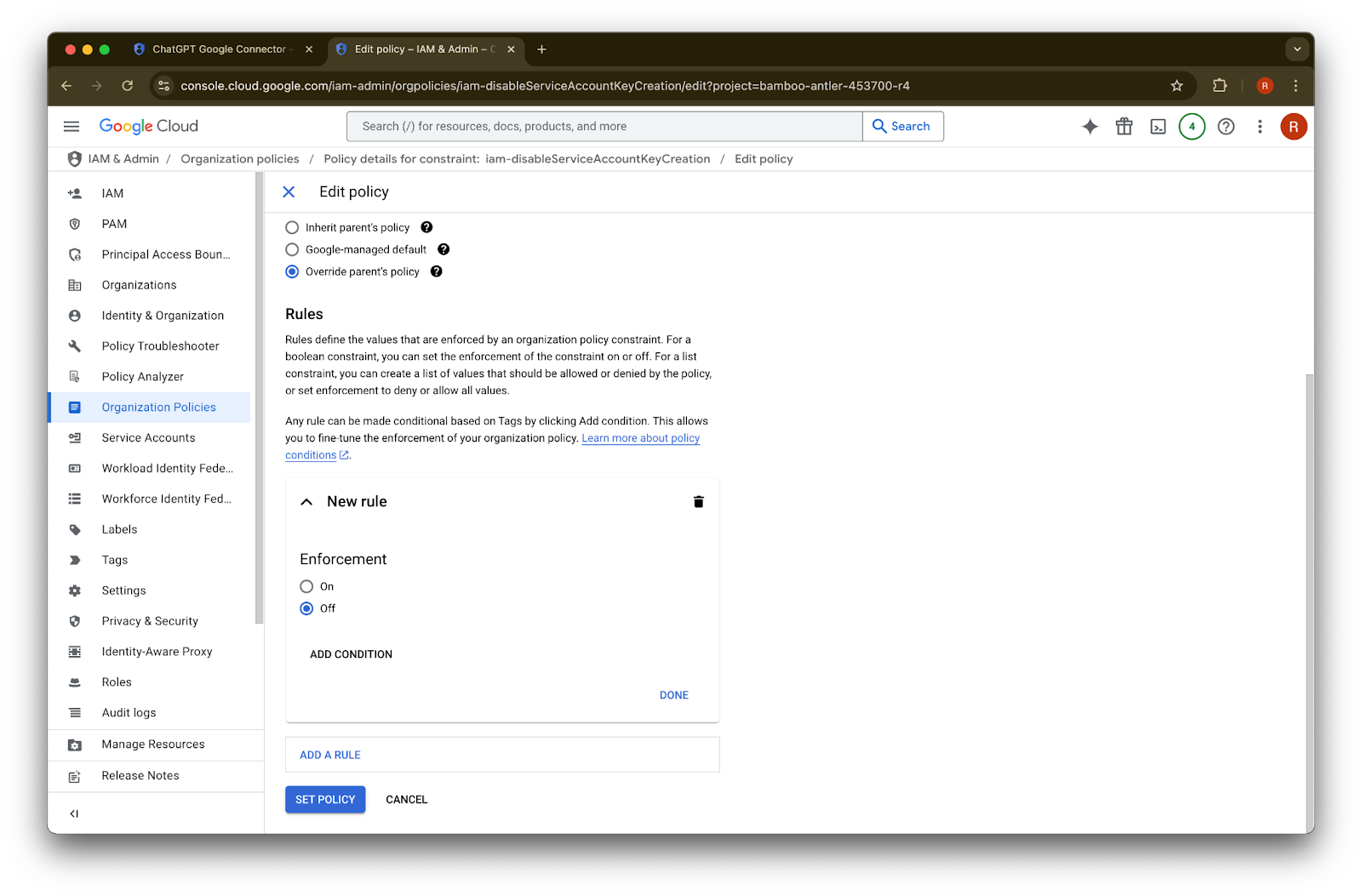
  9. Add a rule
    를 클릭합니다.

    Edit policy page for Disable service account key creation with Override parent's policy selected
  10. Set Policy
    를 클릭합니다.

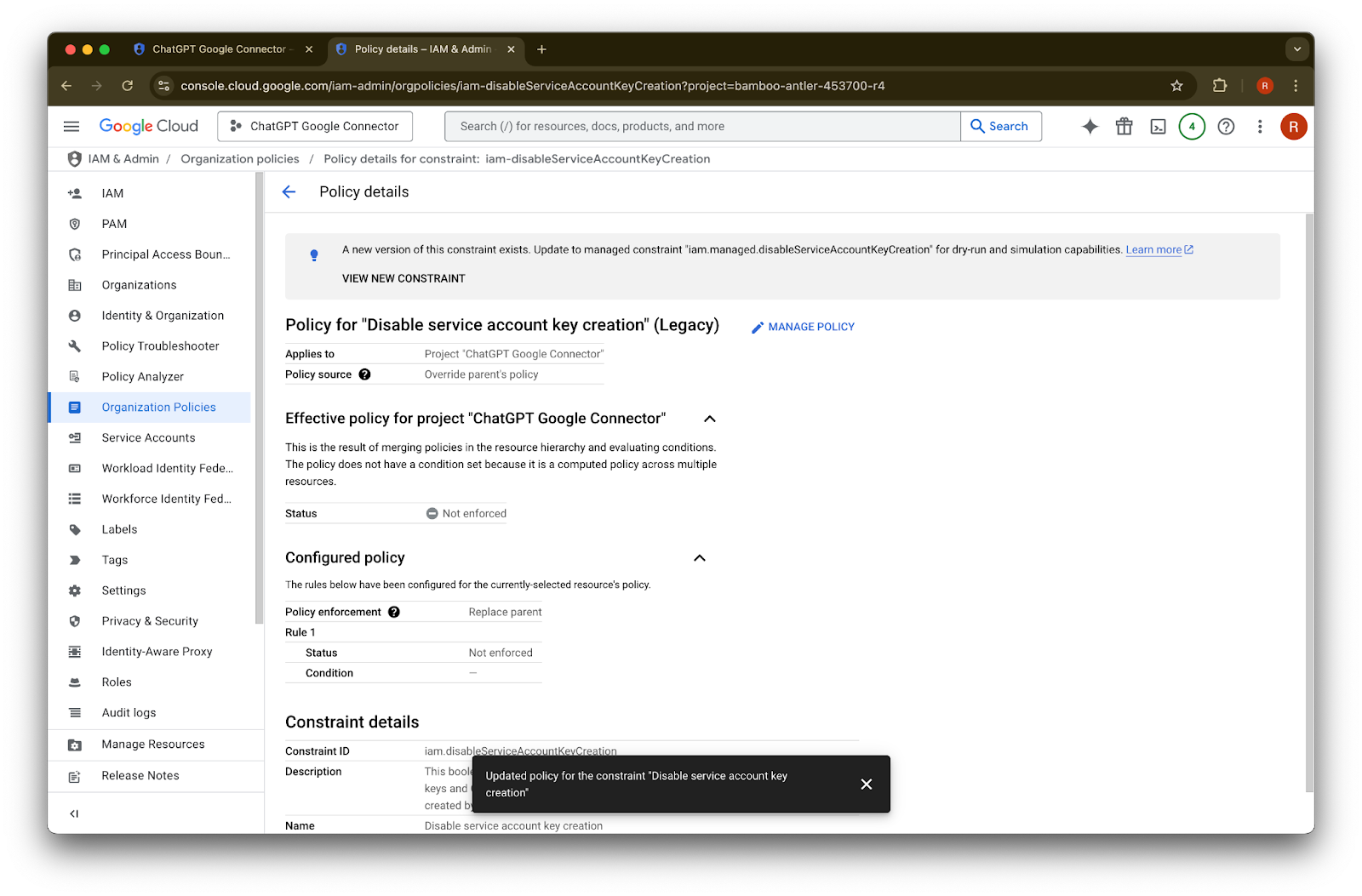
    Google Cloud Edit policy page with Override parent's policy selected and enforcement set to Off
  11. 이제 서비스 계정 키를 만들 수 있습니다. 이 설정이 적용되기까지 몇 분 정도 걸릴 수 있습니다.
Google Cloud policy details with Disable service account key creation set to Not enforced

Organization Policy Administrator 되기

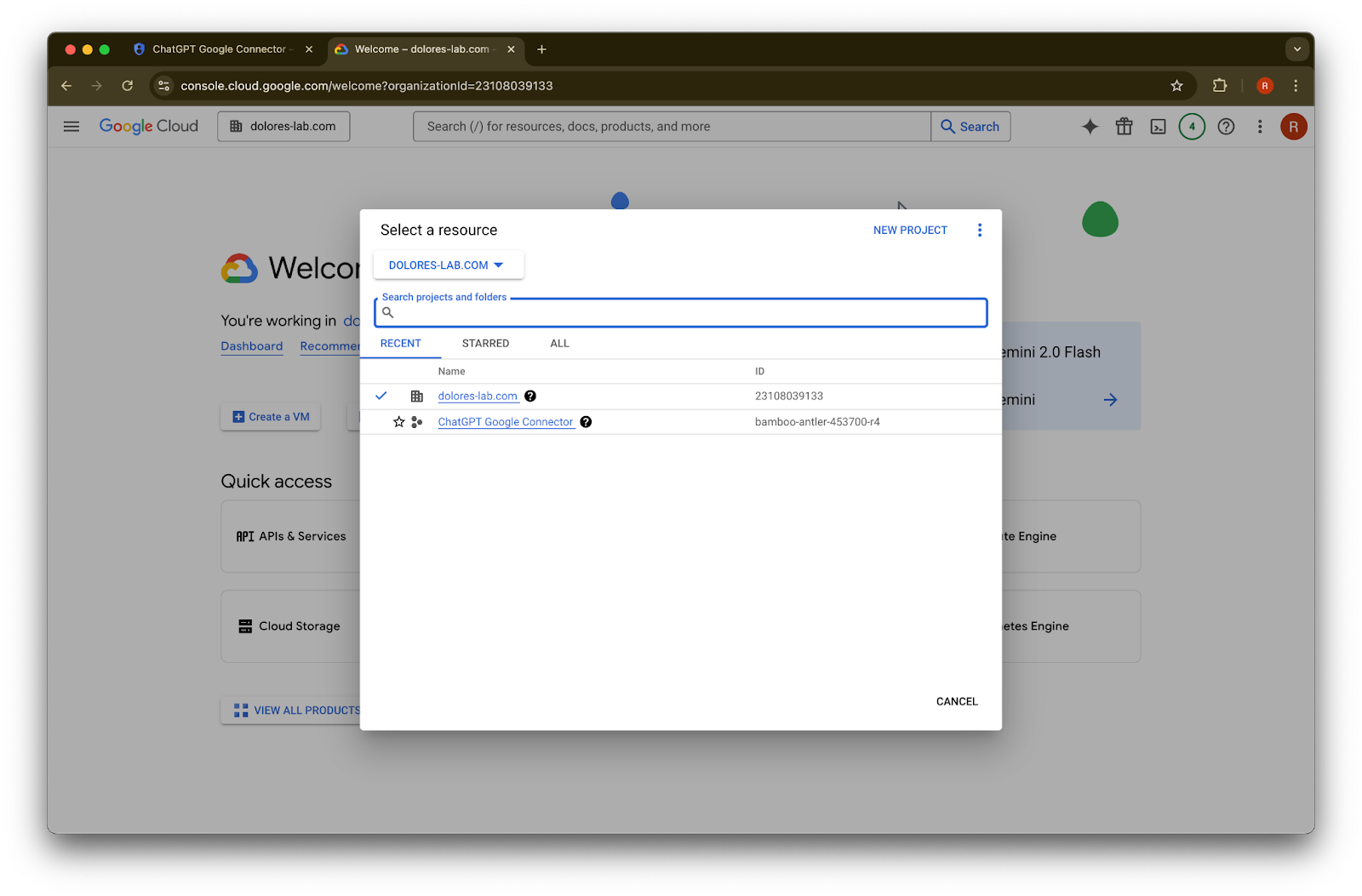
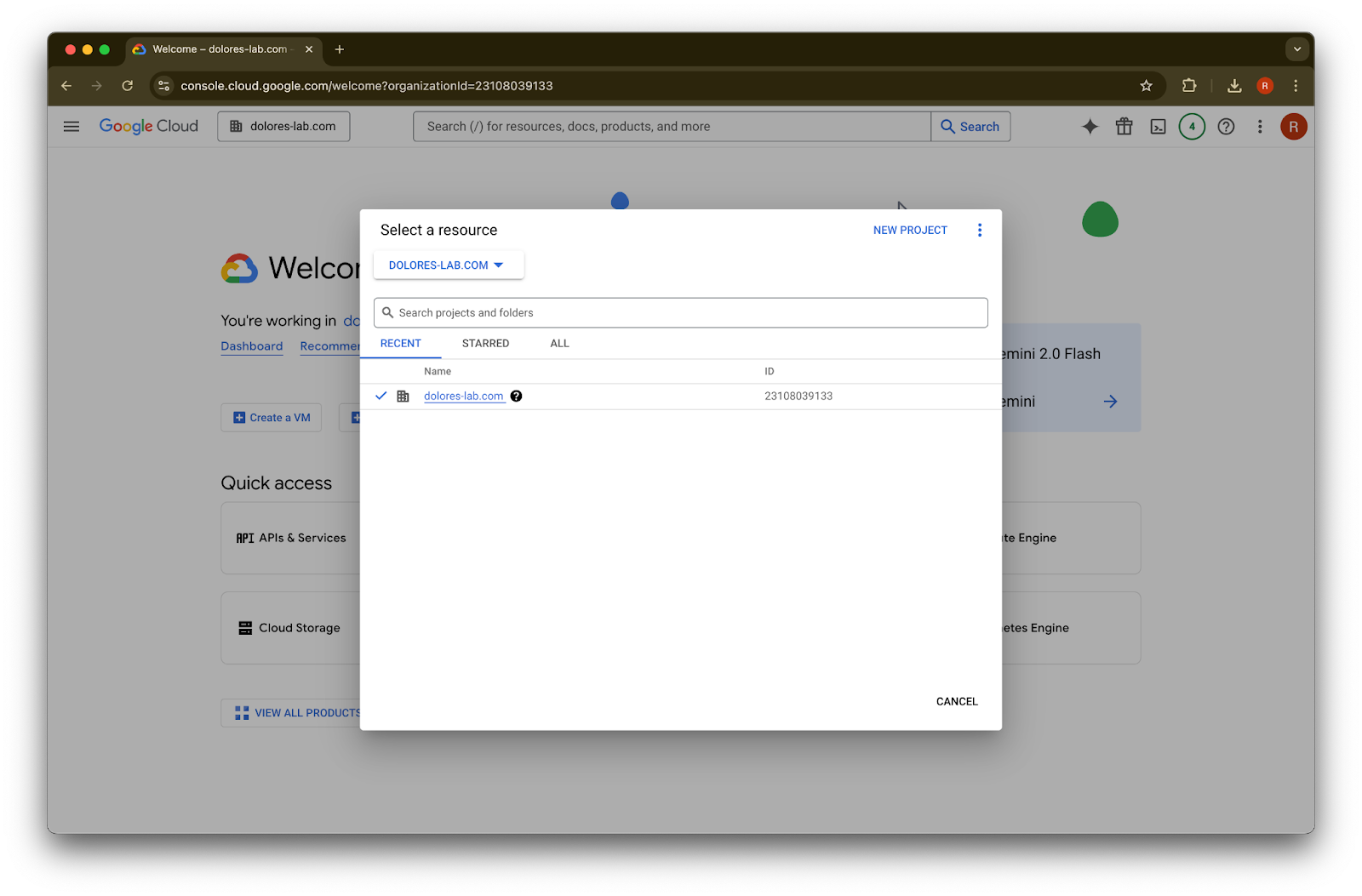
  1. console.cloud.google.com으로 이동하여 project/organization selector를 클릭합니다.

    Google Cloud welcome page for the ChatGPT Google Connector project
  2. your organization
    을 클릭합니다.

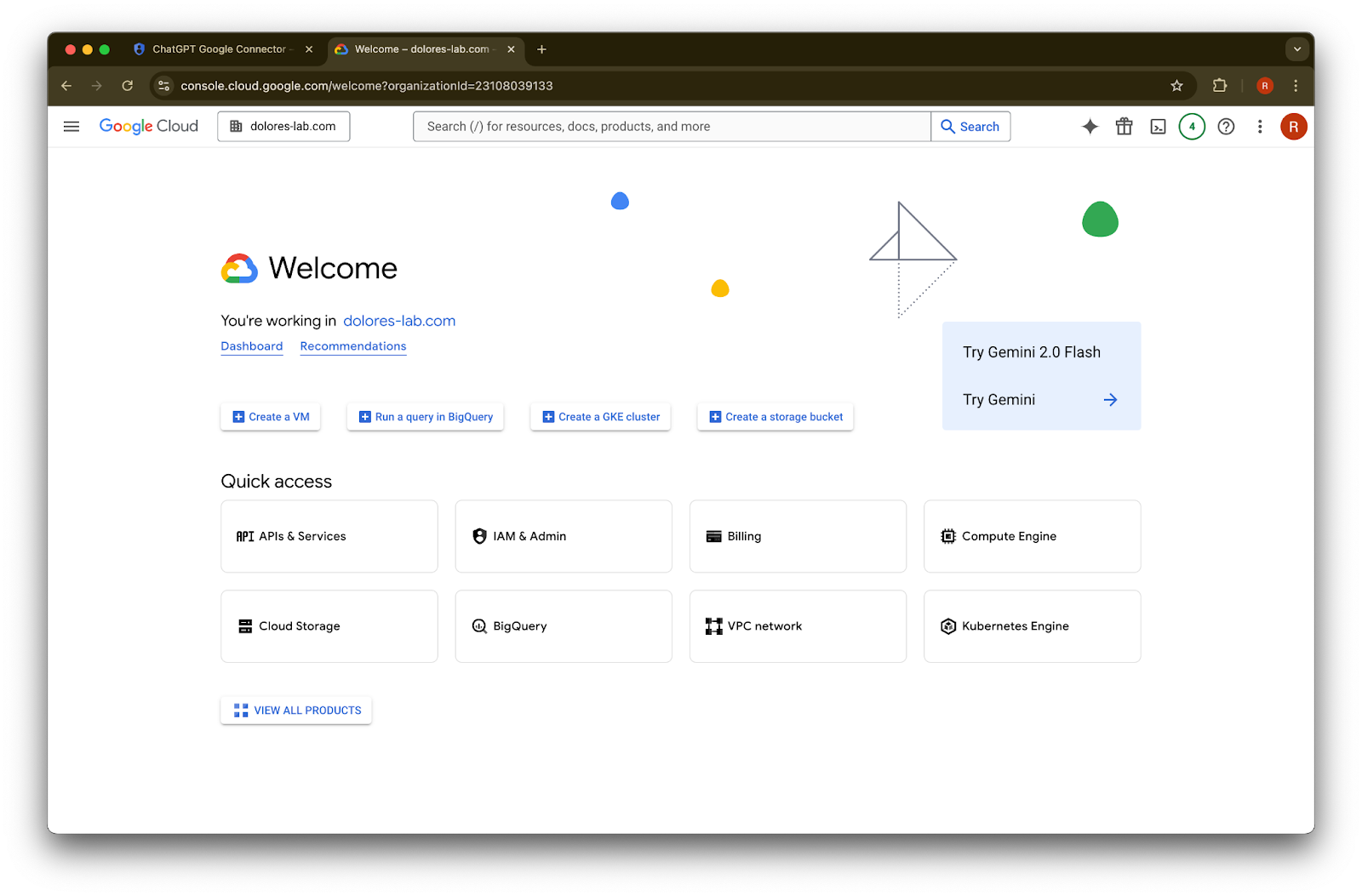
    Image
  3. 왼쪽 상단의 menu icon을 클릭합니다.

    Image
  4. IAM & Admin
    위에 마우스를 올립니다.

    Google Cloud console navigation menu open with Google Cloud Setup pinned
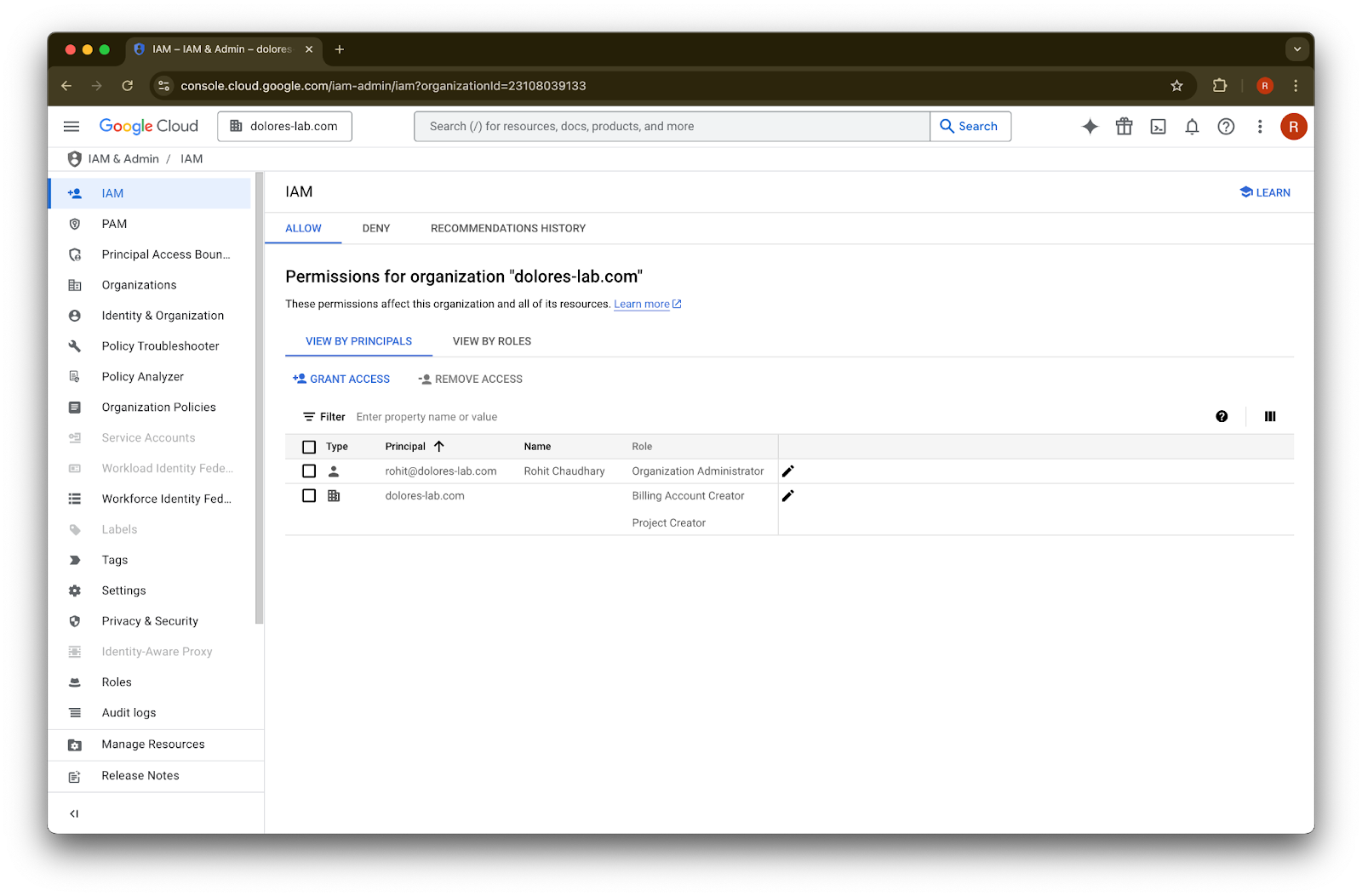
  5. IAM
    을 클릭합니다.

    Image
  6. 계정 옆의 pencil 아이콘을 클릭합니다.

    Google Cloud IAM page for dolores-lab.com showing organization permissions and the Grant Access action
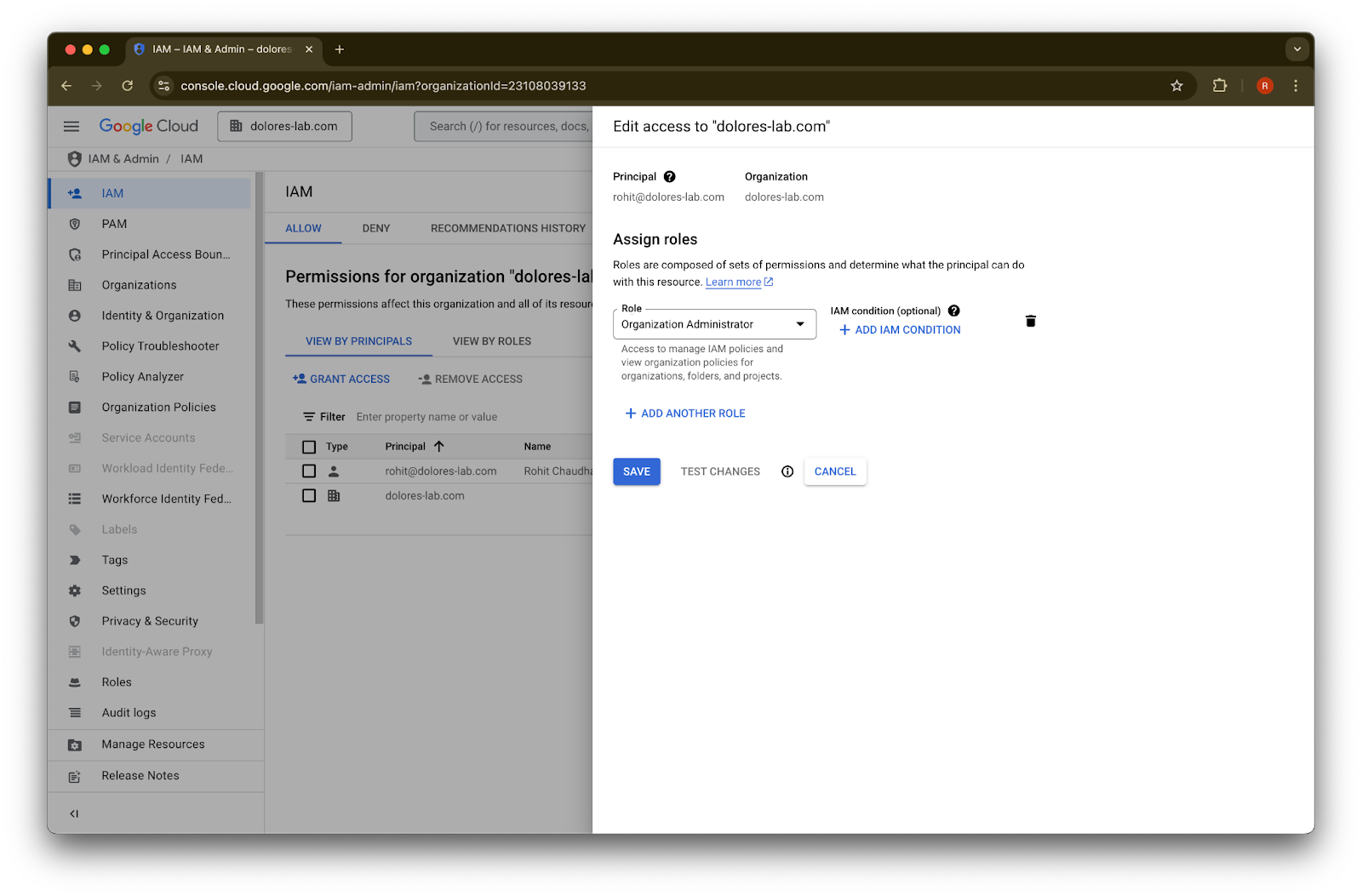
  7. Add Another Role
    을 클릭합니다.

    Google Cloud IAM dialog assigning the Organization Administrator role for dolores-lab.com
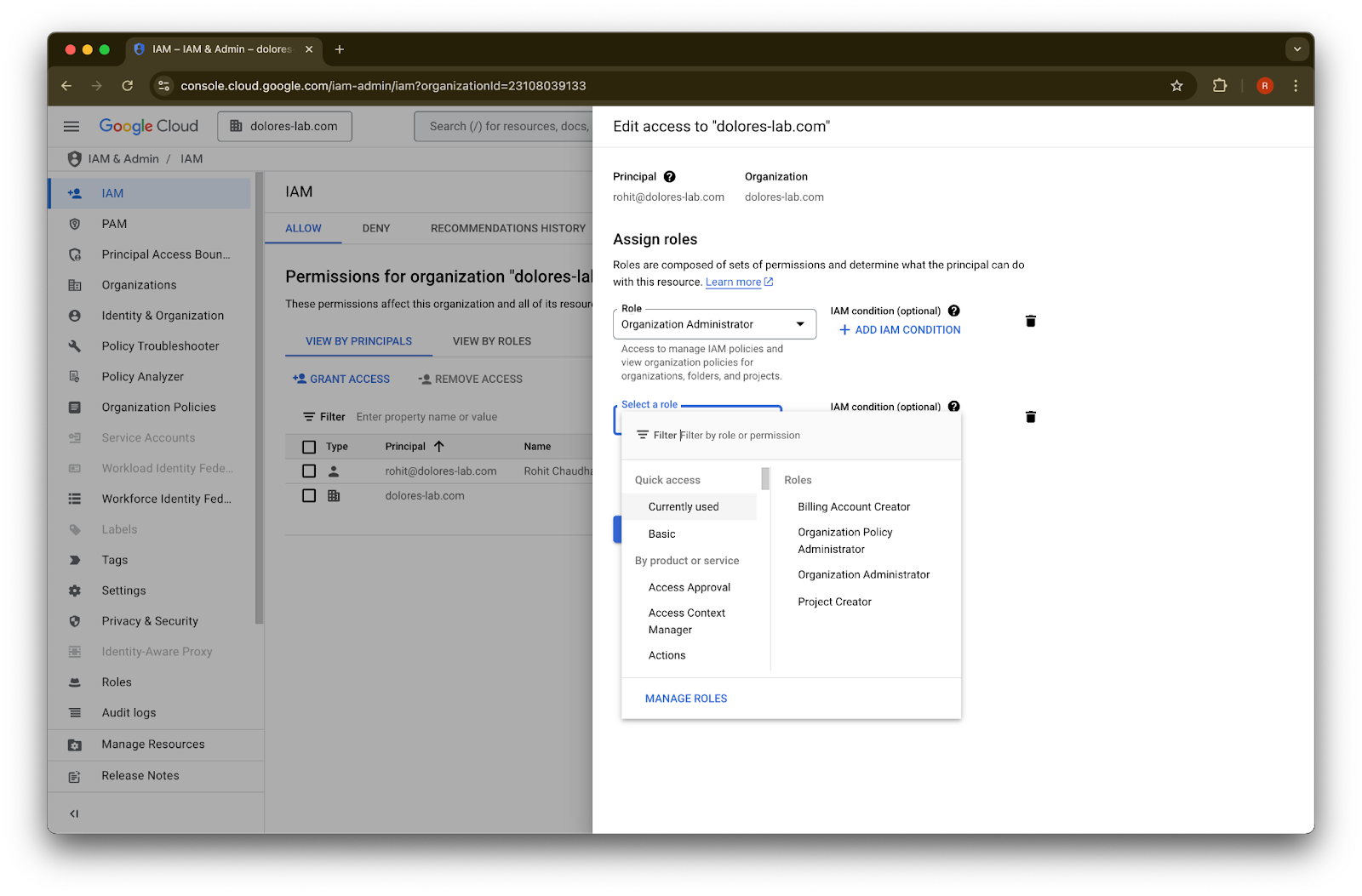
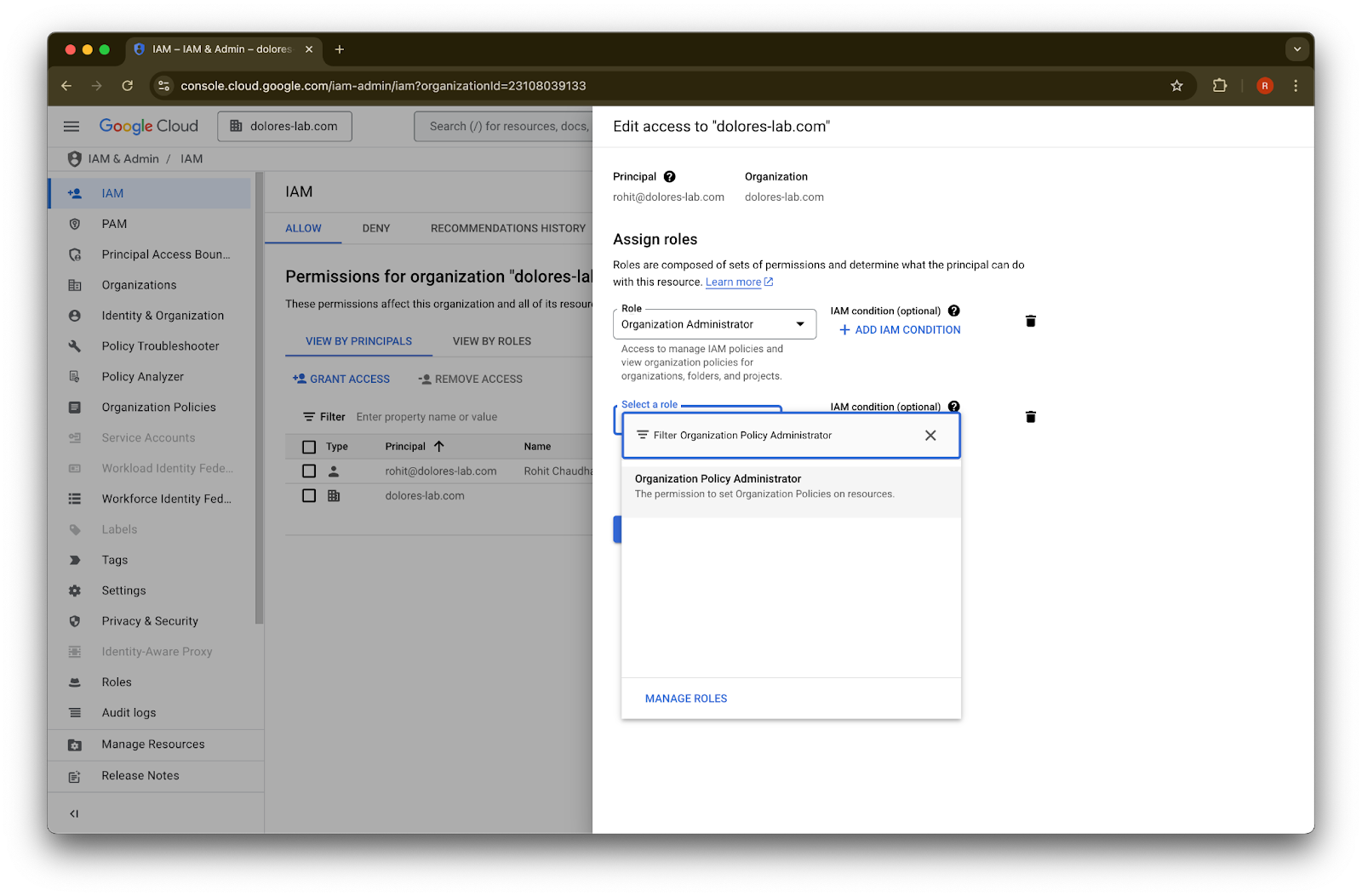
  8. Organization Policy Administrator
    를 검색합니다.

    Google Cloud IAM edit access dialog assigning the Organization Administrator role to a user
  9. Organization Policy Administrator
    를 클릭합니다.

    Google Cloud IAM role picker with Organization Policy Administrator selected while editing access
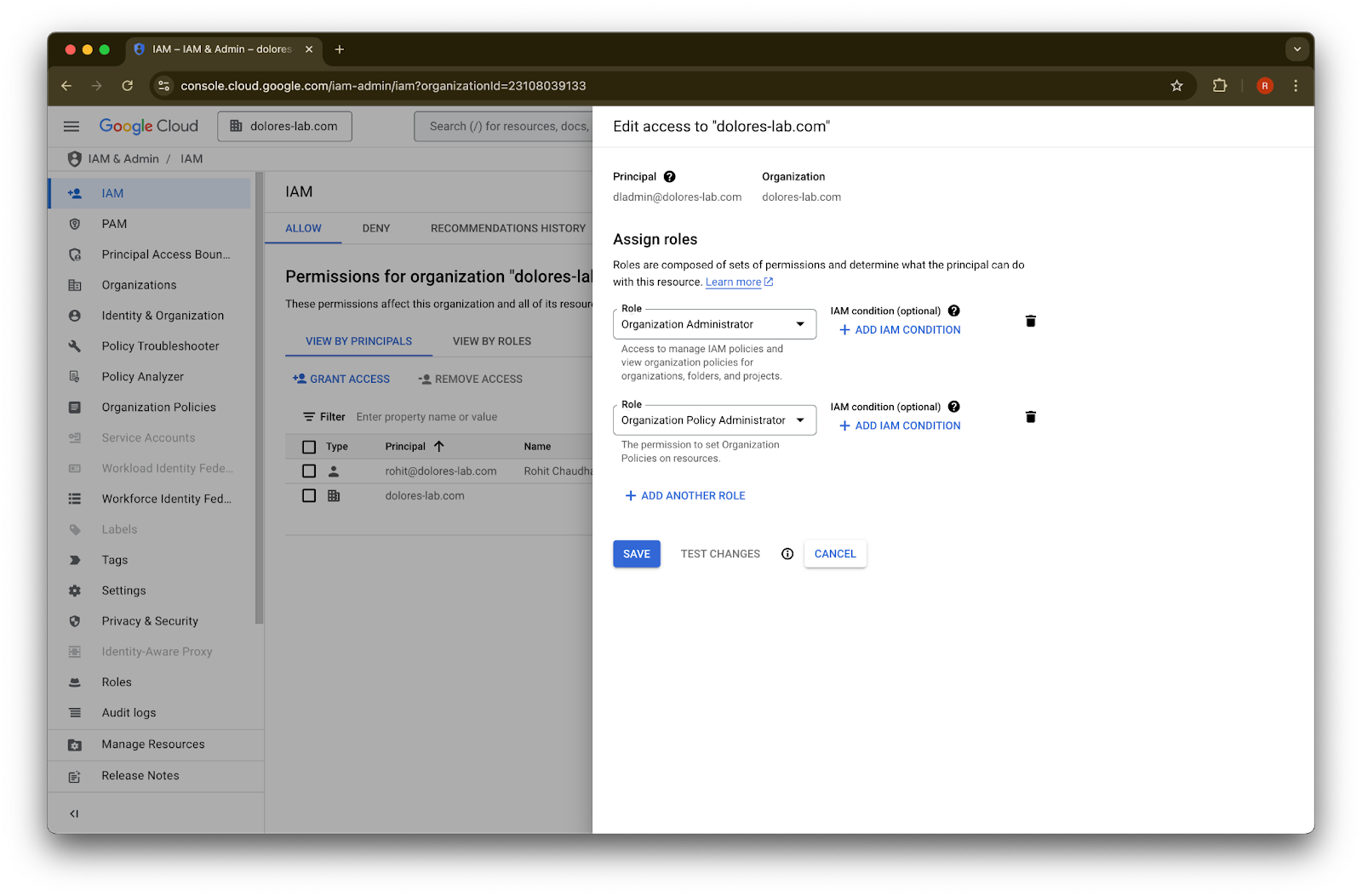
  10. Save를 클릭합니다.

    Google Cloud IAM access editor assigning Organization Administrator and Organization Policy Administrator roles
  11. 이제 계정에 서비스 계정 키 생성을 활성화할 권한이 있습니다. 이 설정이 적용되기까지 몇 분 정도 걸릴 수 있습니다.
Google Workspace와 ChatGPT에 서로 다른 이메일 계정을 유지하기 위해 Google 이메일 별칭 사용하기

관리자 관리 설정을 사용해 Google Drive 동기화 커넥터용으로 Google Workspace를 ChatGPT 워크스페이스에 연결하는 관리자이고, 조직에서 ChatGPT와 Google Workspace에 서로 다른 이메일 도메인을 사용하는 경우, 사용자가 Google Drive 동기화 커넥터에 정상적으로 액세스할 수 있도록 추가 단계를 수행해야 합니다.

권장 사항: 가능한 경우 Google Workspace 계정과 ChatGPT 계정 모두에 동일한 기본 이메일 주소를 사용하세요.

이 방법이 어렵다면 아래 지침에 따라 ChatGPT 로그인 이메일과 일치하는 Google Workspace 이메일 별칭을 구성하세요.

Google Workspace 별칭 추가 단계

각 사용자의 ChatGPT 이메일을 Google Workspace 계정에 연결할 수 있도록 Google Admin Console에서 다음 단계를 따르세요.

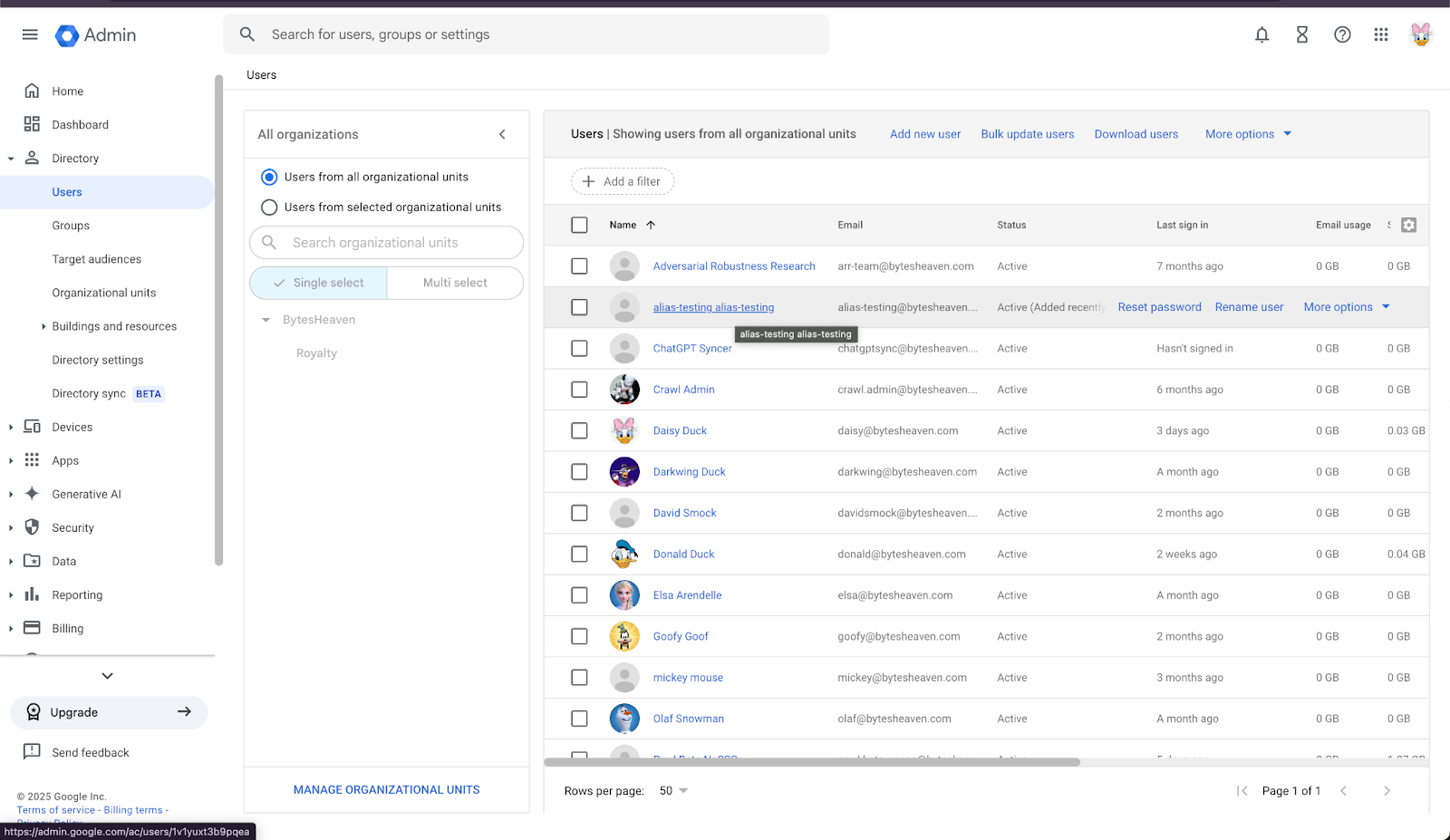
  1. Admin Console로 이동합니다. 다음으로 이동하세요: Directory > Users
Image

2. 사용자를 선택한 다음 “ADD ALTERNATIVE EMAILS”를 클릭합니다.
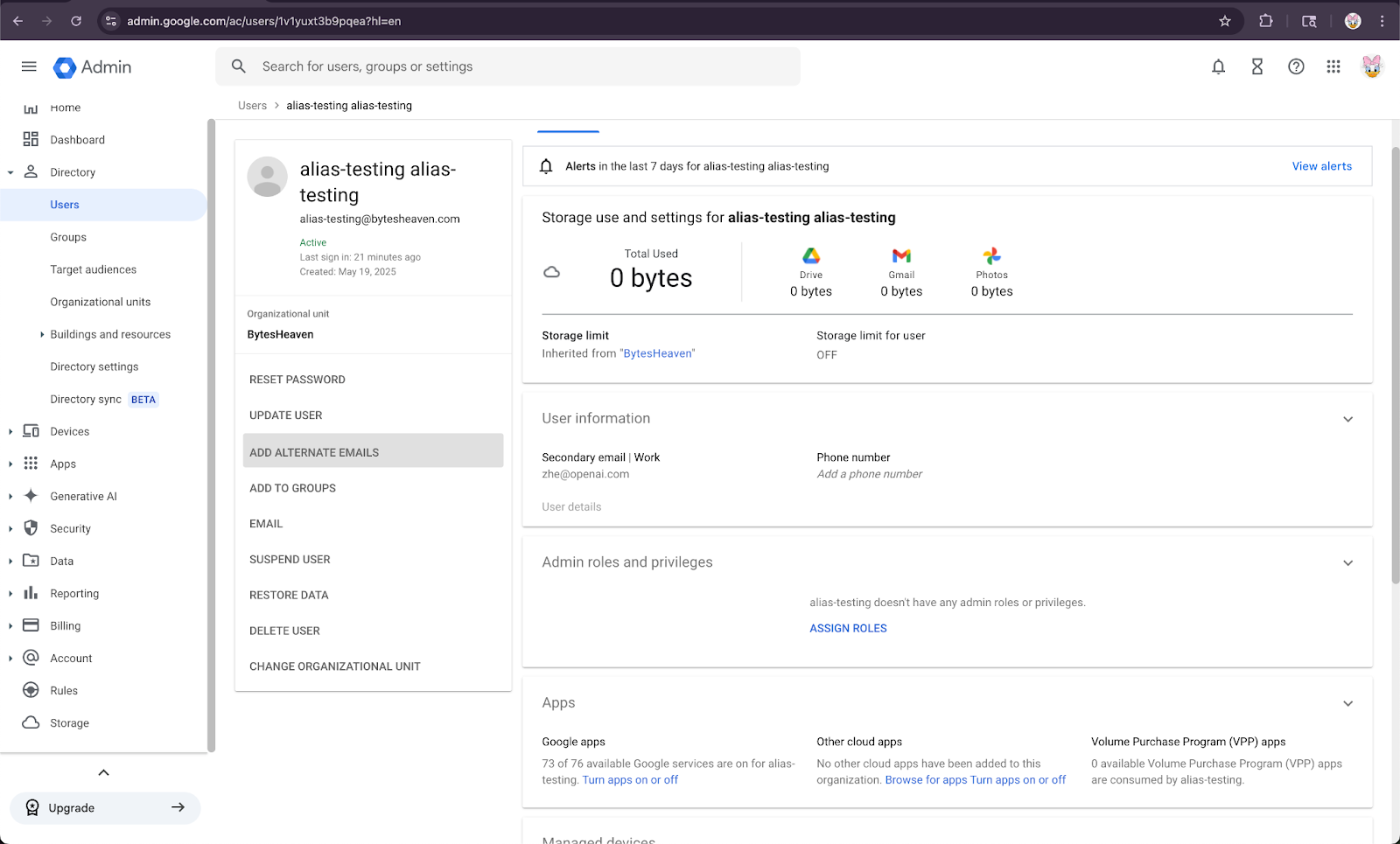
Google Admin user details page with Add alternate emails action highlighted

3. 대체 이메일을 추가합니다. 사용자의 ChatGPT 계정과 일치하는지 확인하세요.
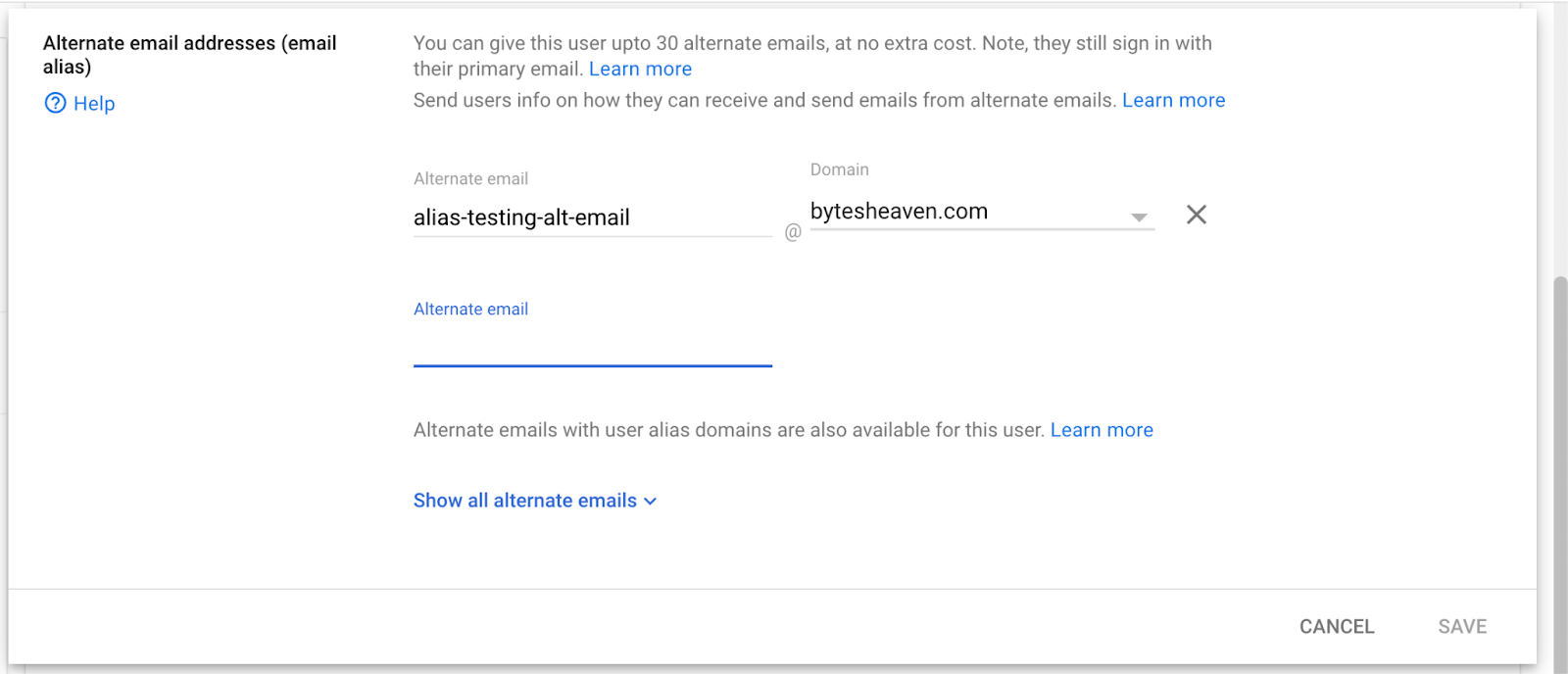
Google Workspace Admin alternate email alias form with alias-testing-alt-email on bytesheaven.com

4. Save를 선택합니다.


알려진 제한 사항

개인 이메일 주소는 지원되지 않습니다

개인 주소(예: example@gmail.com)로 ChatGPT에 가입한 사용자는 Google Workspace에 연결할 수 없습니다. 이 설정은 지원되지 않으며, 조직 외부에서 내부 데이터에 액세스할 수 있게 하므로 보안 위험을 초래합니다.

Gmail “+” 별칭은 지원되지 않습니다

Gmail에서는 주소에 “+”를 추가해 별칭을 만들 수 있습니다(예: user+alias@gmail.com). 이 유형의 별칭은 Google Drive 동기화 커넥터에서 작동하지 않습니다. 별칭은 Google Workspace에서 명시적으로 구성되어야 합니다.

일반적인 오류 메시지

이메일 주소가 올바르게 연결되지 않으면 사용자는 다음 메시지를 볼 수 있습니다. “Google Drive에 계정을 연결할 수 없습니다. 자세히 알아보려면 클릭하세요.”

사용자에게 이 메시지가 표시되면 이 문서의 단계를 검토하고 정확히 따랐는지 확인하세요. 추가 지원이 필요하면 지원팀에 문의하세요.

이 문서가 도움이 되었나요?