
This article explains how billing works for ChatGPT Ads, including what must be configured before campaigns can deliver, how charges are applied, how spend is controlled, and what to do if you need help with a billing issue.
Set up billing before delivery starts
Before campaigns can begin delivering, billing must be fully set up in Ads Manager Beta. For self-serve card-billed accounts, this involves two steps:
Create a billing profile: enter your business name, business address, and invoice delivery email. The invoice delivery email is used for invoices and other billing-related communication.
Add a payment method: enter your credit card details and billing address information.
When you add a card, your bank may show a temporary authorization hold, which may appear as the equivalent amount in your card’s currency. This is not a completed charge and is automatically released after verification, though it may remain visible for 8 days or longer depending on your bank. Please see the Ads Billing page in Ads Manager for more details.
How billing works
ChatGPT Ads currently uses a postpay billing model that charges advertisers after ads have been delivered. As your campaigns run, spend accrues on your account. For self-serve card-billed accounts, charges are applied to the payment method saved in Ads Manager Beta.
Eligible sales-managed advertisers on postpaid invoice terms follow their invoice billing arrangements instead of saved-card threshold charging.
If you created ads during signup, the onboarding notice below explains that they can go live after review. Once approved, ads can begin delivering and accruing spend when billing, account readiness and campaign settings permit. Review your campaign’s status, budget, schedule and delivery activity in Ads Manager if you are unsure when advertising began.
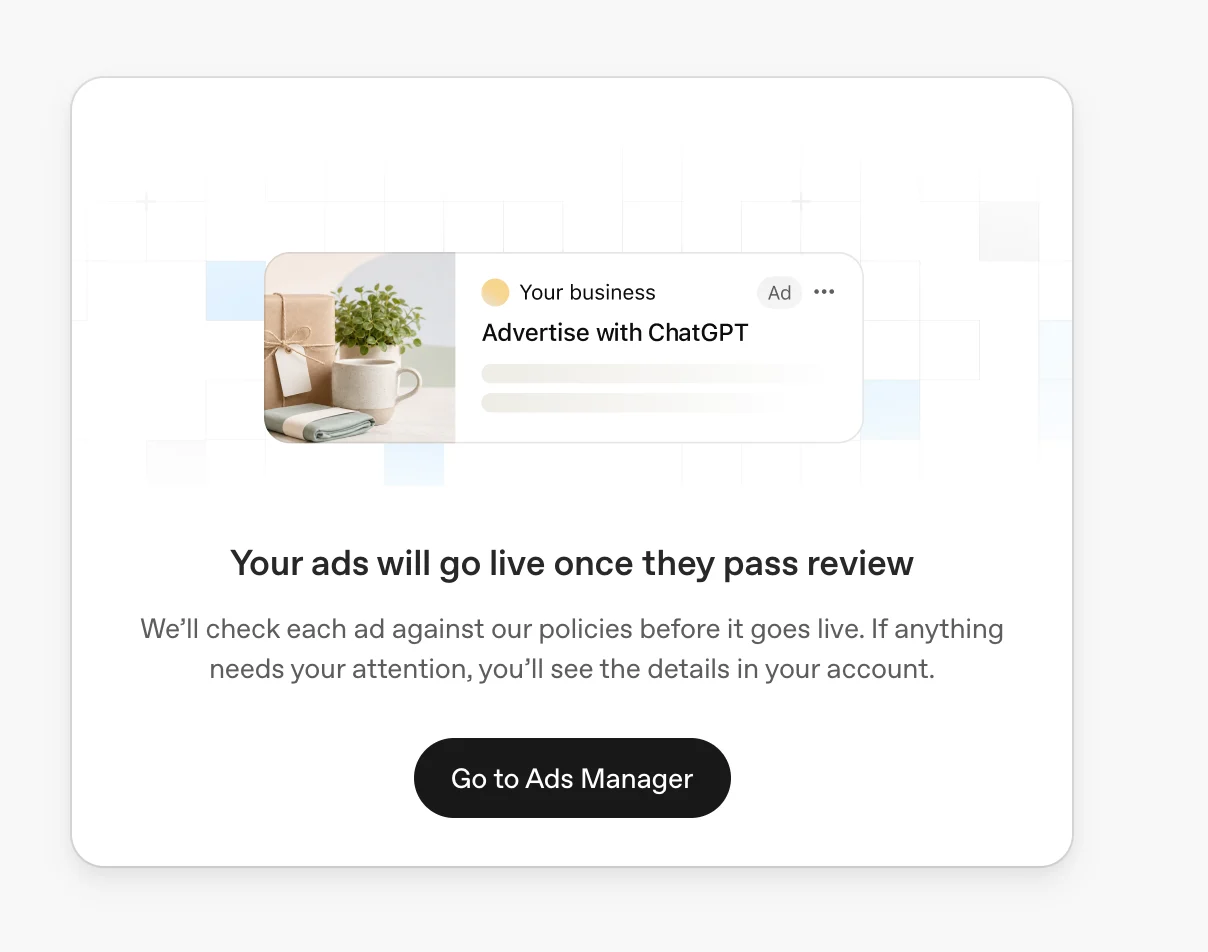
Example onboarding notice: “Your ads will go live once they pass review.” Ads can begin delivering after approval when account, billing and campaign requirements are also met.
ChatGPT Ads supports cost per thousand impressions (CPM), cost per click (CPC), and conversion-optimized purchasing based on the campaign objective and billing option you select.
Select a Views objective to buy on a cost per thousand impressions basis (CPM) and optimize for reach. With this objective, you are billed for impressions served.
Select a Clicks objective to buy on a cost per click basis (CPC) and optimize for traffic. With this objective, you are billed for each click.
Select a Conversions objective to optimize toward a selected standard conversion event. Eligible advertisers can select either oCPC (click billing) or oCPM (impression billing). Ads are not billed per conversion. See Conversion-optimized Campaigns for prerequisites, eligibility, and steps.
Your campaign budget controls the spending parameters for your campaign. When you create a campaign, choose one of the following budget types:
Daily budget: The average amount you want the campaign to spend per day over a seven-day period. It is not a same-day spending limit. Billed media spend may be up to twice your selected daily budget on an individual day, but will not exceed seven times your daily budget over the applicable seven-day period. If delivery is below your daily budget on some days, unused amounts may be used later in the same seven-day period. See Daily Budgets for additional details.
Campaign total budget: The maximum amount you are willing to spend across the campaign. Ads Manager paces spending over time based on your remaining budget and campaign schedule.
You can change the budget amount after creation. You can also change a campaign-total budget to a daily budget, but you cannot switch that campaign back to a campaign-total budget. Actual spend may vary based on delivery, user engagement, and the pricing model selected.
For how Ads Manager spreads spending over time for daily and campaign total budgets, see Budget Pacing.
In Ads Manager Beta, you can monitor spend and performance using metrics such as impressions, clicks, spend, CTR, Average CPC, Average CPM, and conversions if conversion measurement is set up.
Impressions, clicks, and CTR refresh approximately every 15 minutes. Spend insights may be delayed 7–8 hours. A zero or delayed spend total does not mean that no charges are accruing.
When charges happen
For self-serve card-billed accounts, your saved payment method is charged when your account reaches its assigned payment threshold.
When you sign up for a self-serve card-billed Ads Manager Beta account, your account is assigned a payment threshold that determines how much unpaid spend can accrue before your saved payment method is charged. This is not the same as a campaign budget and is not an account spend cap.
Approved advertisers typically start with a lower payment threshold and we may increase your payment threshold automatically over time based on successful payment history and other factors.
For example, if your account has a $25 payment threshold, your card will be charged once your account accrues $25 in unpaid spend. After a successful payment, your outstanding balance will be reduced by the payment amount. If delivery continues, your account can accrue spend again until it reaches the threshold or the end of the month.
For more on equal charge amounts, see Why do I see two Ads charges for the same amount? Are they duplicates? below.
If your account still has an outstanding balance at the end of the month, that balance will also be charged at the end of the month even if you have not yet reached your payment threshold. You will receive an emailed receipt for each successful payment.
You cannot manually change your payment threshold, and our support team will not change thresholds on behalf of advertisers.
Can I set a daily account spending limit?
Eligible postpaid-invoice ad accounts can set an account-wide daily spending limit in Ads Manager under Billing → Account limits, alongside the existing Date range option. This option is not available for self-serve card-billed advertisers.
The daily allowance is shared across campaigns, renews at midnight in the account’s time zone, and starts no earlier than the next day. Daily and date-range limits cannot overlap.
An account spending limit is a safeguard; it does not allocate spend between campaigns or pace delivery, and campaign budgets still apply. The card payment threshold described above is a charge trigger, not a daily spending limit. See Account spending limits for developer reference details.
If a payment fails
For self-serve card-billed accounts, if a payment fails after your account reaches its payment threshold, your ads may stop delivering until the billing issue is resolved. You will receive an email notification if that payment fails. Your campaigns, ad groups, and ads may show as Not serving. Open the status tooltip for details.
Select the affected ad account and review the outstanding invoice and payment status in Billing. If your payment details need to change, review your payment method in Billing settings. Saving a payment method alone does not confirm that an outstanding invoice has been paid.
After the invoice is paid, check the campaign, ad group, and ad status again. A successful payment does not guarantee that delivery has resumed; other account, billing, policy, or campaign requirements may still need attention.
If the payment remains unresolved, contact ads-support@openai.com with your ad account ID, invoice ID if available, the exact error, when it occurred, and a redacted screenshot. Do not send full card details or security codes. Contact your card issuer if your card continues to be declined.
Eligible self-serve card-billed advertisers can move to higher payment thresholds over time based on successful payment history. Failed charges, disputes, and chargebacks can pause progression to higher limits.
Billing FAQ
Is my payment threshold the same as my campaign budget?
No. For self-serve card-billed accounts, your payment threshold controls when your saved payment method is charged for accrued spend. Your campaign budget controls how much the campaign can spend. Reaching a payment threshold does not mean a campaign has reached its budget, and a campaign budget is not the same as an account spend cap.
Can support increase or lower my payment threshold?
No. For self-serve card-billed accounts, payment thresholds are assigned and may increase automatically over time based on successful payment history and other factors. Support does not manually change thresholds for advertisers.
Why do I see two Ads charges for the same amount? Are they duplicates?
Not necessarily. For self-serve card-billed accounts, automatic threshold billing can produce separate invoices for the same amount as additional advertising spend reaches your payment threshold. Each invoice covers additional advertising spend, so equal charges are not necessarily duplicates.
Under the current default, progression to a higher payment threshold can occur after two separate successful invoice payments that each meet or exceed the qualifying threshold before tax. Thresholds and eligibility vary by account and currency, so the USD example below illustrates possible progression, not a guarantee for every account.
| Successful invoice payment | Invoice amount before tax (USD) | Payment threshold after payment (USD) |
|---|---|---|
| 1 | $25 | $25 |
| 2 | $25 | $50 |
| 3 | $50 | $50 |
| 4 | $50 | $100 |
| 5 | $100 | $100 |
| 6 | $100 | $200 |
In this example, two $25 invoices are followed by two $50 invoices and then two $100 invoices, before progression to a $200 payment threshold. Each invoice represents additional advertising spend. Applicable taxes can make the card charge exceed the payment threshold.
A higher payment threshold changes when you are charged; it does not increase your campaign budget.
Does seeing a promotional offer mean I have earned credit?
No. Seeing an offer, enrolling, meeting its requirements, and receiving credit are separate steps. Follow your offer’s eligibility rules, enrollment instructions, qualifying-spend requirement, and dates. Creating an account or choosing a campaign budget does not establish that credit has been earned.
Verification delays do not, by themselves, establish a new qualification deadline. Your specific offer and the Ad Credit Terms govern eligibility and use.
Where can I see promotional credit usage?
Select the correct ad account and open Billing → Activity. Review the relevant dates and look for Promotions entries.
Credit applies to eligible charges after it is issued; it does not refund the spending used to qualify. A missing entry or zero remaining balance alone does not explain whether credit has not yet been issued, has been used, has expired, or is otherwise unavailable. Contact Support if your account’s activity does not match the offer you received.
Why was I charged after adding a payment method?
When you add a card, your bank may show a temporary authorization hold, which may appear as the equivalent amount in your card’s currency. This is not a completed charge and is automatically released after verification, though it may remain visible for 8 days or longer depending on your bank.
When you add a card, the expected hold amount will be reflected in the setup page, as well as in the Ads Billing page in Ads Manager.
How do I check the status of a card authorization?
If your bank shows a debit but you cannot find a matching completed payment or invoice, check whether it is an authorization hold. Compare the date, amount, currency, and any masked card details shown; the amount alone does not identify the transaction.
Select the affected ad account and open Billing → Activity. Choose a date range that includes the card setup or update. Available records appear as Authorization hold, with the date, amount, currency, masked card details, and status.
These records are informational and separate from advertising costs, payment credits, and invoices.
Active: The authorization remains open.
Canceled or Expired: The authorization has ended with the payment processor. Your bank may still need time to release the reserved funds.
Captured: Funds were collected. Check the corresponding payment and invoice records.
Status unavailable: The current authorization status could not be confirmed.
If a record is missing, check the selected account and dates. Some older authorizations may not appear in this view.
If the information does not match your bank statement, contact Support with your ad account ID, transaction date, amount, currency, and a redacted screenshot. Do not send your full card number or security code.
Can I remove a payment method?
If self-serve removal is not available, make sure any outstanding balance is resolved and pause or end campaigns you do not want to continue. For help with account deactivation or payment method questions, contact ads-support@openai.com with your ad account ID and billing details.
Can I change my billing country, currency, or legal entity after setup?
Billing country, currency, and legal entity details are tied to account setup and billing records. They may not be self-serve editable after account creation. If the wrong details were entered, contact support with the ad account ID, current details, requested details, and reason for the change.
Can I use a credit card issued in a different country?
Your billing information and payment method should match the business entity and country or region used when your Ads Manager account was created.
For example, if your advertiser account was created for a U.S.-based business, you should use a U.S.-based billing address and payment method. A card or payment method associated with a different country may not be accepted.
If you need to bill under a different country, region, or legal entity, you may need to create a separate advertiser account using the correct business and billing information.
Why are my ads not serving after a failed payment?
Ads may stop delivering while a payment issue is unresolved. Check the campaign, ad group, and ad status tooltips for details. For self-serve card-billed accounts, follow the guidance in “If a payment fails” above. Confirm the outstanding invoice is paid, then check for any remaining delivery blockers. Updating a card or seeing an authorization hold does not confirm payment, and a successful payment does not guarantee that ads have resumed. Contact your card issuer if your card continues to be declined. For eligible sales-managed accounts on postpaid invoice terms, follow your invoice billing arrangements instead.
Can I see charges after pausing a campaign?
Campaign updates may take time to apply across our ad delivery systems, so additional impressions, clicks, or spend may occur after a campaign is paused. In some cases, ads may continue to appear for up to 24 hours. Advertising costs incurred during this period remain billable.
Reporting and charges may also update after a pause or campaign end to reflect earlier ad activity. Reported spend may therefore change after delivery stops, but will not exceed the applicable budget limit.
What information can I include in my invoices?
You can add or update supported VAT and tax IDs directly in Ads Manager. Available tax ID types depend on your billing country.
Open Billing → Settings.
Select Edit next to Billing profile, if available. Some accounts show the tax ID fields in the form opened through Payment methods → Edit.
Select the appropriate tax ID type, enter your number, and complete any other required fields.
Save your changes, then confirm the tax ID appears under Billing profile.
Changes apply to future invoices and do not update invoices already issued.
Is Japanese Consumption Tax (JCT) charged on ChatGPT Ads invoices?
No. OpenAI does not currently charge Japanese Consumption Tax (JCT) on ChatGPT Ads invoices for advertisers billed in Japan, regardless of whether a Japanese tax ID is provided.
This treatment is specific to ChatGPT Ads and may differ from the general guidance in The Japanese Consumption Tax on your OpenAI invoices. For questions specifically about ChatGPT Ads invoices, refer to the information in this FAQ.
Note: OpenAI cannot provide tax advice. Contact your tax adviser with questions about JCT or any tax obligations that may apply to your business.
Can I request a refund for advertising charges?
Valid advertising spend that has already been delivered is generally not eligible for a refund. Changing your mind, overlooking a clearly presented and accurate notice about campaign activation or billing, or receiving fewer conversions, leads, or returns than expected does not, by itself, make valid delivered spend eligible for a refund.
If you have evidence that a technical issue, incorrect billing, or unauthorized activity affected your advertising charges, contact Support. Support reviews relevant billing and delivery records alongside the available evidence. Delivery alone does not establish that disputed activity was authorized or that a charge was correct. Refund eligibility depends on the investigation’s findings and the applicable policy.
Include your ad account ID, any relevant invoice or charge IDs and affected campaign IDs, dates and timestamps with time zone, disputed amount and currency, and available screenshots or records showing what happened. You do not need to identify the technical root cause to report a suspected issue. Please do not include full payment-card details or passwords.
What billing period does my invoice cover?
Self-serve threshold invoices show an approximate billing period in the invoice footer. The dates use UTC, and the first and last dates may include only part of a day.
Use this period as a starting point when comparing an invoice with Ads Manager reporting. Check the reporting time zone and selected dates: a report covering whole calendar days may include activity outside the invoice’s partial-day boundaries.
The footer does not provide an exact campaign-by-campaign reconciliation. If an amount remains unexplained, contact Support using the information listed below.
If you think a billing number is incorrect
Start by gathering the full context before reaching out to support at ads-support@openai.com.
A strong billing support request should include:
Invoice ID or charge ID
Date range in question
Amount in question
Affected campaign IDs
Relevant reporting screenshots or exports