
Overview
Workspace settings is the main admin surface for managing how ChatGPT is used in your organization.
From this area, workspace owners and admins can manage members, seat defaults, feature access, GPT governance, apps, analytics, and identity controls according to their role. Owners can also update the workspace name and image. For role permissions, see: Managing members, workspace roles, and seats.
Workspace settings are available to all roles. Owners and admins control workspace-wide settings, such as permissions, seat types, spend controls, and access to ChatGPT and Codex features.
To open Workspace settings, select your profile icon in ChatGPT, then select Workspace settings.
Plugin and marketplace administration is in Admin Console. Select the intended ChatGPT workspace and open Plugins. Read more: Admin controls, security, and compliance for plugins and apps.
General
Use General to manage workspace-wide configuration and identity details such as:
Workspace name and image.
Workspace and organization identifiers.
The workspace AI policy modal.
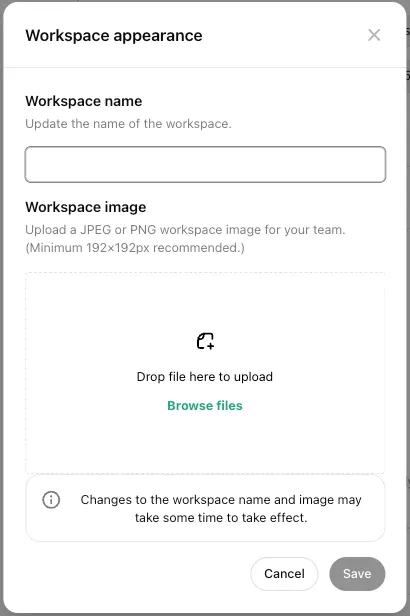
Update the workspace name or image
Only workspace owners can update the workspace name or image:
Go to Workspace settings > General.
Move your pointer over the workspace name, then select the edit icon.
Update the workspace name, the workspace image, or both.
Select Save.
Changes apply across the workspace for all members.
Workspace images must meet the supported format and size requirements.
Manage the AI policy modal
Owners and admins can use the workspace policy area in General to define organization-specific AI policy guidance.
When enabled or updated:
The policy modal is shown to users every 30 days.
The policy modal is also shown when the policy content is updated.
Members
Use Members to:
Invite members.
Remove members.
Manage member roles.
Assign or change member seat types where supported.
Review pending invitations and requests.
You can also control whether members can view member and group assignment lists, including assigned roles.
For member and seat management, see: Managing members, workspace roles, and seats.
Groups
Use Groups to:
Create and delete groups.
Add or remove members from groups.
Review group membership.
Groups are especially useful if your workspace uses role-based access control.
In ChatGPT Enterprise, workspace owners and admins can delegate selected group tasks to group managers. Delegation does not grant control over workspace-wide billing, identity, seat settings, or workspace defaults.
For group setup, membership, and delegated permissions, see: Managing groups and group managers.
Permissions & roles
Use Permissions & roles to control workspace-wide feature access and role-based access settings.
This area can be used to manage items such as:
Available models.
GPT creation and sharing controls.
Canvas.
Projects.
Memory, including separate controls for shared memory and improved memory, when available.
Link sharing.
Separate Work Local and Work Cloud access for the default workspace role and custom roles. Work Cloud allows members to start and view cloud tasks across supported surfaces. Work Local without Work Cloud allows local work but prevents starting cloud tasks.
Depending on your setup, some controls may be applied workspace-wide, while others can be managed through role-based access control.
Manage memory settings
Use Permissions & roles to apply memory settings to the default workspace role or an eligible custom role.
Go to Workspace settings > Permissions & roles.
Select the default workspace role or the custom role you want to configure.
Review Use shared memory and the nested Use improved memory setting.
Before enabling Use improved memory, review which members will receive access.
In ChatGPT for Healthcare and ChatGPT Enterprise with Regulated Workspace, Use improved memory is disabled by default.
This feature is not covered under your BAA. PHI should not be entered when using this feature.
If you enable Use improved memory, tell affected members about this restriction. For the current BAA coverage matrix, see: HIPAA Eligible Products and Functionality. For details about feature behavior, see: Memory FAQ.
Manage event-triggered scheduled tasks
In Permissions & roles, open Work and enable Allow event-triggered scheduled tasks for the appropriate roles. This setting is turned off by default in Enterprise, Edu, and ChatGPT for Healthcare workspaces. In ChatGPT for Healthcare, event-triggered tasks are not covered under a Business Associate Agreement (BAA). Do not use them to transmit, store, or process protected health information (PHI).
Members also need access to Work, the connected app, and any required app actions. When this permission is turned off, affected tasks cannot process new events and may pause when they next run.
This permission is separate from Share chats and scheduled tasks in the workspace. To share or schedule an event-triggered task, eligible members need both permissions, access to Work, and the required connected-app access.
Manage scheduled task sharing
Workspace owners and admins can use Share chats and scheduled tasks in the workspace to control whether eligible members can share chats and scheduled tasks with other members of the same workspace.
When this setting is turned off, members cannot create shared task links or schedule tasks from shared links while using that workspace. The setting controls sharing; it does not automatically remove access to scheduled tasks themselves.
A scheduled task link created inside the workspace can be opened only by members of the same workspace. The link includes the task title, instructions, schedule, and original time zone, but does not include the creator’s name, chat history, previous task results, saved memories, custom instructions, or connected app credentials.
For member instructions, see: Scheduled tasks in ChatGPT.
Models
Workspace owners and admins can use the Models page to configure independent starting defaults for Chat and for Work & Codex. Available controls vary by product and workspace configuration.
For Chat, admins can choose an admin default model and reasoning level or allow User’s last choice. When User’s last choice applies, a new chat uses the member’s most recent available choice; an older saved model can be promoted to the current recommended generation. The member’s last compatible reasoning choice is preserved where supported.
For Work & Codex, admins can also configure speed, Fast Mode availability, and role-specific overrides where available. Starting defaults do not grant access to unavailable models or override enforced workspace requirements. Role overrides are evaluated separately for Chat and Work & Codex. If any assigned role overrides a product, ChatGPT merges only the matching role overrides for that product; otherwise, the workspace default applies. When multiple matching role overrides apply, the highest-priority model wins. For role settings that select that model, the highest supported reasoning level applies. For Work & Codex, Fast applies if any matching setting for that model selects it. If any matching role uses User’s last choice, a new chat uses the member’s most recent available choice.
Billing
Use Billing in the global admin console to review invoices, seat information, and other billing-related workspace details.
GPTs
Use GPTs to manage custom GPTs created in the workspace, including:
Reviewing GPT ownership.
Transferring ownership.
Deleting GPTs.
Managing GPT actions.
Apps
Go to Admin Console, select the intended ChatGPT workspace, and open Plugins. Select Manage Legacy Apps to open the Apps page. Use Apps to manage external tools and integrations available in your workspace. This can include:
Enabling or disabling apps organization-wide.
Assigning app access to specific members or roles where supported.
Enabling sync for supported apps.
Creating and deploying custom MCP apps for your organization.
Workspace analytics
Use Workspace analytics to review adoption and engagement trends, such as:
Daily and weekly active users.
Messages per user.
Total messages.
Total seats.
GPT usage.
For more information about Workspace analytics, see: Workspace analytics for ChatGPT Enterprise and Edu.
Identity & access
Use Identity & access to manage how people access the workspace, including:
Login configuration.
Provisioning.
Identity management.
IP allowlists.
If your organization uses SCIM, newly provisioned users follow the workspace’s default seat type where supported. Review that default before turning on or updating automated provisioning.
FAQ
Why can a member or non-admin open Admin Console?
Workspace settings are available to all workspace roles. In eligible Enterprise and Edu workspaces, selecting Workspace settings can open Admin Console. Opening Admin Console alone does not establish administrator access. Opening the console does not change a person's role or grant administrator permissions. Available pages and actions depend on the selected workspace or tenant and the person's assigned permissions.
A tenant Member role provides read-only access to supported tenant information. It cannot change tenant settings, manage tenant users or groups, or grant tenant administrator roles. Tenant roles are separate from ChatGPT workspace roles. See: Managing your tenant in Admin Console.
Can I restrict workspace member and group-list visibility?
Workspace owners can control whether members can view member and group assignment lists, including assigned roles, in Workspace settings > Permissions & roles. Viewing these lists does not grant permission to manage users or groups. Review the workspace defaults and all custom roles assigned directly or through groups, because another role can still grant access. See: Managing feature access with role-based access control.
Who can update the workspace name and image?
Only workspace owners.
Can I set a default seat type for new users?
Owners and admins can set a default seat type for newly provisioned users. SCIM-provisioned users follow that default.
Where are shared-link controls managed for the workspace?
Workspace-level link-sharing controls are managed in Workspace settings > Permissions & roles.
The same workspace control applies to shared scheduled tasks. If Share chats and scheduled tasks in the workspace is disabled, members cannot create or schedule shared task links in that workspace.