
Troubleshooting and Getting Help in Prism
Prism is a collaborative, AI-native LaTeX workspace built on frontier models—designed to help researchers think, write, and iterate faster. Its embedded intelligence amplifies both the speed and depth of scientific work.
This guide outlines how to troubleshoot common problems and where to find additional help.
How to access Prism
Prism is available at prism.openai.com to all users on a Free, Go, Plus, or Pro ChatGPT account who are not and have not been members of a Business or Enterprise workspace. We will expand access to Business, Enterprise, and Edu in the near future.
1. Using Prism’s Built-In Intelligence
Prism includes an editor-native assistant powered by OpenAI’s frontier models. It understands your document context and can help generate LaTeX, diagnose errors, and suggest fixes without leaving the editor. You can access it from the panel at the bottom of the workspace.
Generate LaTeX snippets: Ask Prism to create common LaTeX elements, such as “Create a 4×4 table” or “Add a figure with a caption.” Prism will return ready-to-use LaTeX and provide Keep and Undo options so you can insert it directly into your project.
Diagnose compilation problems: If your document fails to compile, describe the issue in the panel (for example, “My document isn’t compiling”). Prism will ask clarifying questions and guide you through likely causes, such as missing commands or unresolved references.
Fix errors inline: Errors and warnings appear as red or yellow markers in the editor margin. You can ask Prism to fix a specific error, and it will analyze the relevant lines, explain what’s wrong, and suggest targeted edits. You can apply the suggestion directly and recompile to confirm the fix.
Proofread: Ask Prism to proofread a section and highlight any errors or gaps in logic, and also make suggestions for how I can improve the clarity of the section. You can leverage Skills, such as a Paper Review, for editorial and factual feedback.
Literature search: Add a bibliography to my paper, including suggesting related work I may have missed.
2. Diagnosing Compilation Errors
If your LaTeX document does not compile, try the following steps:
Check the error marker: Red and yellow markers highlight where Prism detected an issue. Click the marker to view details, then use the built-in assistant to diagnose the error.
Review the compile log: When compilation fails, the PDF preview pane shows a compile log. Focus on the first error message (for example, a missing \end{document}), as later errors are often cascading effects. Share this message with Prism for more precise guidance.
Undo recent changes: If the error appeared after a recent edit, undo or temporarily comment out that change to see if compilation succeeds.
Reduce to a minimal example: If problems persist, simplify the document to only the essential content. Removing unrelated sections helps isolate the source of the error.
3. Best Practices to Avoid Issues
Stay logged in: Always work while logged in to ensure your changes are saved and available across sessions.
Use supported packages: Prism supports many commonly used LaTeX packages. Rare, outdated, or unmaintained packages may cause unexpected compilation errors.
Edit incrementally: Make small changes and compile frequently. This makes it easier to identify which edit introduced an error and recover quickly.
Moving LaTeX Projects to Prism
This guide explains how to move existing LaTeX projects—either from Overleaf or your local computer—into Prism. Importing your projects keeps everything in one place and lets you continue working without rebuilding your files manually.
Importing projects from Overleaf
To move a project from Overleaf to Prism, first download the project files from Overleaf and then upload them to Prism.
Download a single project
Open your Overleaf project dashboard.
Locate the project you want to transfer.
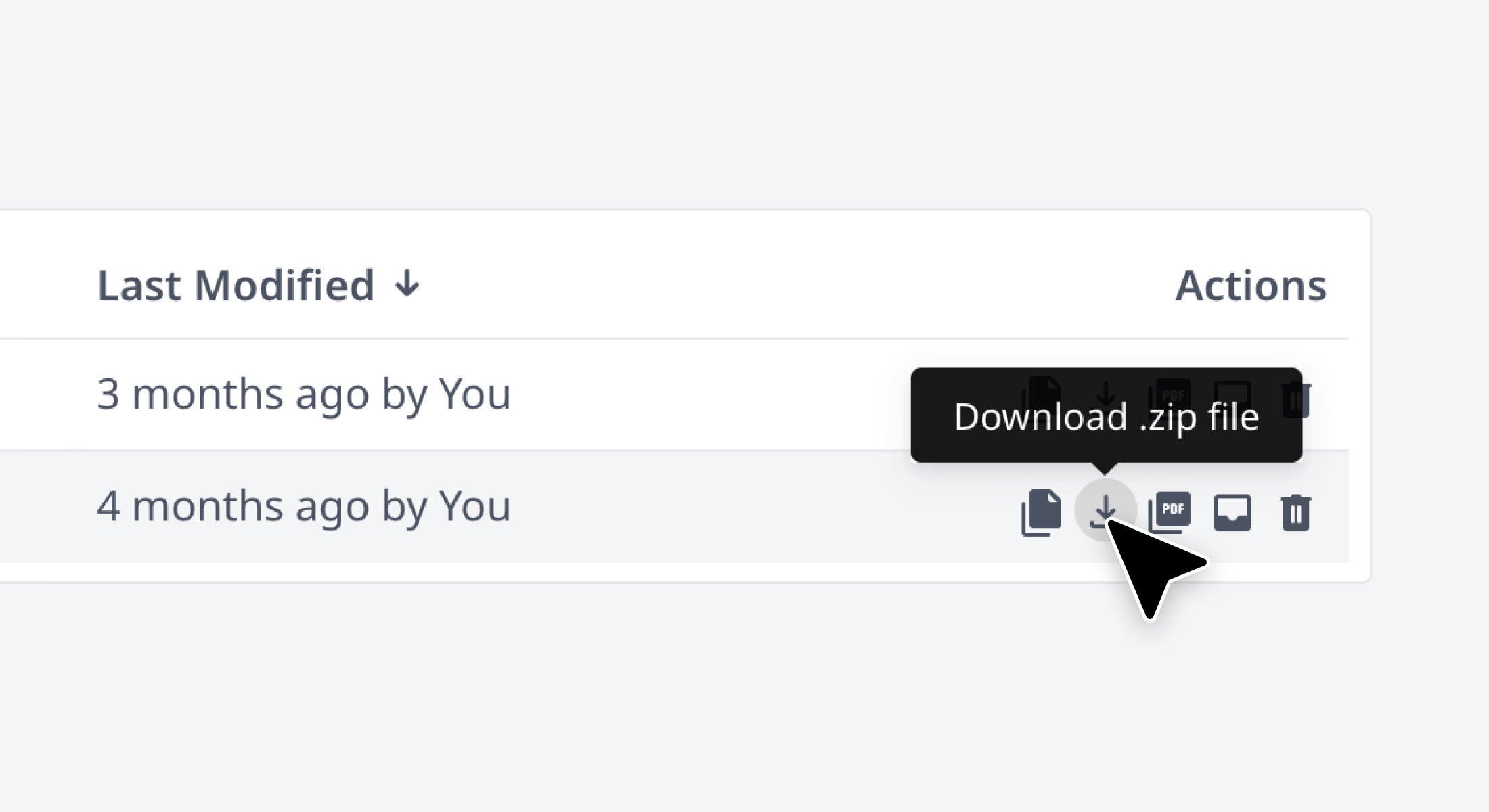
Click the download icon in the same row as the project name.
Overleaf downloads the entire project as a .zip file to your computer.
Download multiple projects
Open your Overleaf project list.
Select the projects using the checkbox at the beginning of each row.
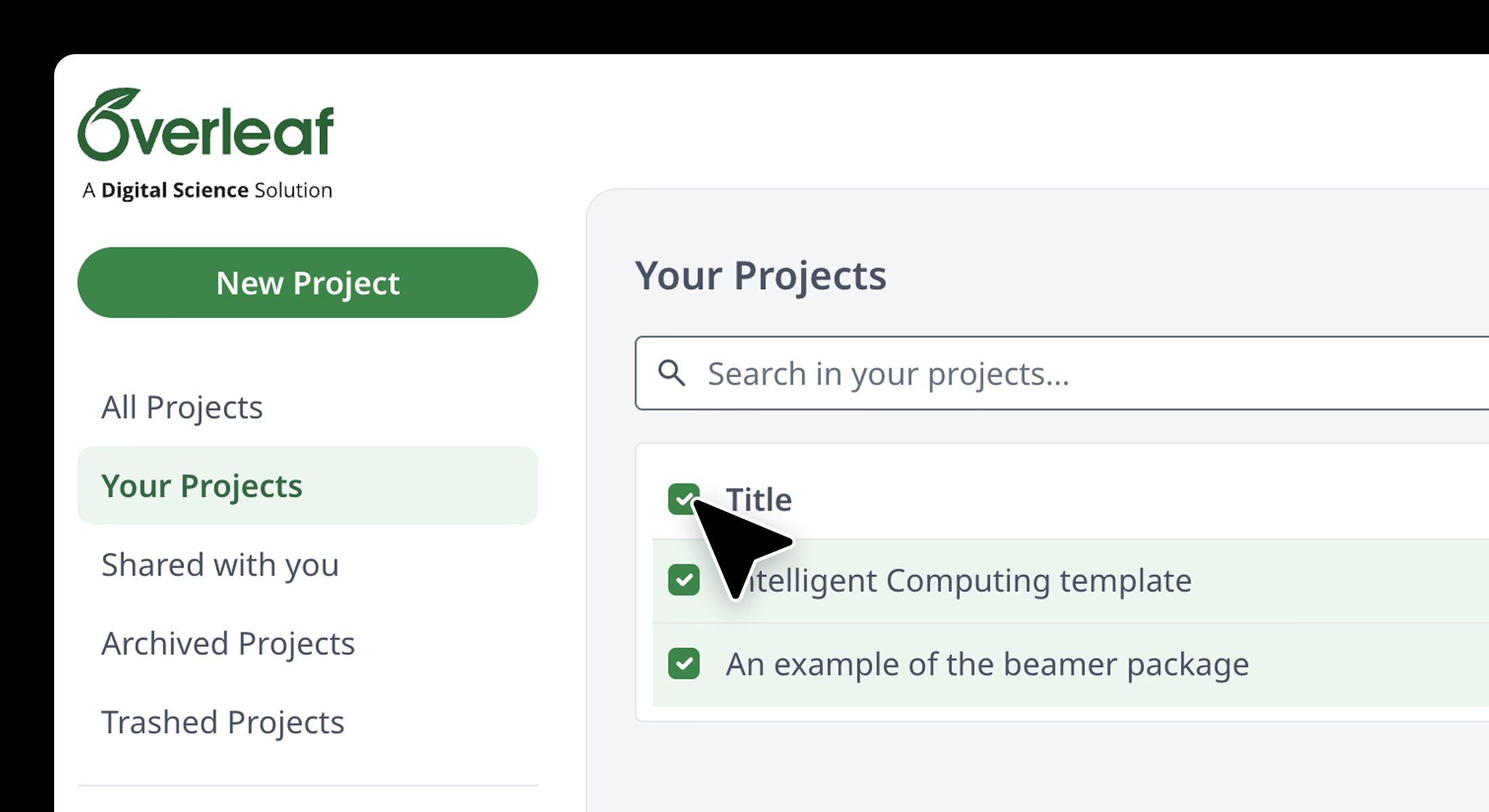
To select everything, click the first checkbox in the list.
Once selected, click the download icon in the top-right corner of the project list.
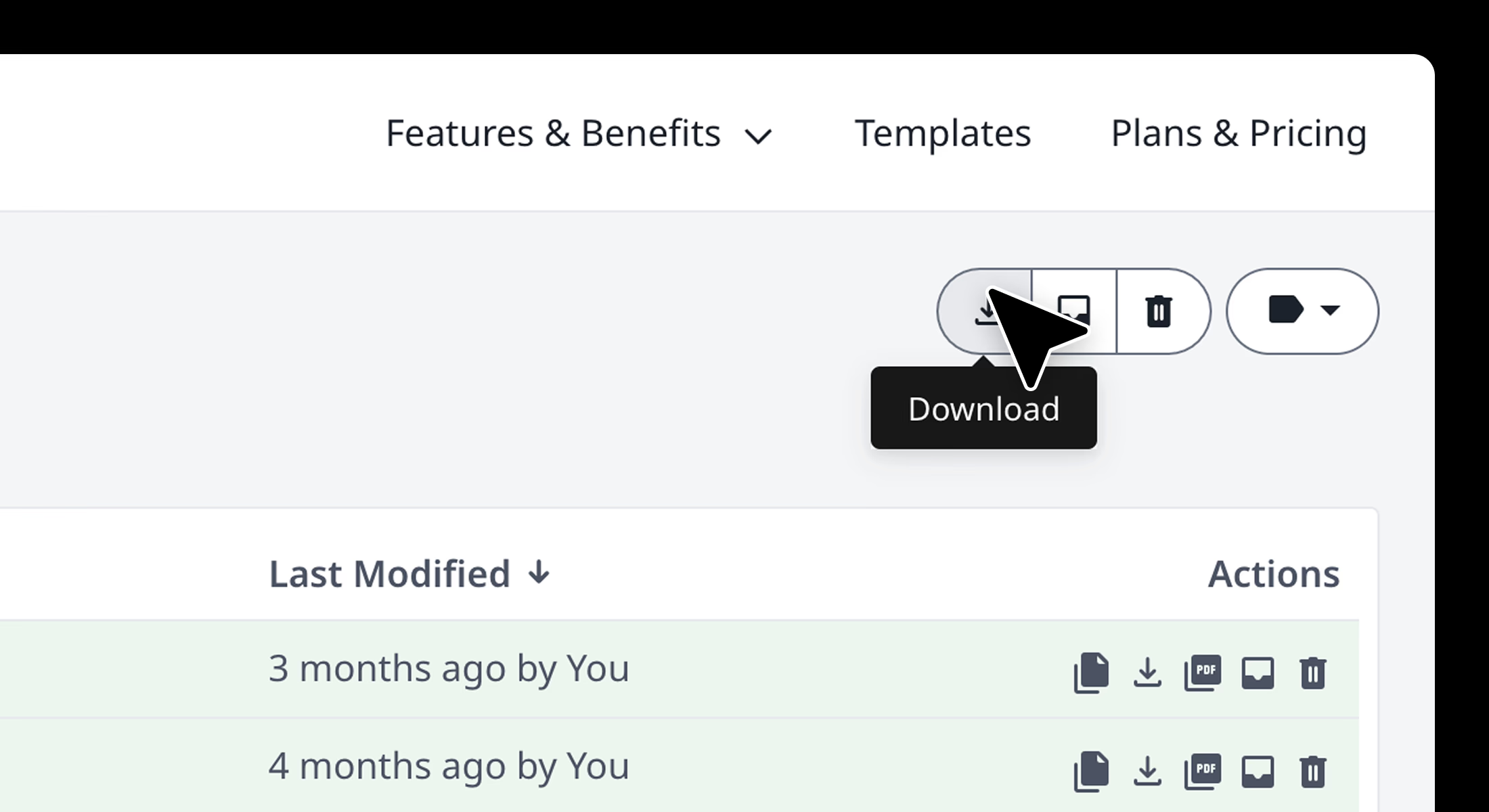
The selected projects will download as .zip files.
Importing projects into Prism
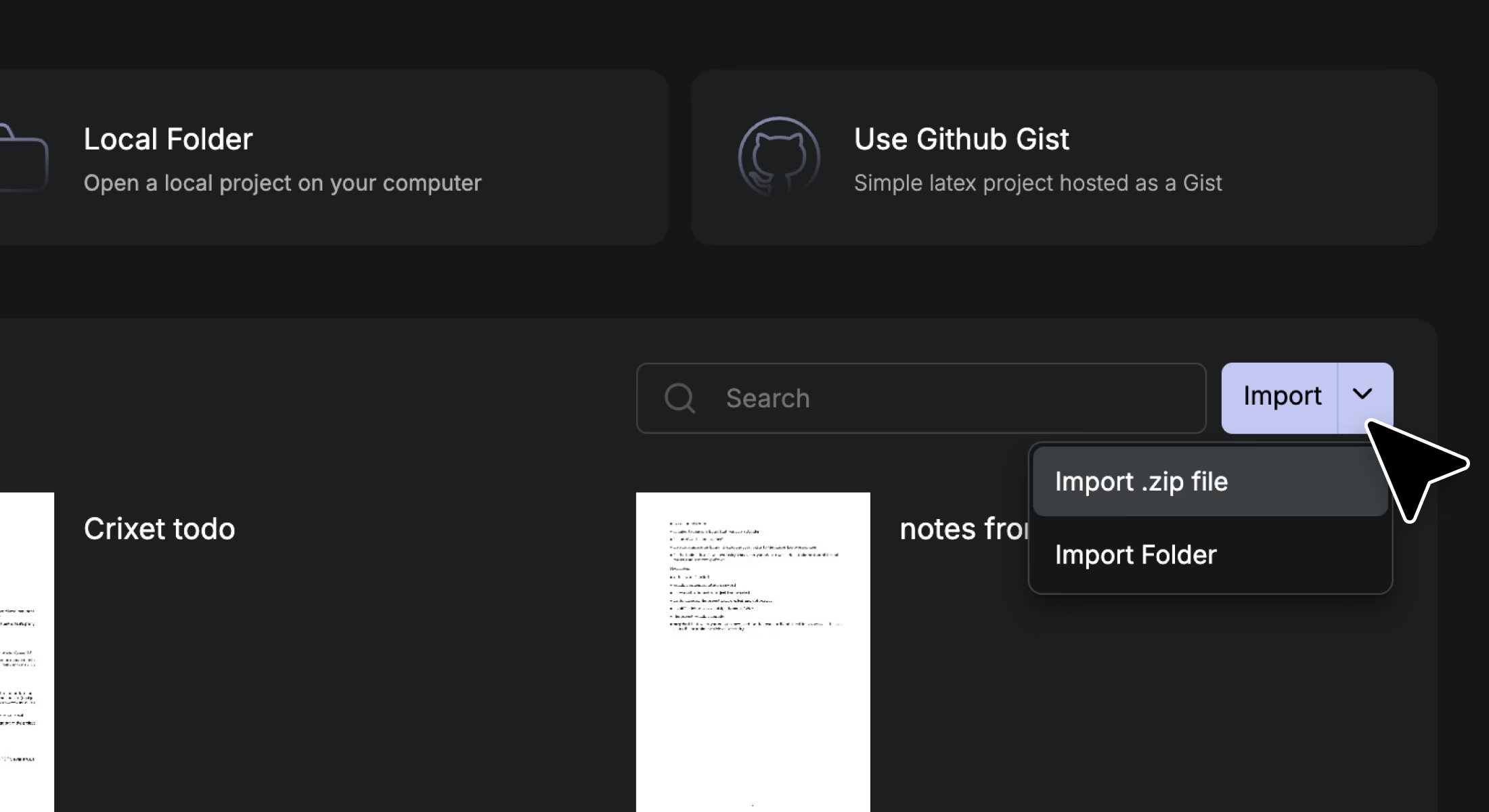
Prism can import projects in three ways: by uploading a folder, uploading a .zip archive, or dragging and dropping files into the All Projects view.
To import a project from the Import menu:
Open Prism and go to Import.
Click the chevron next to Import to choose the import type.
Select one of the following:
Open Prism and navigate to the Import option.
Click the chevron next to Import to choose the import type.
Select one of the following:
Import a .zip file: Choose the downloaded project archive from your computer. Prism will automatically unpack and load the project.
Import a folder: Choose the project folder from your computer. Prism will import your .tex files, bibliography files, images, and other project resources.
To import by drag and drop: From the All Projects view, drag and drop a project folder or .zip file into Prism. Prism will automatically create a new project and import the files for you.
After the upload finishes, Prism opens the full project so you can start editing and compiling.
Other FAQs
Account, Security, and billing
Q: Where can I find your privacy policy? A: You can find the Prism privacy policy here.
Q: Do you train on my data? A: Users have full control over whether their data is used to help improve our models, consistent with our Privacy Policy.
Q: Do you use “Zero Data Retention” (ZDR)? What logging/retention happens? A: Prism does not currently use the “Zero Data Retention” (ZDR) API option and maintains logs for a period after requests to improve the product.
Q: Do you offer a privacy mode where no text is stored or human-reviewed, and/or EU-only data residency? A: Those are requested features; they’re on the roadmap/backlog, but there isn’t a committed timeline yet.
Sharing and collaboration
Q: Why can’t I share an “anyone can edit” link? (The dropdown only allows “anyone can view.”) A: This is currently by design. Link-based “editable by anyone” sharing isn’t supported yet; editors must be added as collaborators (with a Prism account).
Q: Collaborators aren’t receiving invite emails—how can they access the project? A: Ask them to check their spam/junk folder, and have them log in using the invited email address; the shared project should appear for them after first login.
Project import and export
Q: My ZIP upload/import is stuck on “importing your project.” What should I do? A: Retry the upload. If it is still stuck after retrying, share the ZIP file with Support so the import path can be debugged.
Q: How do I export/download my project as a ZIP? A: Click the project name, then choose Export to download a compressed copy of the project. It may take a few seconds for the backend connection to be established before being able to export.
Reliability, outages, and connectivity
Q: My projects disappeared after refreshing. Are they lost? A: Refresh again and re-check the project list, your data should reappear.
Q: My projects disappeared after refreshing the page. Are they lost? A: This can happen during an outage from a provider. Try again; your projects should reappear. If they don’t, support can help recover them.
Q: The site seems offline / the app says it can’t connect to the backend. What should I do? A: Try again/reload. If the problem persists, send support the details of what you’re seeing (and, if possible, a project link) so it can be investigated.
Data integrity, recovery, backups, and version history
Q: My document froze, then content disappeared and comment anchors moved. Can I restore it? A: Start by downloading a .zip backup. Prism also includes version history, which may allow you to restore an earlier version. Comment anchor positions may not always be recoverable, and comments are not currently exported in backups. If formatting changed, try the code formatter to repair it.
Q: I reopened a project and files/content reverted or disappeared—what happened? A: There was a period where project saving relied on an external provider that couldn’t keep up during a usage spike. Saving was migrated to an internal system to reduce connection errors and prevent recurrence, and additional safeguards were added.
Q: Are comment positions recoverable, and are comments included in project backups? A: Comment positions may not be recoverable after the fact. There are now periodic backups (e.g., every ~10 minutes) for recovery in future incidents, but comments are not currently exported in ZIP backups.
Integrations
Zotero
Q: Why can’t I import Zotero group libraries into Prism? A: Zotero group libraries aren’t supported yet; individual libraries work, but group libraries are not currently supported.
Q: My Zotero integration is stuck (e.g., after changing accounts or API keys). How can it be fixed? A: Support will need your Zotero numeric ID (not your username) to unlink the integration from the prior/anonymous user, after which you can re-link it to your account. Example of how to do this: https://www.youtube.com/watch?v=7vDiZ8o_eHk
Git
Q: Can I clone a Prism project via Git (GitHub/GitLab) or keep it synced with my institute Git platform? A: Git integration isn’t available yet, but it’s a high-priority upcoming development project.
LaTeX build and troubleshooting
Q: How do I force a clean rebuild (clear Aux/toc/bbl Artifacts)? A: Reload the page. A page refresh forces a fresh, clean build.
Q: Figures/images won’t load in Prism, but the same LaTeX works elsewhere. A: Use paths that are relative to the .tex file doing the import. If the .tex file is in a subfolder and the image is at project root, prefix the path with ../.
Q: Compilation is extremely slow or never finishes. How do I identify the cause? A: Comment out sections (and then smaller parts within those sections) until compilation succeeds, then narrow down to the exact line causing the issue. Also review warnings and errors in the logs, starting from the first.
Q: I’m getting “Underfull/Overfull \hbox” warnings in the generated .bbl. Is this a compilation error? A: No, these are typesetting warnings, not fatal compile errors. If the PDF output looks acceptable, the warning can typically be ignored.
Q: In Beamer, why do lstlisting/listings environments error inside a frame (e.g., “Extra }, or forgotten \endgroup”)? A: Mark the Beamer frame as [fragile] when using listing environments; it often resolves these errors.
Q: My \cite citations show as “[?]” even though my .bib exists and bibliography commands are present. What’s a working configuration? One workaround that’s been successful is to ensure the bibliography is correctly included from the main document; for BibTeX-style workflows, include \bibliographystyle{plain} and \bibliography{refs} (where refs.bib is your file).
Product UI and feature requests
Q: Does Prism offer light mode? A: Yes. Prism supports three appearance settings: System, Light, and Dark. You can choose the theme that works best for you.