
Overview
ChatGPT can run one-time or recurring tasks, monitor for changes, and respond to supported events when available. Use Scheduled to create, review, manage, and share eligible tasks.
Create a scheduled task
Go to Scheduled to create a task and set its schedule. Availability depends on your account, app, and app version.
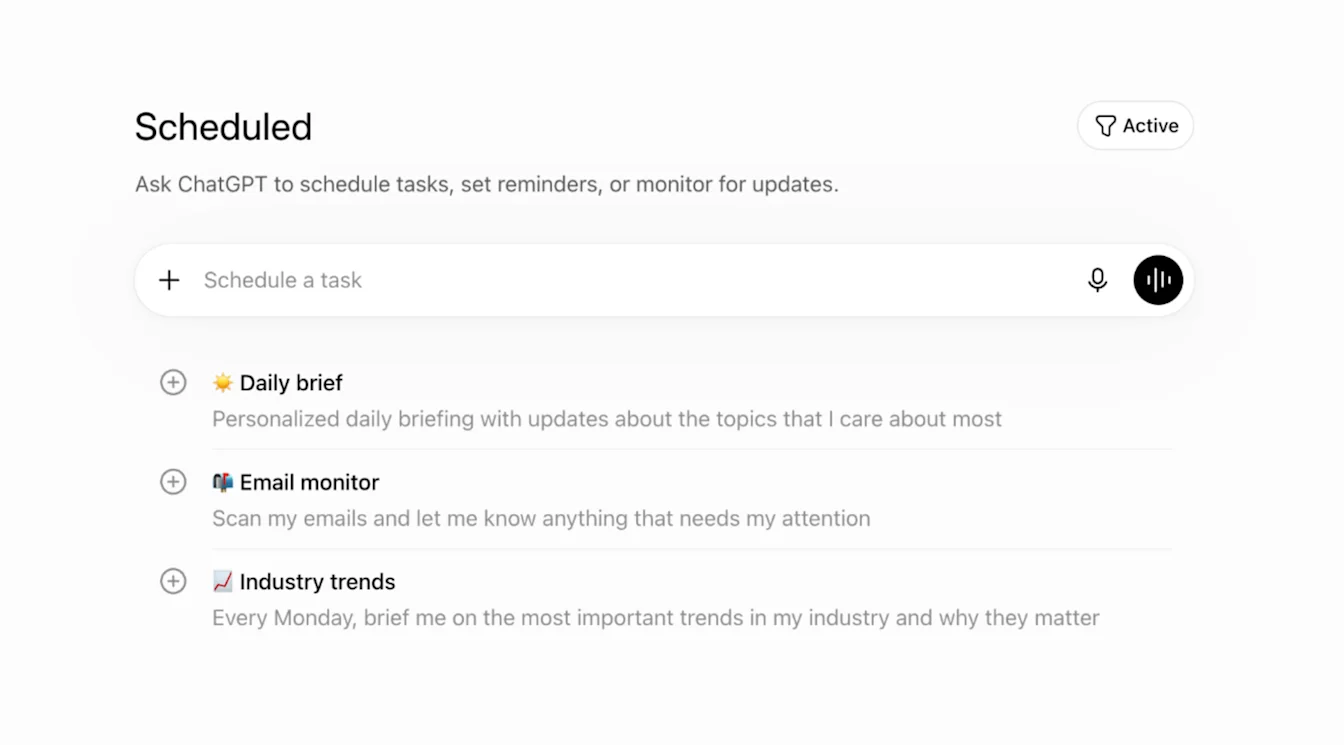
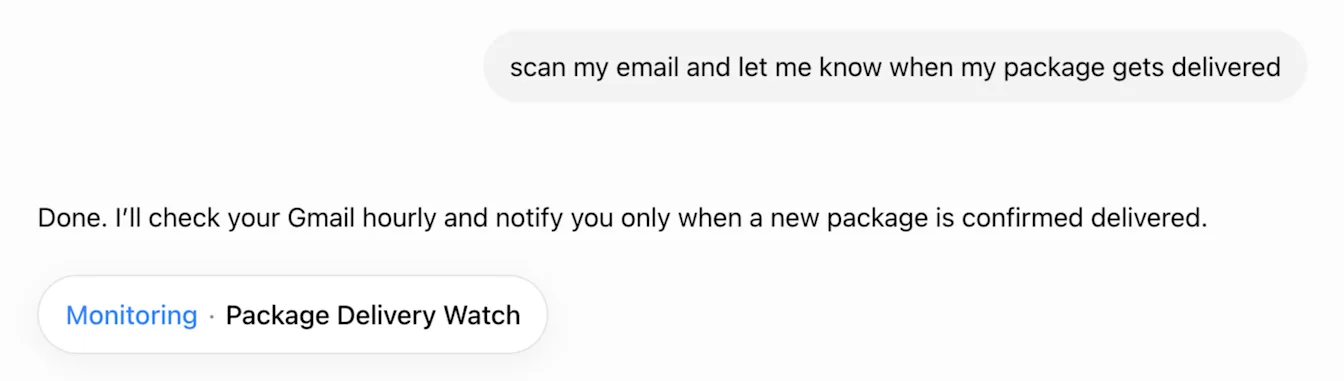
To create a task, ask ChatGPT to complete an action, such as “Let me know when my package is delivered.” If you create a task in a project, it cannot access uploaded files or files stored in that project.
After a task is created, ChatGPT displays the following confirmation:
To manage task notifications, go to Settings > Notifications and select Push, Email, or both.
If browser notification permissions are disabled, ChatGPT displays the following notice:
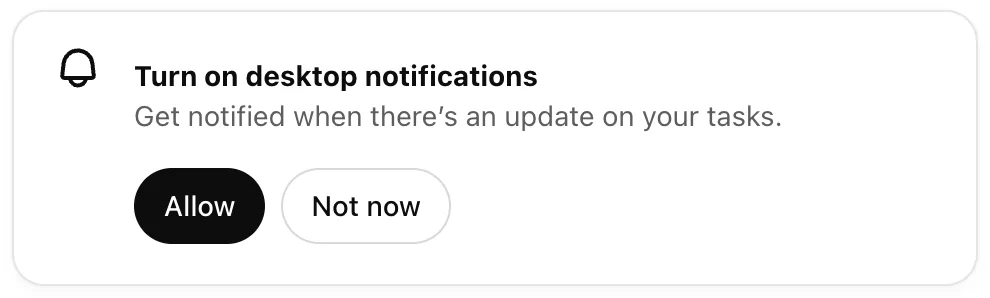
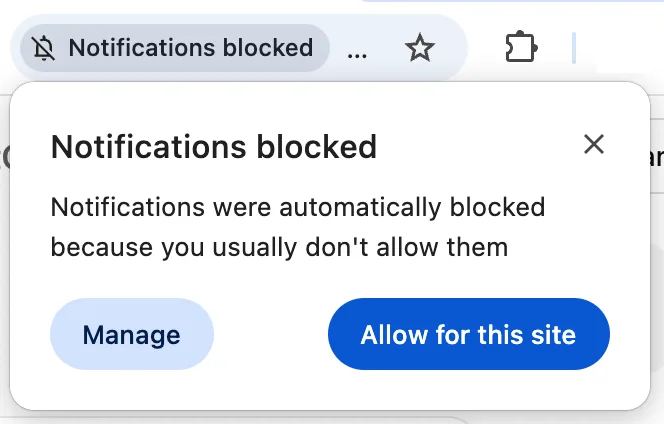
Select Allow. Your browser may ask you to approve notification permissions:
To receive mobile push notifications, create a task in a supported ChatGPT mobile app. Grant notification permission when prompted.
After notification permission is enabled, ChatGPT can send task notifications on supported devices.
View scheduled tasks
Go to Scheduled to view and manage tasks. To open the same task list from Settings:
Go to Settings > Notifications.
Select Manage tasks to open Scheduled.
To open the task list from a conversation, select the more options menu (•••), then select See scheduled tasks.
Edit a scheduled task
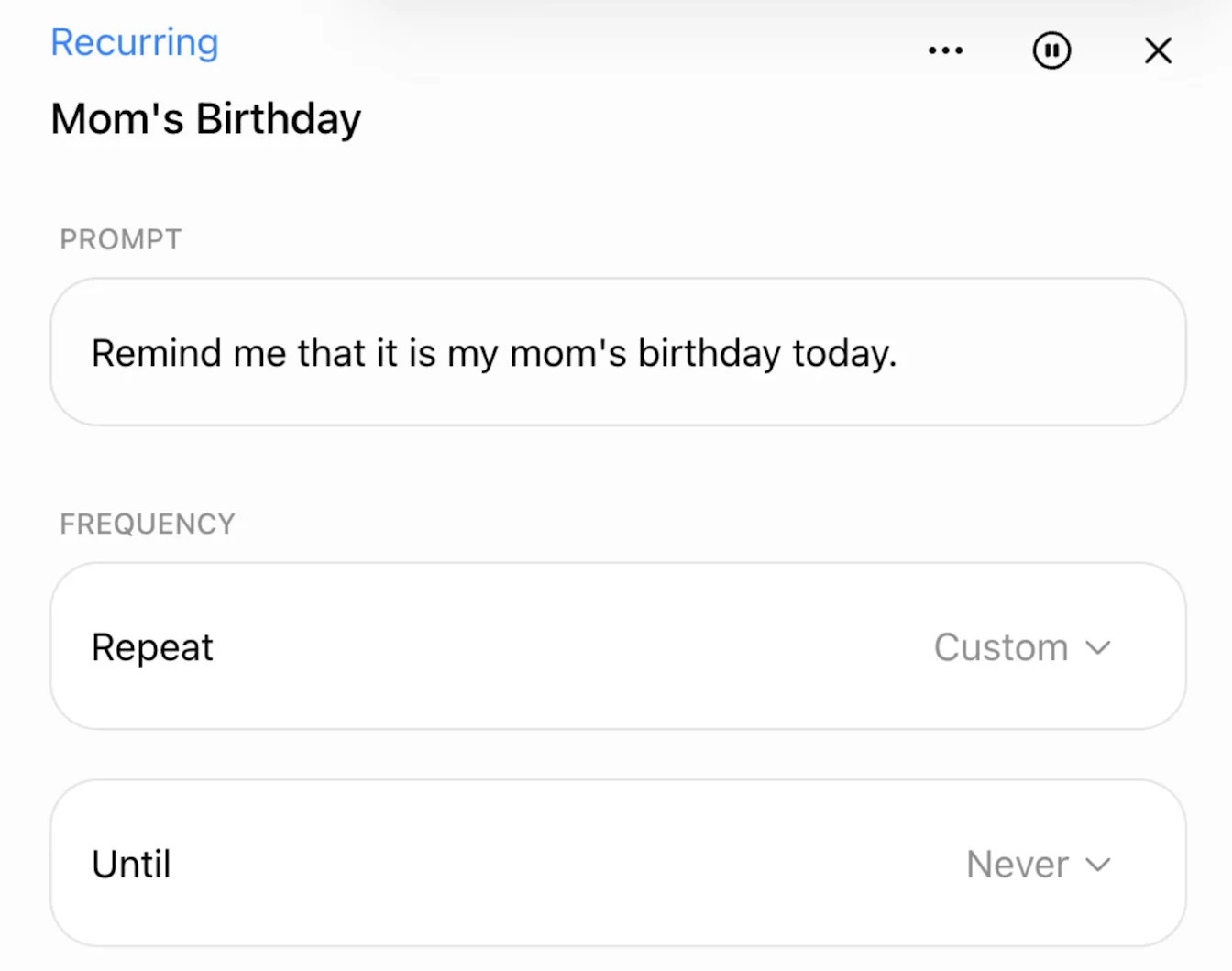
Select the task title in its conversation. Use the task panel to edit, pause, manage, or delete the task.
Update task schedules and notifications
Open a task in Scheduled to review or edit its schedule. Go to Settings > Notifications to change task notification preferences.

Choose a schedule or an app event
Use a schedule when you want work to run at a chosen time. Use an event-triggered task when you want work to respond to supported app activity, such as an incoming message or pull request activity. The available events depend on the app and your access.
A plugin can include a connected app used by a task. Installing the plugin or connecting the app does not create an event-triggered task or make every event available. Create the task and review its trigger, conditions and instructions. For plugin installation and app setup, see: Plugins in ChatGPT and Codex.
Create an event-triggered task
Event-triggered (webhook-based) tasks run in Work and respond to supported Gmail, Slack, or GitHub activity. They are available to eligible users on Plus, Pro, Business, Enterprise, and Edu plans, and in ChatGPT for Healthcare workspaces. Free and Go accounts cannot create event-triggered tasks, and event-triggered tasks are not available in FedRAMP workspaces.
Go to Settings > Apps and connect a supported Gmail, Slack, or GitHub account.
Open Work and describe the event and the action ChatGPT should take.
Review Trigger, Condition, and Prompt, and complete any required authorization.
Go to Scheduled to review, edit, pause, or delete the task.
Gmail tasks can respond to a new message or filter by sender or subject. Slack tasks can respond to new channel messages. Add @ChatGPT to each monitored Slack channel. GitHub tasks can respond to supported pull request activity in an authorized github.com repository.
Enterprise, Edu, and ChatGPT for Healthcare admins must enable Allow event-triggered scheduled tasks before members can create these tasks. In ChatGPT for Healthcare, event-triggered tasks are turned off by default and are not covered under a Business Associate Agreement (BAA). Do not use them to transmit, store, or process protected health information (PHI).
Actions that require approval may pause the task. Event-triggered tasks can be shared and scheduled by recipients who have access to Work and the required connected apps.
Review an event-triggered task
Review the selected app and account, the event, any conditions and the task instructions before relying on the task. If a task stops responding, check Scheduled for a paused task or pending approval, and confirm that the required app account is still connected and authorized. For connection problems, see: Troubleshooting apps in ChatGPT.
Review scheduled task limits
Scheduled tasks support eligible ChatGPT models. Model availability and usage limits depend on the task, account plan, and workspace settings.
Active task limits depend on the plan: 3 for Free and Go, 5 for Plus, 10 for Business and Edu, and 15 for Pro and Enterprise. Limits for other eligible plans depend on the account or workspace. Free users can schedule a one-time task or a recurring task no more than once per day. Free tasks use flexible scheduling windows, such as morning, afternoon, or night. Hourly schedules and exact delivery times require an eligible paid plan. If you reach the limit, pause or delete an active task, or wait for one to finish before creating or resuming another.
Scheduled tasks do not support:
Voice chats
GPTs
Understand Compliance API coverage
Scheduled tasks are included in the Compliance API. Shared task links and the saved snapshots they contain are not currently included. For more information, see: Compliance API for Enterprise customers.
Share a scheduled task
Share an eligible scheduled or event-triggered task so another person can review its instructions and create a separate copy.
You can share eligible active or paused scheduled tasks, including event-triggered tasks. Completed tasks cannot be newly shared. Tasks that run only on your computer cannot be scheduled from a shared link.
Create a shared task link
Go to Scheduled.
Find the task, then select the more options menu (•••).
Select Share.
Review the task details in the Share task dialog.
Select Copy link.
Send the copied link to the intended recipient.
Anyone with a personal-account task link can view the shared task. A task link created in an eligible ChatGPT Business, Enterprise, or Edu workspace, or in a ChatGPT for Healthcare workspace, can be opened only by members of that workspace. A member of a Business or Enterprise workspace can view a personal-account task link but cannot schedule it in that workspace.
Review what a shared task includes
A shared task link includes a snapshot of the task title, instructions, schedule, and original time zone. Depending on the task, it may also retain its selected ChatGPT mode or model when an eligible recipient schedules a copy.
A shared task link does not include the creator’s name, chat history, previous task results, saved memories, custom instructions, attached files, connected app data, or connected app credentials. Recipients use their own account permissions and connected app access.
The task title may appear in a link preview, and anyone who can open the link can read the full task instructions. Do not include health information, financial details, passwords, account numbers, or other sensitive personal information in the task title or instructions.
Changes to the original task do not automatically update its shared link. To refresh the existing link with the latest task details, open the Share task dialog and select Copy link.
Schedule a shared task
Open the shared task link.
Review the task title, instructions, schedule, and original time zone.
If prompted, select Log in to schedule and sign in.
In Shared with you, update the task details or adjust the schedule for your time zone if needed.
Select Schedule task.
ChatGPT starts a new conversation to create a separate task in the recipient’s account. The recipient must have access to scheduled tasks and available task capacity. To schedule a shared event-triggered task, the recipient also needs access to Work, their own supported app connection, and any required workspace or app permissions.
Delete a shared task link
Go to Scheduled.
Select the task’s more options menu (•••).
Select Share.
Select the trash can icon next to the shared link.
Select Delete share to confirm.
Deleting the link stops other people from opening or scheduling the shared task. It does not delete the original task or separate copies that recipients already created.
Before deleting your account, delete any shared task links from their original tasks.
Understand shared task links and data exports
Personal account data exports include metadata for shared conversation links. Scheduled tasks, shared task links, and their saved snapshots are not currently included.
For information about which shared links appear in data exports, see: ChatGPT shared links.
FAQ
Who can use scheduled tasks?
Scheduled tasks and scheduled task sharing are available to eligible ChatGPT Free, Go, Plus, Pro, Business, Enterprise, and Edu users, and users in eligible ChatGPT for Healthcare workspaces, subject to account and workspace settings. Event-triggered tasks require Work and an eligible Plus, Pro, Business, Enterprise, or Edu account, or an eligible ChatGPT for Healthcare workspace. They are not available on Free or Go, or in FedRAMP workspaces.
Is the Scheduled page available in the ChatGPT desktop app?
Availability depends on the app, app version, and account. If Scheduled does not appear in the ChatGPT desktop app, use ChatGPT on the web. You can create, share, and update event-triggered tasks on the web or in supported mobile apps. The desktop app can display existing event-triggered tasks, but it does not support creating or editing their trigger conditions. Codex uses separate automations.
What can I do on the Scheduled page?
The Scheduled page lists current tasks. Use it to create tasks, review results and schedules, or pause, resume, edit, or delete a task.
What happens if I delete a chat associated with a task?
Deleting a chat associated with a scheduled task pauses the task but does not delete its shared task link. To stop access, delete the link separately. Deleting a task from Scheduled does not delete the associated chat.
What are monitoring tasks?
Monitoring tasks check for changes and send a notification when a relevant update occurs. They can use information from previous runs and stop when a defined end condition is met.
How often can tasks run, and is there a limit?
Free users can schedule a one-time task or a recurring task no more than once per day. Eligible paid plans support recurring tasks up to once per hour and exact delivery times. Event-triggered tasks can run up to 30 times per hour and 720 times per day across all of your event-triggered tasks. Multiple events may be grouped together. Inactive tasks may pause automatically.
What is the difference between scheduled tasks and Codex automations?
Scheduled tasks run in ChatGPT and can handle reminders, recurring work, daily updates, and monitoring. Codex automations run in Codex.
Why did my task pause?
A task may pause if it is inactive, requires additional action, or its associated chat is archived or deleted. Go to Scheduled to resume, edit, or delete the task.
Do scheduled tasks work with connected apps?
Scheduled tasks can use supported apps, including Gmail, Slack, and GitHub, when those apps are available for your account or workspace. Go to Settings > Apps to review or connect supported apps. In managed workspaces, app access depends on workspace settings and admin permissions.
How do app permissions work with scheduled tasks?
Connected apps can read information or take actions based on the permissions granted. Personal-account users manage their own app permissions. Workspace admins may control app availability, persistent permissions, and permitted actions. An action that sends a message or changes external data may require approval. If approval is required, the task pauses until you review it.
Do scheduled tasks work with ChatGPT Health or ChatGPT Finances?
Scheduled tasks can use information from ChatGPT Health or ChatGPT Finances when those features are available for the account. For example, a task can provide a portfolio update after the market closes or summarize recent spending. ChatGPT Health and ChatGPT Finances are not supported sources for event-triggered tasks.
Why did I receive a Weekly finances update I did not create?
Connecting a financial account to ChatGPT Finances may create a Weekly finances update task. Existing Finances users may receive a one-time notification when the task is added.
To stop updates, go to Scheduled, select Weekly finances update, and select Pause or Delete. You can also go to Settings > Notifications and select Manage tasks. You do not need to turn off all ChatGPT notifications.